TELU

Turnitin Tips for Tutors – Student Queries

Turnitin Support for your Students

As promised, here is a follow up blog post for Academic staff, focused on troubleshooting potential student queries and information about how to signpost issues to TEL.

The TEL Unit have a Turnitin help page for students, which tutors are welcome to share. The page contains resources and FAQs for common issues:

Turnitin Student Support and FAQs – Technology Enhanced Learning Unit

5 Student Turnitin Problems and Solutions:

  1. Turnitin will not open due to an error message or internet connectivity:

If an error message appears or Turnitin fails to load up, this is usually due to browser or internet problems. Please signpost students to TEL tel@worc.ac.uk for support. Or to our Turnitin Student Support page. (Students need to ensure ‘third-party cookies’ are enabled for the Blackboard VLE https://worcesterbb.blackboard.com for Turnitin to open correctly. We recommend Chrome or Mozilla Firefox browsers.)

It is helpful if students provide us with a screenshot of the issue, if possible. However, if the due date is imminent, tutors can choose to accept an email copy of their student’s assignment and submit on behalf of the student instead.

  1. The submission point will not open or displays an error message – due to the ‘Open in New Window’ setting being applied:

For some devices, if the Turnitin assignment submission point is set to open in a new window this can prevent access. For this reason, the default option in Blackboard is for Turnitin not to open in a new window for students. If you have added the ‘Open in new window’ setting, we recommend unticking this choice, by using the Blackboard three-dot menu for the Turnitin submission point:

  1. A student cannot make a Late Submission to the original point:

The Late Submission setting allows students who have not been able to submit ahead of the due date and time to make one late submission in total. If a student has accidentally submitted an incorrect version of their assignment, either before the due date has passed or afterwards, it will only be possible for students to make a further late submission if a tutor intervenes. Tutors can contact us at TEL for support, as there are workarounds if you would like the student to have the opportunity to make another normal late attempt.

We have advice for the different types of Late Submissions in our Turnitin manual – for normal Late submissions, Resubmissions or Mitigating Circumstances.

  1. A Student has submitted the wrong assignment to the submission point by mistake:

When the recommended settings are applied, if the due date has not yet passed, students can resubmit as many times as they wish up until this time. There is no need to remove a submission, as a new submission will overwrite the incorrect document. The previous incorrect version will not be compared for similarity checking.

However, if the due date has passed and a student has already submitted, they will not be able to make a further late submission (as described above). Students are not able to remove a submission themselves but module leaders can assist. Please feel free to contact the TEL Unit if you would like advice as a tutor.

Sometimes a student may have accidentally submitted an incorrect assignment to the wrong module, as well as to the correct submission point – If this has happened, please contact TEL tel@worc.ac.uk. Both module leaders will need to be made aware if the due dates have passed. If the submission points are summative, there will be a high similarity score match for self-plagiarism. (Self-matches could later be filtered out using the ‘Exclude Sources’ button by tutors: Originality Report.)

  1. Students cannot resubmit, but the due date has not yet passed:

We recommend checking the option Generate reports immediately (students can resubmit until due date) has been chosen. (This option also allows students to view similarity reports before the deadline is reached.)

Unfortunately, it is easy to accidentally select a different choice here, due to the use of a drop-down menu. It is possible to alter this Optional Setting in Turnitin, by selecting the cog in the top right-hand corner. Please see our Checking or Changing the Settings guidance.

If Academic staff or students need any support with Turnitin, please do not hesitate to contact us at TEL tel@worc.ac.uk.

Turnitin Tips for Tutors – Student Queries Read More »

PebblePad Support for Students and External Assessors

PebblePad Logo 2025

The TEL Unit (Library Services) provide support for PebblePad, a personal learning system that is used for portfolios and practice assessments. All staff and students have their own account which can be used for recording personal development and continuing professional development activities. The TEL Unit offer training and support with PebblePad, this can range from student orientated workshops, advising staff at a departmental level, or 1:1 advice for PebblePad users. 

At this time of year, we are aware that many students are using PebblePad while out on placements. We would like to make sure staff and students know where to get help with PebblePad by sharing some handy troubleshooting tips. We recommend tutors should be the first point of contact if a student experiences any PebblePad problems, but the TEL team are always happy to assist from a technical point of view.  

  • Students can contact the TEL team by email tel@worc.ac.uk for direct support -TEL office hours are Mon- Fri, 9am to 5pm. 

External assessor shares: 

Often students need to share their submitted PebblePad assignment with a placement assessor outside of UW.  

  • After students share in this way, external workplace assessors will be able to see an ‘Assessor’ view of a workbook / ePortfolio, to complete the sections they need to edit. (Likewise, students will see parts which they can only edit in their view.)  
  • UW Academic Tutors who have access to a workspace can view students’ submissions from their managers dashboard (so external assessor shares are not required).

External assessor PebblePad emails: 

  • If assessors have any problems finding PebblePad emails, they can contact TEL tel@worc.ac.uk for further support, or students can do this on their behalf.

Editing Issues and the new External Assessor Dashboard: 

  • If a student has accidentally made an incorrect type of share, they can remove this by using the trash can option. – Most often these are ‘with people’ shares, which will give a ‘read-only’ like view of a workbook or ePortfolio. PebblePad have helpful instructions to delete ‘with people’ shares: Share an asset with people | Learners – Using PebblePad : Help Hub 
  • If a workplace assessor can log into their External UW PebblePad account, and an external assessor share has been successful – they should be able to see an assessor’s view under ‘Items shared for assessment’. This will be visible from their external account dashboard: External dashboard | Externals – Using PebblePad : Help Hub 

If there are any other technical PebblePad problems, Students or External Assessors can contact TEL, using the same email address which their UW PebblePad account is linked to, along with all the relevant details. 

If assessors have any issues viewing an external assessor share link, or accessing their External UW PebblePad account, assessors and students are welcome to send a message to us at TEL: tel@worc.ac.uk  

PebblePad logo

PebblePad Support for Students and External Assessors Read More »

Turnitin Tips for Tutors

With the semester well underway we thought it would be useful to share helpful advice for common Turnitin queries. Staff are welcome to contact us at TEL tel@worc.ac.uk, for any technical assistance with Turnitin issues. Whether you need a hand with settings, information about rubrics and grading, or if your students require help with a problem.

5 Staff Turnitin Problems and Solutions:

  1. How to Check or Change the Settings:

Ahead of students submitting their work, we recommend checking your Turnitin settings for individual submission points. If you are a newer member of staff, you can refer to our Submission Point guidance. New or existing staff can contact the TEL Unit for any Turnitin training needs.

  1. Changing the due date and time:

Certain Turnitin settings are greyed out once a submission point has been created. It is possible to change the due date and time in Blackboard instead: Checking or Changing the Settings

  1. Anonymous Marking:

Anonymous Marking is an optional setting which can be applied up until the first student submission attempt. Unfortunately, after students have begun to submit, it is then not possible to add this setting. If there is time, you could instead create a new submission point to allow students to resubmit anonymously.

If you need to reveal a student’s name in an anonymous assignment, please see our Turnitin Guide: Academic Integrity

  1. Turnitin Rubrics:

We have the following instructions for creating Rubrics and for Exporting and Importing Rubrics: Exporting Rubrics. Once created rubrics belong to an individual user’s account, so the only way to share a rubric is through exporting them as a .rbc file. If Rubric (.rbc) files need to be available for different staff members to use in Turnitin, these could be saved in a central location to store securely, and make them easily accessible to course teams. (Such as a SharePoint site – in case of staff absence, or if a staff member later leaves the University.) Please be aware that .rbc files will not open in other applications; just Turnitin. So, the files can only be stored, but not opened or viewed elsewhere.

  1. Similarity Report Queries:

We have guidance for Similarity reports in Turnitin, Submission Point – which includes our recommended ‘Similarity Report’ settings, the default ‘Compare against’ settings and how to ‘Exclude assignment template’ (if you have used one) from similarity matches.

‘Optional Settings’ in Turnitin allow you to choose to store papers in the ‘Standard paper repository‘ if this is a summative assessment, or ‘Do not store the submitted papers‘ if it is for formative use. When papers are stored in the ‘Standard Paper repository’, this means they are held in the ‘Global Turnitin Repository’. With the recommended assignment settings, students can view their similarity reports after each submission attempt, however, on the fourth submission they will need to wait 24 hours for the next similarity report to generate. Shortly after the due date and time has passed, Turnitin will run an additional ‘collusion check’, comparing all students’ submissions for the assignment.

For interpreting Similarity matches our TEL Turnitin guide gives an overview: Originality Report. This includes how to:

  • Use the ‘Exclude sources’ button,
  • Re-add sources back in
  • Or how to alter filters for an assignment by adjusting thresholds to run a ‘New Report’ – if needed.

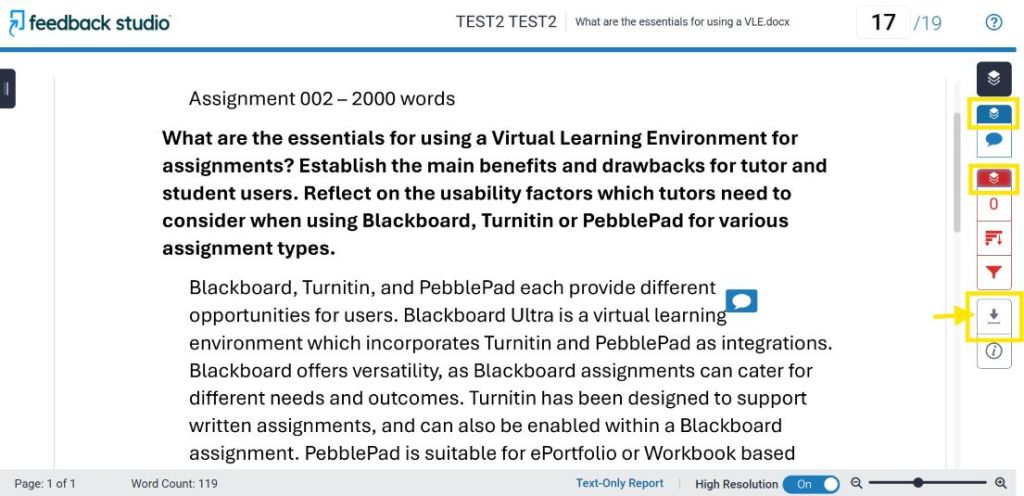
The Turnitin integration in the VLE uses the Feedback studio, ‘Classic’ similarity report view: Turnitin Online Guide: Navigating the Similarity Report – Turnitin Guides.

Please feel free to contact TEL tel@worc.ac.uk if you have any questions about similarity report anomalies. If required, TEL can also contact Turnitin UK directly.

*A note about Self-Plagiarism matches in the VLE: Turnitin is designed to find matches for self-plagiarism for Turnitin assignments held in different Blackboard modules, but self matches are normally automatically filtered out for different submission points within the same Blackboard module.

Our main TEL Turnitin resources and support pages are:

Staff:

Students:

We will send out a follow up Turnitin Blog post later this semester, which will focus on common student queries that academic staff may encounter. It will include extra troubleshooting fixes and information about where to sign-post students for further technical advice from TEL. Please continue to contact TEL tel@worc.ac.uk with any staff or student Turnitin problems.

Turnitin Tips for Tutors Read More »

December 2025 Assignments Information and TEL Opening Times.

Snowflake close up - Adobe stock By Almahyra
AdobeStock By Almahyra

With Midwinter approaching we wish to inform staff of our Christmas opening times.

Our offices will be closed, from 4 pm on Tuesday 23rd December 2025, and will open again on Monday 5th January 2026.

If any of your students have assignments which are being submitted over the Christmas period, or at the close of day on the 23rd December, please be aware that we will not be able to provide support during this time.

We kindly ask staff to ensure they plan accordingly so that alternative support is available for students if they have any technical problems. We recommend that staff members:

  • Establish a clear plan for assisting students with any submission issues.
  • Communicate this plan to your students in advance, emphasising that the TEL inbox will be unmanned while the University is closed over the Christmas break.

Student Support Resources

We have useful Resources online for Student Support, which includes assignment submissions processes and FAQs to troubleshoot common problems:

Staff Support

Staff members can also find help and guidance on the following main pages for the systems we manage. While we are unavailable, please feel free to continue to message us, and we will reply on our return to the office:

In the coming days, please still contact us with any queries you may have. You can message us directly at tel@worc.ac.uk.

On a personal note, the TEL Team would like to wish all staff and students a wonderful Christmas break, and we hope you enjoy the festive period. We look forward to collaborating with you in the new semester, next year.

Warmest regards,

The TEL Unit

December 2025 Assignments Information and TEL Opening Times. Read More »

September Support from TEL

As the first semester gets underway and new colleagues join the university, we thought it would be helpful to signpost where and how staff can access support from the Technology Enhanced Learning (TEL) Unit. Whether you’re exploring new digital tools or seeking guidance on best practices for online learning, we’re here to assist.

Online Support Resources

  • Our TEL Tools page provides an overview for staff of the main technologies used to support learning, teaching and assessment at the university.
  • Our Support Resources page links to a range of online guides, manuals and instructional videos for both staff and students. You will be able to find support for the Blackboard VLE (including Class Collaborate), Turnitin, PebblePad and Panopto. You can share suitable links from our student support pages with your students. For example, you can choose to include the most appropriate student resources within your module content: Adding Links

Our TEL Blog:

Staff members are welcome to subscribe to our Blog posts. These keep staff updated about recent changes to the VLE and its’ integrations and also provide handy hints or tips for using our suite of Learning Technologies. We have included some blog highlights below, from last year, which are helpful to refer to early on in a semester:

Additional help and training:

We run staff training sessions through the year. Our workshops are included in Staff Development / iTrent bookings. In addition, our team of Learning Technologists are available for departmental or small group training sessions for staff. So, if you or your colleagues have any Learning Technology training needs, please do get in touch. Also, if you have any questions or queries about the systems we manage, please contact us at TEL tel@worc.ac.uk.

September Support from TEL Read More »

Assessments in the Blackboard VLE

Choosing assignment submission tools within Blackboard Ultra.

It can sometimes be difficult to determine which is the best submission tool to use when creating assignments for your students in Blackboard.

We have the following advice and guidance for lecturers to help with your choice. We recommend different tools depending on the assignment needs and have submission workflows which your students can follow.

The flowchart below summarises the most suitable assignment software for each submission type:

Assessment flow chart -Essay/Report: Turnitin; Group, Exam/Test, Blackboard tools: Blackboard assignment; Portfolio/Practice assessment: PebblePad; Audio/Video: Panopto

Our Blackboard Ultra Manual includes instructions for the different Assessments within the VLE and how to provide Grading and Feedback.

Turnitin Assignments

Turnitin is most appropriate for word-based assignments or those which contain a large amount of text. Submissions can be checked for originality against the global database.

We have a Turnitin staff manual and a recent Turnitin assignments blog post, which includes all relevant links and tips for tutors.

Blackboard Assignments

If large files, multiple files, zip files, or files which contain mostly imagery, need to be uploaded for an assessment – a Blackboard assignment can be used to manage submissions.

Please see our Blackboard Ultra Manual: Learn Ultra Assignments.

Panopto Assignments

If students are creating video or audio, for example, as part of a presentation – a Blackboard assignment which uses the Panopto integration is normally most useful.

We have a Panopto manual for Staff and a helpful blog post for tutors with further advice: Panopto Assignment Submission Points

PebblePad Assignments

The Ultra VLE manual includes information about PebblePad Assessments. If you require support with PebblePad, please contact the TEL Unit tel@worc.ac.uk.

We also have student FAQs for common PebblePad queries.

If you have any questions or would like to speak to one of the team about upcoming assessments, you are welcome to contact us at tel@worc.ac.uk.

Assessments in the Blackboard VLE Read More »
Blackboard Analytics

Analytics with person using a laptop on a white table
Adobe stock By Tierney

As we progress through Semester 2 towards assessment time it’s important to keep an eye on how your students are engaging with your module and identify any who might be struggling – you can then provide support and guidance before the crucial assessment to ensure your students remain engaged, motivated and succeeding. 

You can easily track what your students are doing in a Learn Ultra site in a number of different ways. From gaining an overall idea of how long students are spending accessing a particular course site, to getting more targeted information on each resource or activity. This data can then be used to set up alerts for students that might be struggling, and help you provide useful interventions to keep them on track.

You can find more information and practical guidance on how to set up and use these features in our Blackboard Ultra Manual: Analytics and Alerts

Blackboard Analytics Read More »

Managing your Blackboard Dashboard and Notifications

With both staff and students accessing Blackboard every day, we thought it would be useful to share some handy hints and tips about managing announcements, module (course) lists and profiles in Blackboard.

Profile and Activity Stream

We have a useful informative video for students about customising Blackboard, with an overview of the main profile and activity stream settings which can be applied:

Please see a link to the video below which can be shared with your students if you wish:

Customising Blackboard Ultra Link

Blackboard also provides an overview of the Activity Stream for users here: Activity Stream – Blackboard

Module Lists

How to select favourites

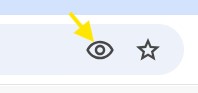
If your students are finding it tricky to find a module they need due to similar module titles / codes, or if they have more than one occurrence visible on their dashboard, they can favourite modules by selecting the star icon:

The favourites star brings the module to the top of their list, which is useful when assignments are due, and students need to locate the correct module quickly. This reduces the chance of a student accidentally submitting to an incorrect assignment submission point in another module occurrence.

Finding Missing or Hidden modules

You can use the search bar and filters on your ‘Courses’ page to find modules. If you discover that a module is missing as a staff member, you can enrol again using the Blackboard Access forms. Your access will then be granted within an hour and, as a staff member, it is possible to use the list at the bottom of the form to remove your own access too – so that you can hop on and off modules as necessary when supporting colleagues.

However, sometimes users inadvertently hide a module from their list in Blackboard. If this has happened, you will see the ‘Hidden from me’ option in the filter choices.

You can reveal the hidden module so it appears again in your list by using the three dots in the corner of the module tile → ‘Show Course’.  

Announcements

Blackboard has the following guidance for instructors about announcements:

Creating announcements in Blackboard Ultra

It is possible to save drafts of announcements ahead of when you need to send them, or to schedule announcements so that they are delivered to your students on a particular date and time.

Blackboard also has a student-orientated announcements help page, which you may find useful: How students view announcements

Reports of unwanted Email Announcements:

If any of your students have changed course or have completed earlier undergraduate study but are still receiving email notifications, these are most likely to be coming from a Blackboard organisation page. We can remove staff or students’ enrolments from any historic organisation pages. The unwanted messages will then stop clogging up inboxes.

Staff or students can contact us at tel@worc.ac.uk, to inform us about any announcement issues.

Managing your Blackboard Dashboard and Notifications Read More »

Blackboard Enrolments for Semester 2

People working together to build a jigsaw
Image By Flash Vector

Following on from our recent blog post regarding preparing your modules for Semester 2 Updating Your Blackboard Courses for Semester 2! – Technology Enhanced Learning Unit we are pleased to confirm that students are now being enrolled on to their semester 2 modules in readiness for teaching next year.

If you haven’t already, please update your modules with your teaching materials for the new semester.

Blackboard Enrolments for Semester 2 Read More »

Important Information: December Assignments & TEL Opening Times

Baubles in snow
By epiximages Adobe Stock

Please be advised that the Technology Enhanced Learning (TEL) unit will be closed for the Christmas break from end of day Friday, 20th December 2024, until Thursday, 2nd January 2025.

If your students have assignments due during this period or on the close of day on the 20th of December, TEL support will not be available. We kindly ask that you plan accordingly to provide any necessary support to your students during this time.

To ensure a smooth and stress-free submission process:

  • Establish a clear plan for assisting students with any submission issues.
  • Communicate this plan to your students in advance, emphasising that the TEL inbox will be unmanned over the break.

Resources for Support

Guidance on Turnitin and Panopto submissions is available on our webpage and in these blog posts:


It has been a pleasure supporting you with learning technologies at the University of Worcester this year, particularly as we’ve worked together on the implementation of our new VLE.

The TEL Team wishes you a wonderful festive break, and we look forward to collaborating with you in the new year!

Warm regards,
The TEL Team

Important Information: December Assignments & TEL Opening Times Read More »