Ultra

Turnitin Tips for Tutors – Student Queries

Turnitin Support for your Students

As promised, here is a follow up blog post for Academic staff, focused on troubleshooting potential student queries and information about how to signpost issues to TEL.

The TEL Unit have a Turnitin help page for students, which tutors are welcome to share. The page contains resources and FAQs for common issues:

Turnitin Student Support and FAQs – Technology Enhanced Learning Unit

5 Student Turnitin Problems and Solutions:

  1. Turnitin will not open due to an error message or internet connectivity:

If an error message appears or Turnitin fails to load up, this is usually due to browser or internet problems. Please signpost students to TEL tel@worc.ac.uk for support. Or to our Turnitin Student Support page. (Students need to ensure ‘third-party cookies’ are enabled for the Blackboard VLE https://worcesterbb.blackboard.com for Turnitin to open correctly. We recommend Chrome or Mozilla Firefox browsers.)

It is helpful if students provide us with a screenshot of the issue, if possible. However, if the due date is imminent, tutors can choose to accept an email copy of their student’s assignment and submit on behalf of the student instead.

  1. The submission point will not open or displays an error message – due to the ‘Open in New Window’ setting being applied:

For some devices, if the Turnitin assignment submission point is set to open in a new window this can prevent access. For this reason, the default option in Blackboard is for Turnitin not to open in a new window for students. If you have added the ‘Open in new window’ setting, we recommend unticking this choice, by using the Blackboard three-dot menu for the Turnitin submission point:

  1. A student cannot make a Late Submission to the original point:

The Late Submission setting allows students who have not been able to submit ahead of the due date and time to make one late submission in total. If a student has accidentally submitted an incorrect version of their assignment, either before the due date has passed or afterwards, it will only be possible for students to make a further late submission if a tutor intervenes. Tutors can contact us at TEL for support, as there are workarounds if you would like the student to have the opportunity to make another normal late attempt.

We have advice for the different types of Late Submissions in our Turnitin manual – for normal Late submissions, Resubmissions or Mitigating Circumstances.

  1. A Student has submitted the wrong assignment to the submission point by mistake:

When the recommended settings are applied, if the due date has not yet passed, students can resubmit as many times as they wish up until this time. There is no need to remove a submission, as a new submission will overwrite the incorrect document. The previous incorrect version will not be compared for similarity checking.

However, if the due date has passed and a student has already submitted, they will not be able to make a further late submission (as described above). Students are not able to remove a submission themselves but module leaders can assist. Please feel free to contact the TEL Unit if you would like advice as a tutor.

Sometimes a student may have accidentally submitted an incorrect assignment to the wrong module, as well as to the correct submission point – If this has happened, please contact TEL tel@worc.ac.uk. Both module leaders will need to be made aware if the due dates have passed. If the submission points are summative, there will be a high similarity score match for self-plagiarism. (Self-matches could later be filtered out using the ‘Exclude Sources’ button by tutors: Originality Report.)

  1. Students cannot resubmit, but the due date has not yet passed:

We recommend checking the option Generate reports immediately (students can resubmit until due date) has been chosen. (This option also allows students to view similarity reports before the deadline is reached.)

Unfortunately, it is easy to accidentally select a different choice here, due to the use of a drop-down menu. It is possible to alter this Optional Setting in Turnitin, by selecting the cog in the top right-hand corner. Please see our Checking or Changing the Settings guidance.

If Academic staff or students need any support with Turnitin, please do not hesitate to contact us at TEL tel@worc.ac.uk.

Turnitin Tips for Tutors – Student Queries Read More »

Turnitin Tips for Tutors

With the semester well underway we thought it would be useful to share helpful advice for common Turnitin queries. Staff are welcome to contact us at TEL tel@worc.ac.uk, for any technical assistance with Turnitin issues. Whether you need a hand with settings, information about rubrics and grading, or if your students require help with a problem.

5 Staff Turnitin Problems and Solutions:

  1. How to Check or Change the Settings:

Ahead of students submitting their work, we recommend checking your Turnitin settings for individual submission points. If you are a newer member of staff, you can refer to our Submission Point guidance. New or existing staff can contact the TEL Unit for any Turnitin training needs.

  1. Changing the due date and time:

Certain Turnitin settings are greyed out once a submission point has been created. It is possible to change the due date and time in Blackboard instead: Checking or Changing the Settings

  1. Anonymous Marking:

Anonymous Marking is an optional setting which can be applied up until the first student submission attempt. Unfortunately, after students have begun to submit, it is then not possible to add this setting. If there is time, you could instead create a new submission point to allow students to resubmit anonymously.

If you need to reveal a student’s name in an anonymous assignment, please see our Turnitin Guide: Academic Integrity

  1. Turnitin Rubrics:

We have the following instructions for creating Rubrics and for Exporting and Importing Rubrics: Exporting Rubrics. Once created rubrics belong to an individual user’s account, so the only way to share a rubric is through exporting them as a .rbc file. If Rubric (.rbc) files need to be available for different staff members to use in Turnitin, these could be saved in a central location to store securely, and make them easily accessible to course teams. (Such as a SharePoint site – in case of staff absence, or if a staff member later leaves the University.) Please be aware that .rbc files will not open in other applications; just Turnitin. So, the files can only be stored, but not opened or viewed elsewhere.

  1. Similarity Report Queries:

We have guidance for Similarity reports in Turnitin, Submission Point – which includes our recommended ‘Similarity Report’ settings, the default ‘Compare against’ settings and how to ‘Exclude assignment template’ (if you have used one) from similarity matches.

‘Optional Settings’ in Turnitin allow you to choose to store papers in the ‘Standard paper repository‘ if this is a summative assessment, or ‘Do not store the submitted papers‘ if it is for formative use. When papers are stored in the ‘Standard Paper repository’, this means they are held in the ‘Global Turnitin Repository’. With the recommended assignment settings, students can view their similarity reports after each submission attempt, however, on the fourth submission they will need to wait 24 hours for the next similarity report to generate. Shortly after the due date and time has passed, Turnitin will run an additional ‘collusion check’, comparing all students’ submissions for the assignment.

For interpreting Similarity matches our TEL Turnitin guide gives an overview: Originality Report. This includes how to:

  • Use the ‘Exclude sources’ button,
  • Re-add sources back in
  • Or how to alter filters for an assignment by adjusting thresholds to run a ‘New Report’ – if needed.

The Turnitin integration in the VLE uses the Feedback studio, ‘Classic’ similarity report view: Turnitin Online Guide: Navigating the Similarity Report – Turnitin Guides.

Please feel free to contact TEL tel@worc.ac.uk if you have any questions about similarity report anomalies. If required, TEL can also contact Turnitin UK directly.

*A note about Self-Plagiarism matches in the VLE: Turnitin is designed to find matches for self-plagiarism for Turnitin assignments held in different Blackboard modules, but self matches are normally automatically filtered out for different submission points within the same Blackboard module.

Our main TEL Turnitin resources and support pages are:

Staff:

Students:

We will send out a follow up Turnitin Blog post later this semester, which will focus on common student queries that academic staff may encounter. It will include extra troubleshooting fixes and information about where to sign-post students for further technical advice from TEL. Please continue to contact TEL tel@worc.ac.uk with any staff or student Turnitin problems.

Turnitin Tips for Tutors Read More »

Student Enrolment for Semesters 2 and 3 Blackboard Courses

Students will be added to their Semester 2 and 3 Blackboard courses on Monday the 15th December 2025.

Once enrolments have been applied, staff will be able to send announcements and notifications from these modules as required: Announcements

If you would like any departmental, team or individual support in the upcoming semester, please do not hesitate to contact us at TEL, tel@worc.ac.uk.

Student Enrolment for Semesters 2 and 3 Blackboard Courses Read More »

Knowledge Checks in Blackboard

Document on a computer screen showing two ticks and one cross next to lines of text - like a multiple choice quiz
Adobe stock by Belozersky

Knowledge checks are an element of interactive learning, which tutors can weave into their module content as an informal form of assessment, providing immediate feedback for students.

The knowledge check block can be included in a Blackboard document as an engagement tool. Tutors can pose multiple choice or multiple answer questions, and tailor their feedback for correct / incorrect answers. Knowledge checks permit unlimited attempts for students and lecturers will have access to useful metrics to review levels of understanding.

How are knowledge checks beneficial to learning?

Knowledge checks can be used:

  • To assist with students’ acquisition and retention of key knowledge.
  • To help students identify learning aspects which they need to delve into further.
  • To improve levels of engagement with module content.
  • As an approach to boost students’ confidence.

Multiple attempts are permitted for these brief informal quizzes, so this will hopefully reduce the pressure for students to get everything correct the first time. Academic staff can tailor the feedback for both correct and incorrect answers, this allows tutors to encourage their students and add additional clarification. Feedback can be used to reveal an explanation, to reduce the chance of common misconceptions forming.

How can I use the metrics?

Knowledge check metrics can be helpful for lecturers to determine any knowledge or understanding blind spots their students may have as a group. Results can be used to inform additional teaching activities, providing their students with the opportunity to tackle gaps in their knowledge. The metrics are only visible for tutors and give a general overview of question attempts. Unlike Blackboard tests, the results are not included in the Gradebook alongside names (so it is not possible to track individual interactions), but a summary is displayed in the original document for instructors, where the knowledge check quiz was added.

Where can I add knowledge checks within module contents?

These multiple-choice quizzes can be added to a document at any point within a module, allowing flexibility in approach. For example:

  • Knowledge checks could be used to reflect on pre-existing knowledge when starting off a new topic.
  • They can be included for students to engage with or review new information contained in the same document.
  • Provide a quick review or discussion prompt mid-way through a module.
  • Or as a short informal revision task, for students to check their levels of understanding at the end of the module for core concepts.

Please see our guidance about how to add Knowledge Checks here.

Blackboard also have useful information about the features of knowledge checks in their online guidance and video.

Knowledge Checks in Blackboard Read More »

Your 2025–26 Blackboard Modules Are Now Available

People viewing text in books and on laptops.

Adobe stock by alexdndz

Blackboard is now live for the 2025–26 academic year. If you’re someone who likes to get a head start, now is the perfect time to begin building and preparing your module content.

To access your new modules, all staff must enrol – even if you’re the module leader. Full guidance is available here: Enrolling on Modules.

Planning to reuse materials from last year? Please make sure you follow our content copying guidance, which you can find here: Copying Content.

User Manual, Guide Book or Technical Instruction Concept. Tiny Female Character Carry Huge Handbook with Guidance and Tutorial for Users. Customer Support, Aid. Cartoon People Vector Illustration
Adobe stock by Sergii Pavlovskyi

Did you know we’ve created a dedicated support site to help you get the most out of Blackboard Learn Ultra? The Blackboard Learn Ultra Manual covers everything from creating content and setting up assessments to using interactive tools and enhancing student engagement.

If you’d like any further support, please don’t hesitate to contact the TEL team at tel@worc.ac.uk We’re here to help!

Your 2025–26 Blackboard Modules Are Now Available Read More »

Reflections and Review – Blackboard Ultra Insights Week

Adobe stock by adrian_ilie825

The Technology Enhanced Learning Unit’s Blackboard Ultra Insights Week proved to be a resounding success, drawing in enthusiastic participation across all sessions. By shifting from a full-day in-person event to several shorter, focused online sessions spread throughout the week, the format offered a more accessible and flexible experience for attendees. We had some people who attended every session and others who dipped into those sessions that were especially relevant to their interests.

The sessions covered a range of topics around engagement and retention in Blackboard Ultra:

  • Integrating Reading Resources covered methods to help students engage with course readings, including a demonstration by Michelle Sterry of her use of reflective journals for students to record and receive feedback on their readings
  • Engagement and Analytics covered Helen Watts’ research into VLE engagement as an indicator of student outcomes and Helen Hope’s use of Blackboard analytics to facilitate student engagement.
  • Guided In-class Activities showcased Louise Martin’s innovative use of Blackboard functionality to build tasks for students to work through in a classroom setting. One attendee said it was “The most useful thing I have seen in ages!”
  • Building Fully Online Courses looked at Sarah Davis’s development of a fully online master’s-level course using a combination of Blackboard Ultra and MS Teams. Sarah’s approach would be an excellent blueprint for anyone considering adopting a distance-learning approach, so we highly recommend viewing the recording if this applies to you.

Recordings are now available on the LDTE CPD SharePoint site at the link below:

LDTE CPD – Home

Thanks again to Ros Sykes, Michelle Sterry, Helen Watts, Helen Hope, Louise Martin and Sarah Davis for presenting some fantastic sessions, and to everyone who attended.

Reflections and Review – Blackboard Ultra Insights Week Read More »

Blackboard Rubrics

Rubric Grid icon with ticks

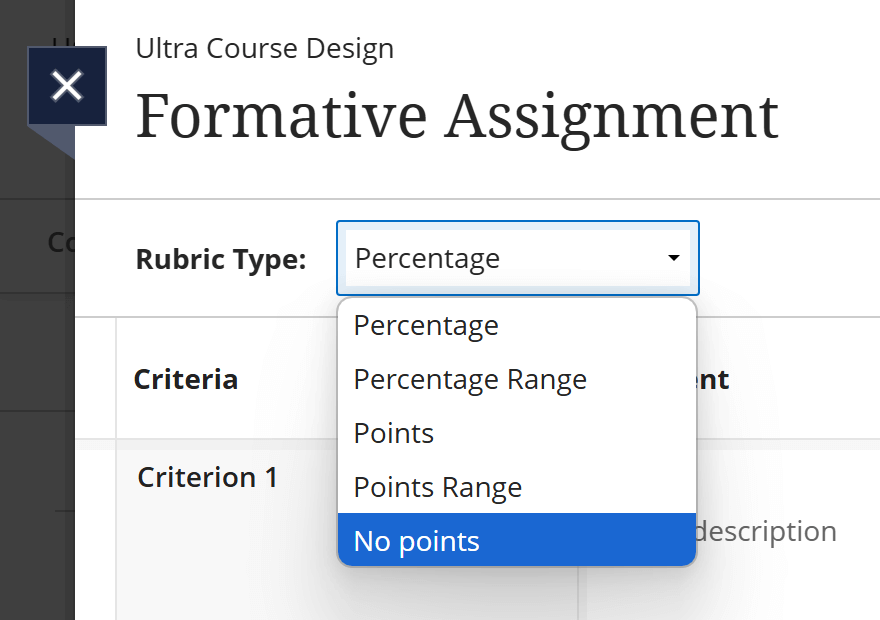
You can now create no points rubrics for Blackboard Ultra assignments, just like you can for Turnitin.

Previously, Blackboard rubrics required each feedback item to have a points value or percentage associated with it, which was automatically added to the gradebook. This value needed to be overridden so that students would not see an incorrect grade.

When creating a new rubric, just choose the No points selection in the Rubric Type dropdown:

Formative Assignment 'No Points' selected in drop-down menu

Complete the rubric table and save your content. You can then apply the new rubric to any Blackboard assignment.

For detailed guidance on how to create a new rubric, or how to export an existing rubric from another Blackboard course area, access the Blackboard Manual.

Blackboard Rubrics Read More »

Blackboard Ultra Insights Week – Drop in Sessions

Group of People in an Online chat - displayed on a laptop screen

Adobe stock by Triative

As part of Blackboard Ultra Insights Week, the TEL team will be hosting some online drop-in sessions open to all staff. These will offer support and ideas on enhancing course engagement and interactivity, improving course structure, and copying content effectively for the new academic year. Come along and chat to us, bounce some ideas around or ask any questions that you may have.

Drop-in sessions:

Tuesday 20th May, 14:30pm -15:30

Link to join the session

Friday 23rd May, 10:00 – 11:00

Link to join the session

Additionally, as part of the week’s events, staff are invited to participate in a quick survey about Ultra – just three questions that will help us identify what tools are most useful to staff.

You can access the survey here.

Blackboard Ultra Insights Week – Drop in Sessions Read More »

Blackboard Ultra Insights Week

Red person-shaped wooden game piece in centre - with a network of other people shaped pieces around them.
Adobe stock by Monster Ztudio

The Technology Enhanced Learning Unit is celebrating the successful first year of the University using the new Blackboard Ultra VLE with a Blackboard Ultra Insights Week. Throughout the week, online presentations will be delivered by colleagues from academic faculties, Library Services, and the TEL team, showcasing innovative and effective uses of Blackboard Ultra. Sessions have been scheduled around lunchtime, offering a timely break and a chance to engage with something different during the marking period. The presentations will be recorded for those who are unable to attend.

In addition, the TEL team will host online drop-in sessions open to all—offering support and ideas on enhancing course engagement and interactivity, improving course structure, and copying content effectively for the new academic year.

There will also be an opportunity to take part in an online survey designed to gather insights into which areas and tools within the VLE staff find most valuable.

The itinerary for the week is as follows:

Staff Presentations:

Student Engagement with Module Readings

Monday 19th May, 11:00 – 12:00

Ros Sykes, Andrew Bright, Michelle Sterry

This session will explore strategies to boost student engagement with course literature and resources, focusing on practical techniques in Blackboard to encourage the use of your Talis resource lists.

VLE Engagement and Course Analytics

Tuesday 20th May, 12:00 – 12:45

Helen Watts, Helen Hope

This session will look at VLE engagement and student retention, and the practical use of Blackboard Ultra’s analytic tools.

Guided in-class Activities in Blackboard Ultra

Wednesday 21st May, 12:30 – 13:30

Louise Martin

In this session, Louise Martin will demonstrate how guided activities in Blackboard Ultra can be used to support in-class learning, showcasing interactive tasks she has designed to actively engage students and reinforce key concepts.

Developing Fully Online Courses

Thursday 22nd May, 12:00 – 13:00

Sarah Davis

In this session, Sarah Davis will share her experience of developing a fully online course using Blackboard. This session is ideal for anyone considering the design of fully online or highly blended courses—an area of growing strategic importance for the University.

Drop-in sessions:

  • Tuesday 20th May, 14:30 -15:30
  • Friday 23rd May, 10:00 – 11:00

Links for all presentations and drop-in sessions will be shared at a later date.

We hope that you will be able to take part!

Blackboard Ultra Insights Week Read More »

Assessments in the Blackboard VLE

Choosing assignment submission tools within Blackboard Ultra.

It can sometimes be difficult to determine which is the best submission tool to use when creating assignments for your students in Blackboard.

We have the following advice and guidance for lecturers to help with your choice. We recommend different tools depending on the assignment needs and have submission workflows which your students can follow.

The flowchart below summarises the most suitable assignment software for each submission type:

Assessment flow chart -Essay/Report: Turnitin; Group, Exam/Test, Blackboard tools: Blackboard assignment; Portfolio/Practice assessment: PebblePad; Audio/Video: Panopto

Our Blackboard Ultra Manual includes instructions for the different Assessments within the VLE and how to provide Grading and Feedback.

Turnitin Assignments

Turnitin is most appropriate for word-based assignments or those which contain a large amount of text. Submissions can be checked for originality against the global database.

We have a Turnitin staff manual and a recent Turnitin assignments blog post, which includes all relevant links and tips for tutors.

Blackboard Assignments

If large files, multiple files, zip files, or files which contain mostly imagery, need to be uploaded for an assessment – a Blackboard assignment can be used to manage submissions.

Please see our Blackboard Ultra Manual: Learn Ultra Assignments.

Panopto Assignments

If students are creating video or audio, for example, as part of a presentation – a Blackboard assignment which uses the Panopto integration is normally most useful.

We have a Panopto manual for Staff and a helpful blog post for tutors with further advice: Panopto Assignment Submission Points

PebblePad Assignments

The Ultra VLE manual includes information about PebblePad Assessments. If you require support with PebblePad, please contact the TEL Unit tel@worc.ac.uk.

We also have student FAQs for common PebblePad queries.

If you have any questions or would like to speak to one of the team about upcoming assessments, you are welcome to contact us at tel@worc.ac.uk.

Assessments in the Blackboard VLE Read More »