Announcement

Move from Collaborate to Microsoft Teams for Online Teaching

Remote work, online meeting, video conference, virtual team, office desk, illustration - AdobeStock image by Shawn

Following a review of tools used for online teaching, the University has agreed to move from Collaborate to Microsoft Teams. This decision was confirmed at LTSEC on 20 May.

Our current contract with Collaborate will end in August 2026, after which Teams will become the University’s primary platform for online teaching from 1 September 2026.

The decision reflects a balanced assessment of several factors. While cost and long-term value were important considerations, it was equally significant that the core teaching functionality offered through Collaborate is now available within Teams. This provides a more integrated, familiar environment for both staff and students, bringing online teaching into the same platform already widely used for collaboration across the University.

It was also recognised that continuing with Collaborate would require a move to a newer version in the near future. This version differs substantially from the current system in terms of features and usability, meaning staff would be adapting to a significantly different platform regardless. Given this, transitioning to Teams now offers a clearer and more consistent direction.

Staff feedback has been a key part of the process. Many colleagues are already confidently using Teams for teaching, and overall sentiment supported the move. Where concerns were raised, such as managing student interactions, these can be addressed through appropriate configuration of Teams to ensure sessions remain structured and manageable.

What does this mean for me?

Staff will need to familiarise themselves with using Teams for teaching ahead of the new academic year. Support will be available to ensure a smooth transition. Digital Services and the Technology Enhanced Learning Unit will provide training, guidance, and resources for both staff and students over the coming months, with further details shared via the staff bulletin, TEL and Digital Services websites, and iTrent.

Furthermore, any recordings made in Collaborate that you would like to retain will need to be moved to Panopto before the end of August. Please see the previous TEL blog post that covers this topic, with instructions.

This change represents a positive step towards a more unified and sustainable digital teaching environment, with the tools, support, and flexibility needed to deliver high-quality online learning.

Move from Collaborate to Microsoft Teams for Online Teaching Read More »

Digital Accessibility Week 2026

Building a More Inclusive Digital Environment

The TEL team is excited to launch Digital Accessibility Week 1st-5th June – a week dedicated to improving the accessibility of digital content across the university through practical workshops, drop-in sessions, guidance resources, and a university-wide accessibility challenge.

Digital accessibility is about making sure everyone can access and engage with digital content, including documents, webpages, presentations, and online learning materials. According to the Office for National Statistics, 17.7% of people in England and 21.1% of people in Wales identified as disabled in the 2021 Census. Accessible content helps remove barriers for many users, while also improving usability, readability, and flexibility for everyone.

Workshops, Support and the ‘500 Document Challenge’

Throughout the week, staff will have opportunities to:

  • Attend practical accessibility workshops
  • Access one-to-one support at drop-in sessions
  • Explore quick wins and five-minute fixes
  • Take part in the 500 Document Challenge to improve the accessibility of learning materials and university documents

As part of the challenge, courses across the university are encouraged to improve the accessibility of documents within Blackboard using Ally accessibility guidance and feedback. Our aim is to improve at least 500 documents to an Ally Accessibility score of 75% or above during the week.

The challenge is also an opportunity for Schools to work collaboratively to improve the accessibility of their learning materials. At the end of the week, certificates will be awarded to the School that achieves the greatest improvement in their overall Ally Accessibility score.

We’ll be sharing practical guidance on topics including:

  • Heading structures
  • Alt text
  • Accessible PDFs
  • Colour contrast
  • Accessible formatting and layout

Why Digital Accessibility Matters

Small changes can make a significant difference. Clear headings, accessible documents, captions, and meaningful structure can improve the experience for students and colleagues using assistive technologies, mobile devices, or alternative ways of accessing information.

“The power of the Web is in its universality. Access by everyone regardless of disability is an essential aspect.”
— Tim Berners-Lee

Whether you are new to digital accessibility or looking to build on existing practice, Digital Accessibility Week offers practical ways to get involved and make a positive impact across the university community.

Find Out More

You can explore the full programme of events and resources here:

Reference
Office for National Statistics (2023). Disability by age, sex and deprivation, England and Wales: Census 2021. Available at: ONS Disability Statistics

Digital Accessibility Week 2026 Read More »

TEL Support for Module Rollover 2026

Laptop and graphics showing a map of ideas.

Part 2 of 2

Module Rollover for Semester 1 will occur week commencing the 8th June.

In anticipation of the upcoming module rollover date, we would like to let you know that the TEL team are here to help with any queries you may have. Our Learning Technologists are available to discuss how to get the best out of the university’s technological tools, to enhance your pedagogic approaches.

Departmental or Course teams are welcome to contact us at TEL tel@worc.ac.uk to arrange a meeting.

Online support available from TEL

Module Design support

Our Learning Technologists have developed some insightful Module Design guidance for staff:

If you would like to speak with TEL about module design, please contact us at tel@worc.ac.uk

The Digital Education Hub

The Digital Education Hub is a new SharePoint site with practical guidance and support for online or blended learning. You can find out more about how the hub can be used here.

The Blackboard Manual

Our Blackboard Learn Ultra Manual covers everything from creating new content and setting up assessments, to using interactive tools or features which boost student engagement.

Other support from TEL

If you’d like any extra support, please don’t hesitate to contact the TEL Unit at tel@worc.ac.uk or by using the booking form for a ‘20 Mins with TEL’ slot with a Learning Technologist.

TEL Support for Module Rollover 2026 Read More »

Module Rollover for Semester 1, 2026

Part 1 of 2

Semester 1 Modules are due to be created in Blackboard week commencing 8th June 2026. Modules will be available for staff to self-enrol on from the second week of June to allow time to develop new online course content for next year.

Migrating your Content

Intending to reuse materials from last year?

Once you have self-enrolled onto the newly created modules in June. You can follow our Copying Content guidance to bring across any content from another module you are already enrolled on, you will firstly need to be in the new empty module.

Differences between a ‘Course Copy’ and the recommended ‘Bulk Copy’

Copying an entire course will include all old announcements and assessments. Only use this option if you wish to copy everything on the Content page including Panopto videos that are not held in a learning module or folder.

If you do use the course copy option, we recommend removing any copied assessments and to create new assessments for the current semester / academic year instead.

On the other hand, the Bulk Copy option allows you to select folders using ‘Copy Items’. We recommend copying only the specific items that are needed using the Bulk Copy method. You can also choose to copy individual items at a more granular level.

Copying Videos

Each Blackboard module has a Panopto folder where video content for the module needs to be held. By storing videos in this folder, permissions are granted to all users enrolled onto the Blackboard module to view. If you need to check your module’s videos you can do this by using the Panopto website link. (The Panopto website link is useful for managing your module’s video content, we recommend keeping this hidden from student view.) If you cannot see a video listed in your module’s Panopto folder, you will need to ensure this is copied over.  You can choose to upload and embed to Blackboard if any videos are missing. If you have any problems checking on the location of your videos, or ensuring videos are copied over, please do contact us at TEL tel@worc.ac.uk for further support.

A second blog post will follow (Part 2), detailing the different support available from TEL to assist colleagues with preparations for the new academic year. Part 2 is now available: Part 2: TEL Support for Module Rollover 2026

Module Rollover for Semester 1, 2026 Read More »

New SharePoint site to support the Design and Delivery of Online and Blended Learning

Modern science or technology abstract background. Cyberspace surface illustration. Vector.

Introducing the Digital Education Hub

The Digital Education Hub is a new SharePoint site created to support colleagues in the design and delivery of online and blended learning.

The Hub brings together practical and technology-enhanced guidance, with examples and resources all in one place – making it easy to access support. It can be used when designing a new course or CPD programme, developing online activities, refreshing existing content, or for exploring different approaches to teaching and learning.

You’ll find step-by-step guidance, templates, examples of practice, and support for using digital tools or platforms at the point of need. The Hub is intended to support colleagues involved in teaching and course development, regardless of experience level.

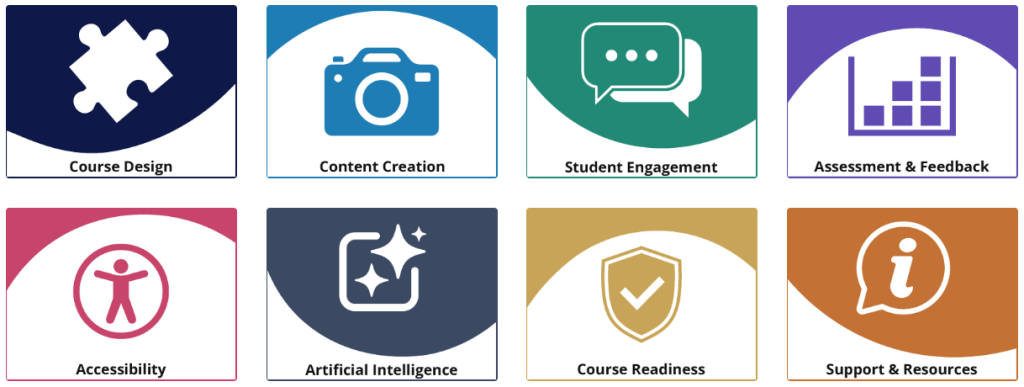
Menu / Sections: Course Design, Content Creation, Student Engagement, Assessment & Feedback, Accessibility, Artificial Intelligence, Course Readiness, Support & Resources

What you’ll find in the Hub

The Hub is structured around key aspects of digital education. It includes guidance on planning and structuring courses, creating engaging content, and encouraging student participation in both asynchronous and live settings. You’ll find advice for designing assessment and feedback, and for making content accessible and inclusive. There is also guidance on course readiness to support reviewing and sense-checking courses before launch, alongside templates, tools and further support.

How to use the Hub

You can use the Hub in a way that suits your needs:

  • Work through sections step-by-step when designing a new course
  • Dip into specific topics for quick guidance
  • Use templates and checklists to support planning and review
  • Revisit sections as part of ongoing course development

The Hub focuses on small, actionable guidance to assist colleagues in designing clear, consistent and well-structured online and blended learning. This includes aligning learning outcomes, activities and assessment, making effective use of digital tools, and ensuring content is accessible and easy to navigate.

The Hub’s guidance is intended to be practical and flexible – you don’t need to use everything, just what’s most helpful for your context.

Explore the Hub

Visit the Digital Education Hub (SharePoint site, UW login required).

We recommend adding the site to your
favourites or following it in SharePoint so it’s easy to find again and remains visible in your navigation.

Gif showing how to select 'Following' in SharePoint

While the Hub provides an on-demand resource, the TEL team are also here to offer one-to-one assistance where needed. If you’d like to talk through your course or project, or explore how the Hub can support your teaching, please feel free to get in touch: tel@worc.ac.uk

New SharePoint site to support the Design and Delivery of Online and Blended Learning Read More »

Introducing the new Blackboard AI Conversation Tool

Man typing at a laptop, with the image of an android floating above.

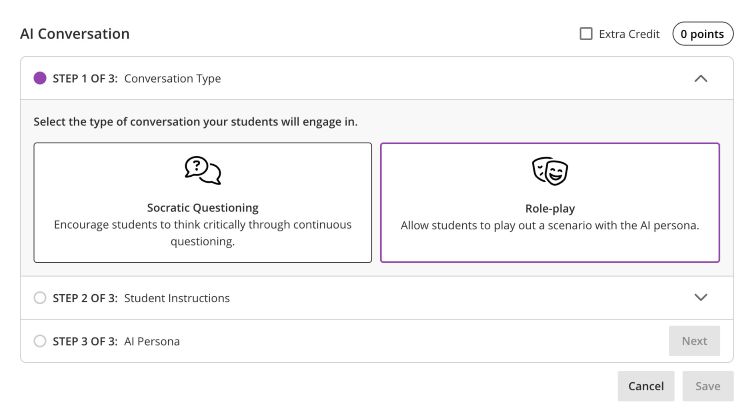
Blackboard instructors now have access to a new AI Conversation tool that supports both ‘Socratic Questioning’ and ‘Role-play’ scenarios. This feature allows students to interact with an AI persona to explore ideas, ask questions, and practise responding to realistic situations.

In Socratic questioning mode, students can ask questions about a specific topic and build their understanding through guided interaction.

Students can also take part in a simulated scenario with an AI-generated character using the Role-play tool. This can be particularly useful for practising professional conversations, decision-making, or problem-solving in a safe environment.

AI Conversions Step 1 of 3 as displayed on screen.

Setting up a Role-play conversation

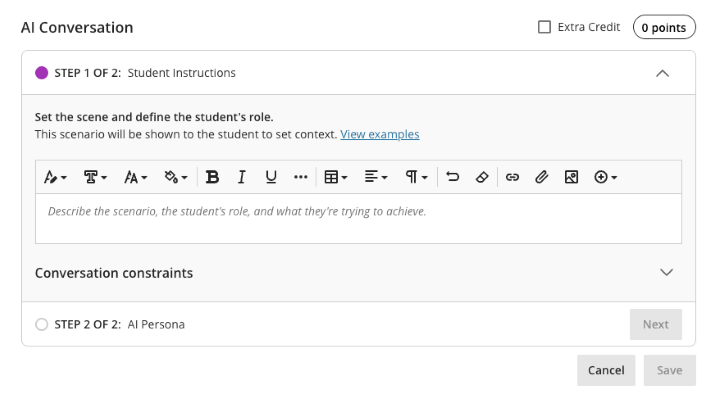
Creating a role-play activity involves two main stages.

1. Set the scene and define the student’s role

  • Describe the scenario
  • Explain the context
  • Define what the student is trying to achieve
AI Conversation Step 1 of 2 for the Role Play option. 'Set the scene and define the student's role'.

2. Create the AI persona

  • Upload a profile image for the AI ‘character’
  • Give them a name
  • Define their personality and behaviour
  • Provide instructions for how they should respond
  • Set the complexity of the responses they will give

Automatic setup

You can also automatically generate a conversation scenario using documents uploaded to the system. The tool can use a range of file types, including PDF, Word, PowerPoint, text, RTF, and HTML files, to help create a conversation based on existing course materials.

Testing

Before releasing the activity to students, you can preview the conversation yourself by interacting with the AI persona. This allows you to check that the responses behave as expected and refine the scenario if needed.

Reviewing Student Interactions

As an instructor, you can review AI conversation transcripts to see how students engaged with the scenario and how they approached the discussion.

Further Information

More details about setting up the Conversations tool can be found on the Blackboard AI Conversation support page.

AI Data Usage and Security 

As an integrated feature within Blackboard, the AI Conversation tool does not use your course data to train or improve external AI models. More information about this can be found on Blackboard’s Trustworthy AI Support pages.

Introducing the new Blackboard AI Conversation Tool Read More »

Teams for Teaching: We Need Your Feedback 

We’re starting the process of moving from Blackboard Class Collaborate to Microsoft Teams, and we’d really value your input. In its place, we’ll be supporting the Microsoft Teams integration within Blackboard as the primary tool for online teaching, tutorials, and live sessions. 

Many of you are already using Teams for learning and teaching and we’d like to hear more about your experiences so far. To help us understand what’s working well (and what isn’t), we’ve put together a short questionnaire.  Your feedback will play a key role in shaping the support, resources, and training we provide over the coming months.

Thank you for taking a few minutes to share your thoughts.  

Teams use within Teaching and Learning – Fill out form

Teams for Teaching: We Need Your Feedback  Read More »

PebblePad January Update – Part 1: Changes to ATLAS Interface

PebblePad Logo 2025

With the January PebblePad update now scheduled for 29th January, our friends at PebblePad have very helpfully released additional resources to help colleagues familiarise themselves with changes to the ATLAS interface.

There are two guides that you can access, depending on your needs:

· New end user help guides: Focused on step-by-step guidance that can be easily shared with Managers, Assessors, and Administrators. These guides cover the practical use of the ATLAS interface for day-to-day tasks. View the new guides here ATLAS Navigation Enhancements – Help Guides

· Existing guidance & support portfolio: Includes the ATLAS release overview and “Get Started” guides for early adopters, system administrators, as well as help resources for training and reference purposes. View the original portfolio here ATLAS Navigational Enhancements Guidance and Support

From the 2026.1 release, Managers, Assessors, and Administrators will move to the new ATLAS interface, which will become their default experience. The legacy layout will no longer be available for these roles.

External Assessors and Learners, however, will continue using the Classic ATLAS interface, which remains unchanged.

For anyone wishing to try or move to the new interface before 29th January, the toggle option is still available to use. If you would like to have this toggle option added to your ATLAS account to familiarise yourself with the new layout, please email TEL@worc.ac.uk.

In Part 2 we will talk about improvements to the external assessor workflow, which will be another important part of the January update.

PebblePad January Update – Part 1: Changes to ATLAS Interface Read More »

Introducing the TEL Chatbot: a quicker way for students to get answers

We know that many student queries sent to academic staff relate to learning technologies rather than module content – things like accessing tools, submitting work, or understanding how a platform works. To help streamline this, the TEL team has launched a new TEL Chatbot, designed to give students fast, reliable answers to common questions. 

The chatbot is not AI-driven and doesn’t generate responses. Instead, it draws on a curated set of frequently asked questions and approved guidance from the TEL team, ensuring that students receive clear, accurate and consistent information. It’s available 24/7 and acts as a helpful first point of contact for common TEL-related queries. 

You’ll find the TEL Chatbot on the institution page in Blackboard, making it easy for students to access whenever they’re working online. 

How this helps you 
  • Reduces repeat queries landing in your inbox 
  • Gives students immediate answers to common TEL questions 
  • Ensures advice is accurate and up to date 
  • Frees up time for more complex or academic-focused support 
What we’re asking of you 

When students contact you with questions about learning technologies, we’d really appreciate it if you could direct them to the TEL Chatbot in the first instance. It’s designed to handle the most common issues and will point students to the TEL team where further support is needed. 

You might also want to: 

  • Mention the chatbot in Blackboard announcements 
  • Highlight it during early teaching sessions 
  • Add a brief note to module information or FAQs 

The TEL Chatbot won’t replace human support – but we hope it will become a reliable first stop.  

Introducing the TEL Chatbot: a quicker way for students to get answers Read More »

December 2025 Assignments Information and TEL Opening Times.

Snowflake close up - Adobe stock By Almahyra
AdobeStock By Almahyra

With Midwinter approaching we wish to inform staff of our Christmas opening times.

Our offices will be closed, from 4 pm on Tuesday 23rd December 2025, and will open again on Monday 5th January 2026.

If any of your students have assignments which are being submitted over the Christmas period, or at the close of day on the 23rd December, please be aware that we will not be able to provide support during this time.

We kindly ask staff to ensure they plan accordingly so that alternative support is available for students if they have any technical problems. We recommend that staff members:

  • Establish a clear plan for assisting students with any submission issues.
  • Communicate this plan to your students in advance, emphasising that the TEL inbox will be unmanned while the University is closed over the Christmas break.

Student Support Resources

We have useful Resources online for Student Support, which includes assignment submissions processes and FAQs to troubleshoot common problems:

Staff Support

Staff members can also find help and guidance on the following main pages for the systems we manage. While we are unavailable, please feel free to continue to message us, and we will reply on our return to the office:

In the coming days, please still contact us with any queries you may have. You can message us directly at tel@worc.ac.uk.

On a personal note, the TEL Team would like to wish all staff and students a wonderful Christmas break, and we hope you enjoy the festive period. We look forward to collaborating with you in the new semester, next year.

Warmest regards,

The TEL Unit

December 2025 Assignments Information and TEL Opening Times. Read More »