Collaborate

Moving from Collaborate to Teams for Teaching Sessions 

Decorative Image of a person presenting in a virtual meeting on a laptop screen. The laptop is located on a desk. Adobestock 351415256

As you will be aware from previous communications, Blackboard Collaborate will no longer be accessible after 31 August 2026. If you are delivering live online teaching sessions through Blackboard, these should now be scheduled and delivered using Microsoft Teams via your Blackboard module. 

To support colleagues with this transition, the TEL Unit and Digital Services ran a joint LDTE session on 7 July, demonstrating the key tasks involved in using Teams for teaching within Blackboard. The session covered everything from creating meetings and adjusting settings through to managing recordings and making them available to students. 

The videos below are taken from the LDTE session and provide a quick reference guide to each stage of the process. 

1. Creating a Teams Meeting in Blackboard 

Creating a Teams meeting directly from your Blackboard course allows students to access live sessions from a familiar location within their module. This approach helps keep teaching materials, communications and live sessions connected in one place. 

In this video, you’ll see how to create and schedule a Teams meeting from within a Blackboard course: 

2. Amending Meeting Settings 

Teams provides a range of meeting options that allow you to tailor sessions to your teaching needs. These settings can help you manage who can present, control the participant experience and ensure meetings are configured appropriately before students arrive. 

This video demonstrates where to find the meeting settings and how to make changes:

3. Using In-Meeting Features to Support Teaching 

Teams includes a variety of tools that can help increase engagement and support learning during live sessions. Features such as chat, reactions, screen sharing, breakout rooms, polls and attendance reports can all contribute to an effective online teaching experience. 

This video provides an overview of the key in-meeting features available to teaching staff and demonstrates how they can be used during a live session:

4. Accessing, Downloading and Sharing Recordings 

Unlike Collaborate, Teams recordings are stored within Microsoft 365 and need to be downloaded before being added to a Blackboard course. Sharing recordings through Blackboard ensures students can access previous teaching sessions alongside other course materials. 

This final video explains how to locate a Teams recording, download it and make it available to students within your Blackboard module by using Panopto:

Need Further Support? 

If you’re preparing for the transition from Collaborate to Teams and would like additional guidance, please contact the TEL Unit, TEL@worc.ac.uk, or Digital Services.

Moving from Collaborate to Teams for Teaching Sessions  Read More »

Move from Collaborate to Microsoft Teams for Online Teaching

Remote work, online meeting, video conference, virtual team, office desk, illustration - AdobeStock image by Shawn

Following a review of tools used for online teaching, the University has agreed to move from Collaborate to Microsoft Teams. This decision was confirmed at LTSEC on 20 May.

Our current contract with Collaborate will end in August 2026, after which Teams will become the University’s primary platform for online teaching from 1 September 2026.

The decision reflects a balanced assessment of several factors. While cost and long-term value were important considerations, it was equally significant that the core teaching functionality offered through Collaborate is now available within Teams. This provides a more integrated, familiar environment for both staff and students, bringing online teaching into the same platform already widely used for collaboration across the University.

It was also recognised that continuing with Collaborate would require a move to a newer version in the near future. This version differs substantially from the current system in terms of features and usability, meaning staff would be adapting to a significantly different platform regardless. Given this, transitioning to Teams now offers a clearer and more consistent direction.

Staff feedback has been a key part of the process. Many colleagues are already confidently using Teams for teaching, and overall sentiment supported the move. Where concerns were raised, such as managing student interactions, these can be addressed through appropriate configuration of Teams to ensure sessions remain structured and manageable.

What does this mean for me?

Staff will need to familiarise themselves with using Teams for teaching ahead of the new academic year. Support will be available to ensure a smooth transition. Digital Services and the Technology Enhanced Learning Unit will provide training, guidance, and resources for both staff and students over the coming months, with further details shared via the staff bulletin, TEL and Digital Services websites, and iTrent.

Furthermore, any recordings made in Collaborate that you would like to retain will need to be moved to Panopto before the end of August. Please see the previous TEL blog post that covers this topic, with instructions.

This change represents a positive step towards a more unified and sustainable digital teaching environment, with the tools, support, and flexibility needed to deliver high-quality online learning.

Move from Collaborate to Microsoft Teams for Online Teaching Read More »

Planning Ahead: Moving Your Blackboard Class Collaborate Recordings to Panopto

You may be aware that conversations are currently ongoing about the future of Blackboard Class Collaborate and the move to Microsoft Teams for online teaching. While no final decisions have yet been confirmed, now is a good time to ensure that any Class Collaborate recordings you wish to keep are safely stored elsewhere.

To help safeguard your teaching materials, we strongly recommend downloading your Blackboard Class Collaborate recordings and uploading them to Panopto for future use. This blog post outlines the steps involved in the process.

What you will need

Before you begin, please ensure you have access to the following:

  • The Blackboard Class Collaborate session recordings that you wish to retain
  • A Panopto link added to your Blackboard module
  • Sufficient space on your computer to download and temporarily store the recorded files

If the Panopto LTI link is not already present in your Blackboard module, you will need to add this before uploading your recordings, which can be added through the content market.

Step 1: Download your Blackboard Class Collaborate recording

  1. Log in to Blackboard and open the relevant module.
  2. Click the three dots (⋮) next to Class Collaborate and select ‘view all recordings’.
Under Details & Actions - 'View all recordings' option shown within the 'Class Collaborate' three dot menu.
  1. Locate the recording you want to save.
  2. Click the three dots (⋮) next to the recording and choose ‘Download’.
  3. The recording will download as an MP4 file to your computer.
Drop-down menu options shown, with 'Download' highlighted.

Step 2: Upload the recording to Panopto

  1. Click on the Panopto website link within your Blackboard module.
Course Content - 'Panopto Website' link
  1. Navigate to or create a folder for the module’s recordings. You can use your existing module folder if this is already set up.
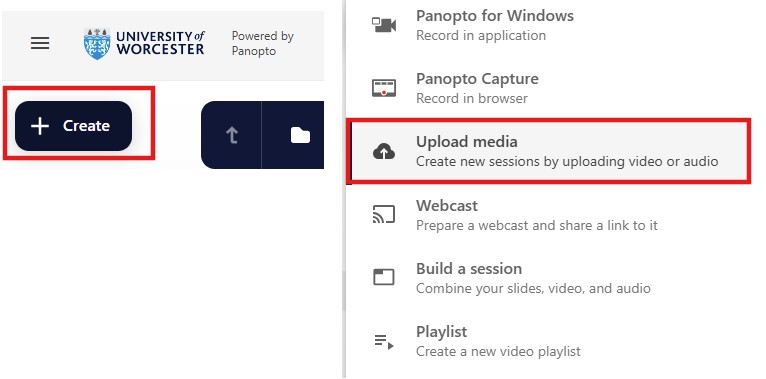
  2. Select Create > Upload media:
'Create' button shown on left and the 'Upload Media' option shown in the main menu on the right.
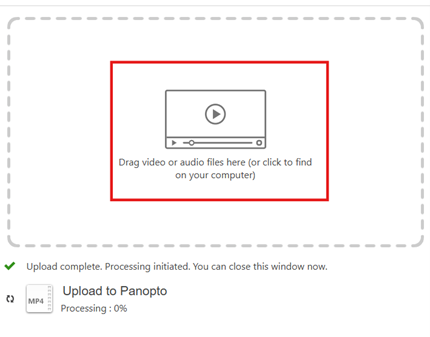
  1. Drag and drop the downloaded MP4 file or browse to select it.
Drag and Drop 'Upload to Panopto' window
  1. Wait for the file to upload and finish processing.

After your recording appears in Panopto, you may want to check playback to ensure the audio and video are correct.

Your recording will now be available in Panopto for students on the module to view.

We recommend completing this process before August, particularly for any recordings you may need again in the future. Once the future of Class Collaborate and Teams has been approved, we will communicate the outcome.

Need help or want someone to walk you through it?

If you would like support with downloading or uploading recordings, or advice on managing your Panopto content, please contact TEL@worc.ac.uk or book a 20 minutes with TEL appointment via MS bookings.

Planning Ahead: Moving Your Blackboard Class Collaborate Recordings to Panopto Read More »

Teams for Teaching: We Need Your Feedback 

We’re starting the process of moving from Blackboard Class Collaborate to Microsoft Teams, and we’d really value your input. In its place, we’ll be supporting the Microsoft Teams integration within Blackboard as the primary tool for online teaching, tutorials, and live sessions. 

Many of you are already using Teams for learning and teaching and we’d like to hear more about your experiences so far. To help us understand what’s working well (and what isn’t), we’ve put together a short questionnaire.  Your feedback will play a key role in shaping the support, resources, and training we provide over the coming months.

Thank you for taking a few minutes to share your thoughts.  

Teams use within Teaching and Learning – Fill out form

Teams for Teaching: We Need Your Feedback  Read More »

Cookies and computer keyboard. 'Cookie' © By poko42

Important Changes to Chrome

Photo: ‘Cookie’ © By poko42

New Chrome changes and your use of online systems, including Blackboard VLE.

We recommend using Chrome or Mozilla Firefox browsers, when using the Blackboard VLE. However, you may be aware that Google Chrome have started testing a new feature, with the intention of protecting users from third-party cookie tracking. This will result in all third-party cookies being disabled, as a default setting. Initially a selection of Chrome users will be notified, but the intention is that all users will experience this change by the end of 2024.

Why you still need your Third-Party Cookies for the Blackboard VLE.

Third-party cookies are often used as an essential element for the functionality of different websites. Within Blackboard there are several integrated tools which require third-party cookies to be enabled. If you experience any issues with the Blackboard VLE, such as pages not loading correctly, even after a refresh – you may need to alter your third-party cookie settings.

How to change your settings:

  • Users who have been selected by Google Chrome, will have a notification, when they open their Chrome browser. If you are viewing the initial notification, it is possible at this stage, to click on the cog, to select and confirm your account third-party cookie choices.
  • Chrome users will be able to tell whether any cookies are active on a webpage, by looking for the ‘eye icon’ within the address bar, in the top right of the Chrome browser. If third-party cookies have been blocked, there will be a line through the eye. A click on the eye icon, will permit users to select and choose whether they wish to have third-party cookies enabled.
  • Alternatively, you can alter your Chrome account settings, as a whole, by selecting the three dots, in the top right-hand corner of the browser. A menu will appear, where you can select ‘Settings’ → ‘Privacy and Security’ from the left-hand side-bar menu, → then ‘Cookies and other site data’ to view all the possible cookie settings for your account.

To find out more, you make wish to read Google Chrome’s recent blog post:

https://blog.google/products/chrome/privacy-sandbox-tracking-protection/

Important Changes to Chrome Read More »

What to do with your recordings in Blackboard

As you are probably aware by now, video files should not be simply uploaded to Blackboard. The files are far too large and will rapidly use up your module\’s data quota. Instead, videos should be uploaded to Panopto.

However, some staff have enquired about managing their Collaborate recordings, which raises a number of questions – how to link to them, whether to upload to Panopto – so we thought it would be a good idea to explore this.

Data Storage

Let’s start by looking at the way the systems manage storage.

Blackboard

Every Blackboard module has a default data quota of 1000MB. Where there is a genuine need, this can be extended, but the data quota of the entire University needs to be carefully managed, as exceeding this has a significant financial implication. Removing videos is an easy way to bring this down. Remember that any resource you delete from a module must also be deleted in the files area in order to impact on the data quota.

Collaborate

Collaborate videos are stored outside of the module on which they were recorded, so do not impact on the data quota. However, there is an overall data quota for Collaborate that also needs careful management. As a result, we are required to archive older videos, having recently deleted all videos recorded prior to January 2021.

Panopto

There is currently no data quota for Panopto storage as we are charged by the number of views. However, this is likely to change in the future as Panopto moves to a charging by storage model.

Should you move Collaborate recordings to Panopto?

Given that Collaborate recordings eventually need to be archived, some staff have asked whether it would be better to move all Collaborate recordings to Panopto as a matter of course. This is probably not necessary but there may be instances when it would be a good idea:

  • Will the recording be required for a long time? If students will need to access the video for longer than a year, then it might be a good idea to download the files and upload to Panopto.
  • Will the recording need to be deployed on future modules? Some resources may be of use to students on future modules, in which case a move to Panopto may be a good idea so that resources can be shared between modules.
  • Does the video need captioning? One drawback of Collaborate is that it does not provide closed captions, which may be required for accessibility. If you have students on your course who need closed captions, then uploading videos to Panopto may be a good idea, as Panopto does have excellent captioning options.

Bear in mind that uploading videos wholesale to Panopto is a significant undertaking for you as the course tutor, so you should weigh up these issues before you decide what will work best for you and your students.

Also consider that, although there is currently no data quota on Panopto, this is likely to be introduced in the future, so we as an institution will also need to manage Panopto usage. Therefore it’s probably a good idea to only upload resources to Panopto where you think it is really necessary.

If you have any queries feel free to get in touch at tel@worc.ac.uk

What to do with your recordings in Blackboard Read More »

TEL Workshops and Facilitated Discussions

Between now and the end of March, we will be running a series of online workshops to help staff get to grips with a range of learning technologies.  In addition to our familiar sessions, we will also be running five facilitated discussions covering topics such as moving tuition online, student engagement and best practice using PebblePad. Staff will have the opportunity to share their experiences and learn new approaches from colleagues, guided by members of the Technology Enhanced Learning Unit.


Blackboard Made Simple  25th January, 10.15 – 11.15 
Collaborate Virtual Classroom  27th January, 10:15  11:15am 
Using Tests and Surveys in Blackboard  3rd February, 10.15 – 11.30 
Blackboard Accessibility and Ally  5th February, 10.15  11.30 
Facilitated discussion – moving to online teaching: what works?  8th February, 11.15  12.15 
Camtasia  10th February, 10.15 – 11.30 
Using Blackboard for Blended and Mobile Learning  12th February, 10.15  11.30 
Recording from your Desktop using Panopto  17th February, 10.15  11.30 
Vevox Polling Software  19th February, 10.15  1130 
Facilitated discussion: Good practice with PebblePad  3rd March, 10.15  11.30 
Assessing student presentations online using Collaborate and Panopto  11th March, 10.15  11.30 
Facilitated discussion: approaches to online assessment 17th March, 10.15  11.15 
Facilitated discussion: recording teaching sessions tips and tricks  25th March, 10.15  11.15 

If you are interested in attending any of these sessions, please sign up via the Staff Development Workshops pages on the staff portal.

TEL Workshops and Facilitated Discussions Read More »

Technology Enhanced Learning Support Sessions for Academics

Following the government announcement that Universities should move to online teaching by 9th December, we thought it would be a good time to reinstate the TEL drop-in sessions for academic staff via Collaborate.

 We know that it can be daunting moving your tuition online and sometimes it’s not always clear where to begin, or how to effectively adapt your materials for online delivery so that your students still get the most out of your sessions.

That’s why the Technology Enhanced Learning Unit will be offering drop-in sessions over the next four weeks for academics to pop in and speak to us. We’ll be there to listen to your requirements and help you bounce ideas around for moving your sessions online successfully. We’ll be able to offer suggestions on various tools that you can use to achieve your learning objectives and offer expertise on how to adapt your existing face to face sessions so that they run smoothly when you come to delivering them online.

Sessions will run from 10am-11am every Tuesday and Thursday, with the first taking place on Tuesday 24th November and the final session on Thursday 17th December. There\’s no need to book. Just click on the link below to access the sessions:

Join Drop-in Session

As ever, make sure that you are using either Chrome or Firefox to join.

Technology Enhanced Learning Support Sessions for Academics Read More »

Save the Date! – ‘TEL’ Me More Seminar

On Wednesday 16th December, the Technology Enhanced Learning Unit will be hosting their annual ‘TEL’ Me More Seminar.

The event, which was originally planned for March, will be fully online and colleagues from across the University will be showcasing their use of technology as part of their learning and teaching.

With the current environment, online teaching has grown significantly over the past several months and this event will provide a fantastic opportunity to network with colleagues from different areas of academia, generate ideas and learn new skills, which you can take forward in to your own learning and teaching.

To secure your place, sign up via the ‘Staff Development Workshops’ page.

Full programme details will be released shortly.

Are you interested in presenting at the seminar? We currently have one slot available. If you would like to present (no more than 10 minutes), please email tel@worc.ac.uk with a short summary of your presentation.

Save the Date! – ‘TEL’ Me More Seminar Read More »

TEL November Workshops

Following the fantastic response to our September workshops, we will be running another series of online training sessions throughout November.

All sessions run from 10:15 to 11:15 and will take place online via Collaborate. Guest links will be emailed to the attendees before the session.

  • Thursday 5th November – Using tests and surveys in Blackboard
  • Monday 9th November – Recording from your desktop using Panopto
  • Tuesday 10th November – Blackboard accessibility and Ally
  • Wednesday 11th November – Camtasia
  • Tuesday 17th November – Collaborate Virtual Classroom
  • Thursday 19th November – Vevox polling software
  • Tuesday 24th November – Using Blackboard for blended and mobile learning
  • Thursday 26th November – Assessing Student Presentations online using Collaborate and Panopto

If you are interested in attending, please sign up via the Staff Development Workshops pages on the Staff Portal. Places are set at 20 but, if overbooked (within reason), will likely be extended to include the waiting list.

TEL November Workshops Read More »