
Turnitin Originality Reports in Blackboard Assignments
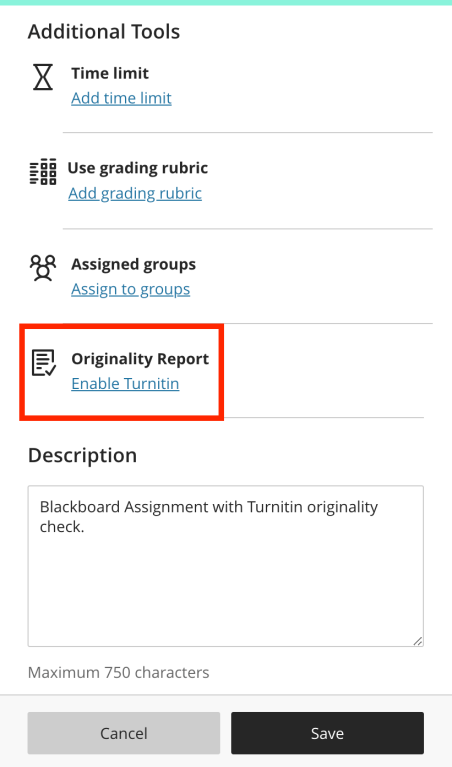
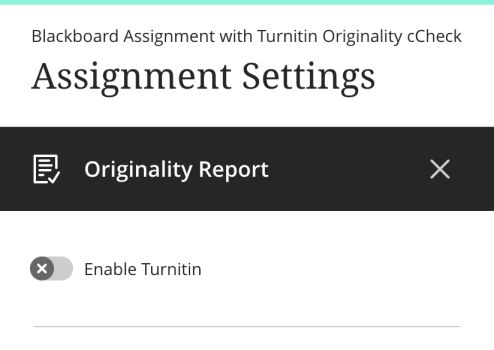
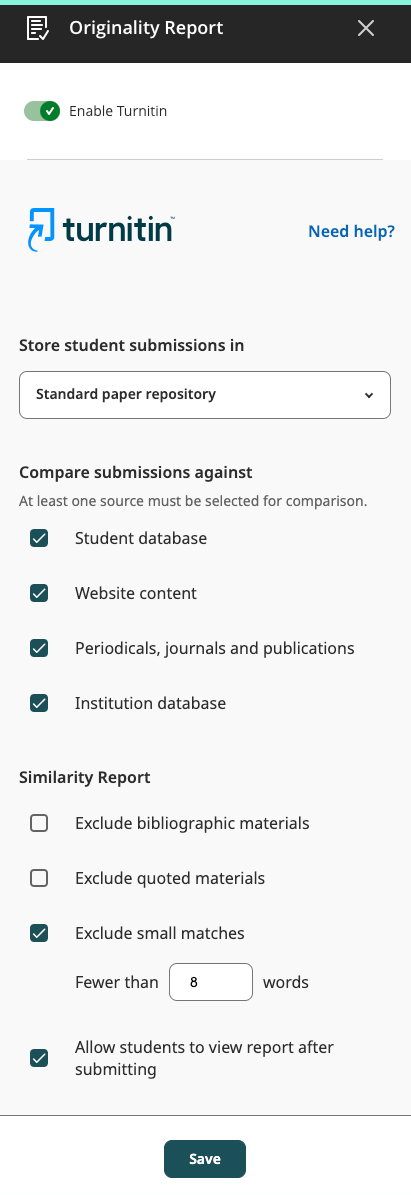
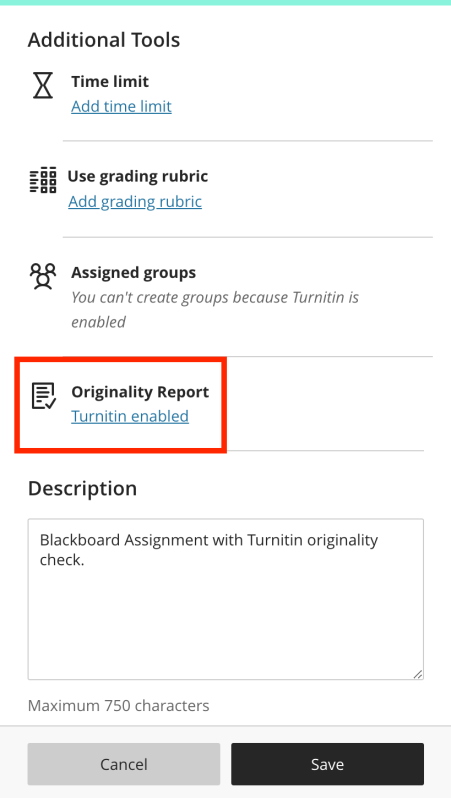

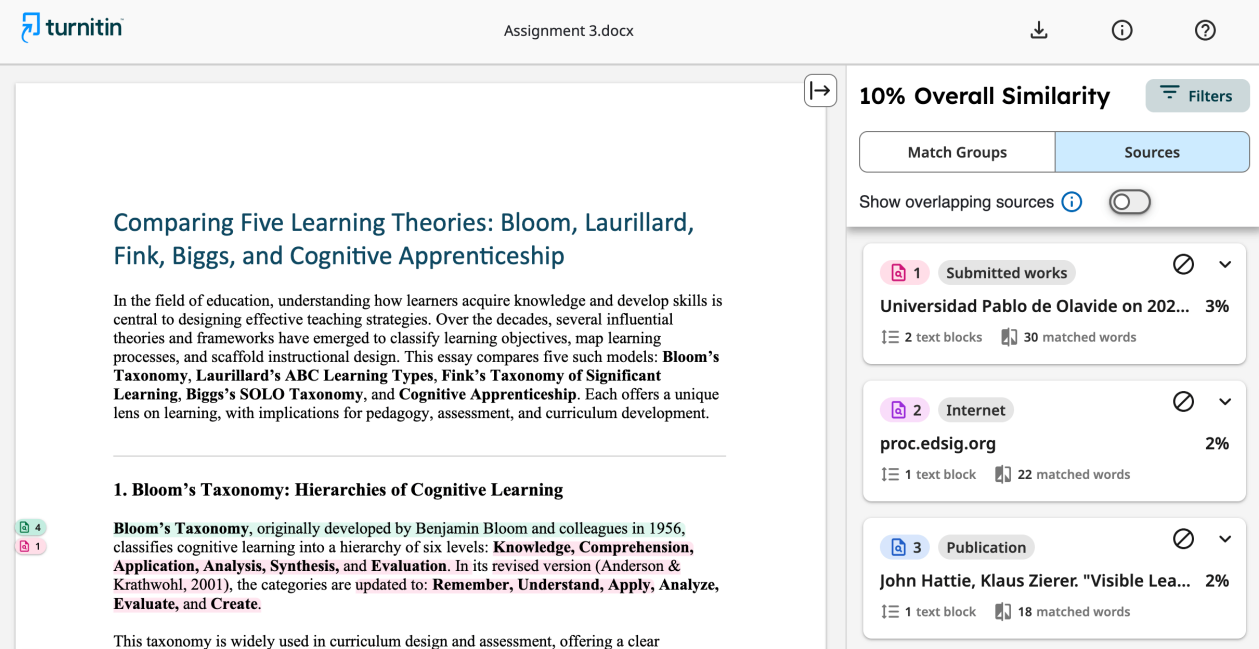
Turnitin Originality Reports in Blackboard Assignments Read More »

We are pleased to announce that Vevox polling software is now integrated with our Blackboard VLE. This integration enables tutors to launch an interactive polling session using Vevox directly within their Blackboard course environment, streamlining the use of polls and enhancing the learner experience.
Users connect easily to Vevox via Blackboard without any need to sign in. Student identities remain hidden from public view, but student progress can be tracked via the Blackboard Gradebook by tutors. To add a Vevox poll or survey to your Blackboard course area, you can locate the Vevox tile in the ‘Content Market’.
Vevox have produced a help video and a step by step user guide showing how to link Vevox polls or surveys into your Blackboard course.
Vevox is a Blackboard Integration Read More »

Adobe stock by alexdndz
Blackboard is now live for the 2025–26 academic year. If you’re someone who likes to get a head start, now is the perfect time to begin building and preparing your module content.
To access your new modules, all staff must enrol – even if you’re the module leader. Full guidance is available here: Enrolling on Modules.
Planning to reuse materials from last year? Please make sure you follow our content copying guidance, which you can find here: Copying Content.
Did you know we’ve created a dedicated support site to help you get the most out of Blackboard Learn Ultra? The Blackboard Learn Ultra Manual covers everything from creating content and setting up assessments to using interactive tools and enhancing student engagement.
If you’d like any further support, please don’t hesitate to contact the TEL team at tel@worc.ac.uk We’re here to help!
Your 2025–26 Blackboard Modules Are Now Available Read More »

If you are a tutor who teaches students who are using PebblePad, you may want to remind your final year students that they can take a free PebblePad alumni account.
Students who have used PebblePad during their studies may want to retain the work they have done for the purposes of CPD when they leave the University. They can do this by creating an alumni account, when they are about to leave the University. Work in the student’s University account will then be copied into their alumni account, and for this reason it is recommended that students do not create the alumni account until they are ready to leave. There is no charge for an alumni account for students. This PebblePad help page guide provides further information about PebblePad Alumni accounts.
We also have the following additional advice for students, which you are welcome to share:
If you are leaving the University and want to keep your PebblePad for personal learning and professional development, you’ll need to create a free alumni account. To maintain access to your alumni account, you must use a personal email address (not your UW account) which you intend to keep for the foreseeable future. Only create the alumni account just before you are ready to leave, as all work will be copied across to your new account and it is not possible to reverse this action.
PebblePad Alumni Accounts for students who are leaving the University Read More »

Following on from our recent blog post regarding preparing your modules for Semester 2 Updating Your Blackboard Courses for Semester 2! – Technology Enhanced Learning Unit we are pleased to confirm that students are now being enrolled on to their semester 2 modules in readiness for teaching next year.
If you haven’t already, please update your modules with your teaching materials for the new semester.
Blackboard Enrolments for Semester 2 Read More »