Announcement

Student Enrolment for Semesters 2 and 3 Blackboard Courses

Students will be added to their Semester 2 and 3 Blackboard courses on Monday the 15th December 2025.

Once enrolments have been applied, staff will be able to send announcements and notifications from these modules as required: Announcements

If you would like any departmental, team or individual support in the upcoming semester, please do not hesitate to contact us at TEL, tel@worc.ac.uk.

Student Enrolment for Semesters 2 and 3 Blackboard Courses Read More »

Module Designer Tool

Laptop computer on a cluttered desk, with chalkboard diagrams on screen and drawn on wall around this.

Whether you’re building a new module from scratch, revalidating an existing one, or developing a clear blueprint to enhance student outcomes, the Module Designer Tool supports you through every stage of the design process. From initial preparation all the way through to evaluation, it helps you maintain constructive alignment between learning outcomes, activities, and assessments, while embedding accessibility and Universal Design for Learning (UDL) principles throughout.

Everything you enter saves automatically as you work, with all data stored securely in your browser so nothing ever leaves your device. You can revisit any section at any time to refine and enhance your ideas, and when you’re ready to share your work with colleagues or stakeholders, you can export the complete documentation to PDF or Word format.

The tool integrates proven pedagogic frameworks, including Bloom’s Taxonomy, Laurillard’s Learning Types, and the Cognitive Apprenticeship model to help you structure learning that is purposeful, inclusive, and aligned. 

You can also use this tool for general guidance on how to set up online content and activities, supporting well designed and easy to use Blackboard course areas for other staff and students to interact with.

Try the Module Designer Tool now!

Module Designer Tool Read More »

Microsoft Teams now available in Blackboard Ultra

We’re excited to announce the launch of a new integration that brings Microsoft Teams directly into Blackboard Ultra. This means staff and students can now access Teams meetings and collaboration spaces without leaving the Ultra environment.

The integration offers a familiar interface for many users, with the added benefit of streamlined scheduling and access to Teams meetings from within Ultra modules.

Beyond usability, this offers the potential opportunity to replace Collaborate with a more robust, widely supported platform for online learning, which is already included in the university’s Microsoft 365 licence.

There was an introductory session with Justine Walker and Darren Cooper on the 4th December. This outlined the basic use of Teams through Blackboard, and included discussions around teaching and learning applications. Please see a link to the recording of the session below:

LDTE Connect & Deliver Teams Integration Essentials with Blackboard.mp4

Other support resources and guidance for using Teams in Ultra are available in our Blackboard manual:

https://lttu.uk/support/Blackboard/UltraManual/teams-meetings

If you have any further queries, please feel free to contact us at tel@worc.ac.uk

Digital Services also offers a variety of resources on the IT Service website to assist users in using Microsoft Teams. The Microsoft Teams – Guide Page, Microsoft Teams – Training Page, and Microsoft Teams – FAQ Pages provide comprehensive guides, training materials, and general information regarding Microsoft Teams.

Additionally, Digital Services is planning to launch a ‘Making the most of Microsoft Teams’ workshop, which will cover all features and options available in team meetings. These workshops will appear in the iTrent training page.

Microsoft Teams now available in Blackboard Ultra Read More »

Gerry Beattie’s Retirement

After three decades of dedicated service to the University of Worcester, Gerry Beattie will be retiring from his role as Academic Learning Technologist at the end of this Semester. Gerry has been a cornerstone of the Technology Enhanced Learning Unit, known throughout the University for his expertise in video production for multimedia projects and assessments.

His retirement marks the end of an era, and we will miss him enormously.


Looking Ahead: A New Approach to Video Support

As we move forward, we want to be transparent about how video support will evolve. Gerry’s role will not be replaced like-for-like. Instead, we are shifting towards a more self-service model using tools such as Panopto, which is available to all staff and students for recording and sharing video content.

For assessment recordings, we encourage colleagues to explore Panopto’s capabilities, which is the University’s primary tool for video assessment and video management. This is now used by the majority of the University for video presentations

For projects, we will continue to offer limited video support, including basic filming and editing.

We understand this is a significant change, and we’re here to support you through it. Guidance and training on using Panopto effectively will be available, and we welcome feedback as we adapt to this new model.

Gerry Beattie’s Retirement Read More »

From Feedback to Best Practice: Designing Blackboard Ultra Modules that Work for Students

Book and pencils with colourful background

A new online resource is now available to support staff in designing engaging and effective Blackboard Ultra modules. It draws on research exploring students’ expectations and experiences of the Virtual Learning Environment (VLE), bringing together key insights and practical strategies for effective VLE design.

As part of the Postgraduate Certificate in Learning and Teaching in Higher Education, I explored students’ perceptions of Blackboard Ultra and its role in supporting learning.

The findings from this research have been developed into an online resource that highlights key principles of good course design and offers practical strategies that colleagues can apply to enhance their Blackboard Ultra modules. The resource is structured around six student-informed themes, covering areas such as clear structure and navigation, flexible and accessible content, effective communication, and active engagement. Each theme provides actionable guidance that can be implemented within individual modules or across wider course teams.

The aim of this resource is to support colleagues in reflecting on their current modules and identifying opportunities to build on existing good practice to further enhance the student experience.

👉 You can explore the full resource here.

If you would like support in reviewing your Blackboard modules, implementing these approaches, or simply discussing how these principles might apply to your teaching, please get in touch. You can contact me directly: Nisha Atkins – n.atkins@worc.ac.uk, or reach out via the TEL Team at TEL@worc.ac.uk. We are happy to support you individually or as part of a course team.

From Feedback to Best Practice: Designing Blackboard Ultra Modules that Work for Students Read More »

New PebblePad Atlas Interface

PebblePad Logo 2025

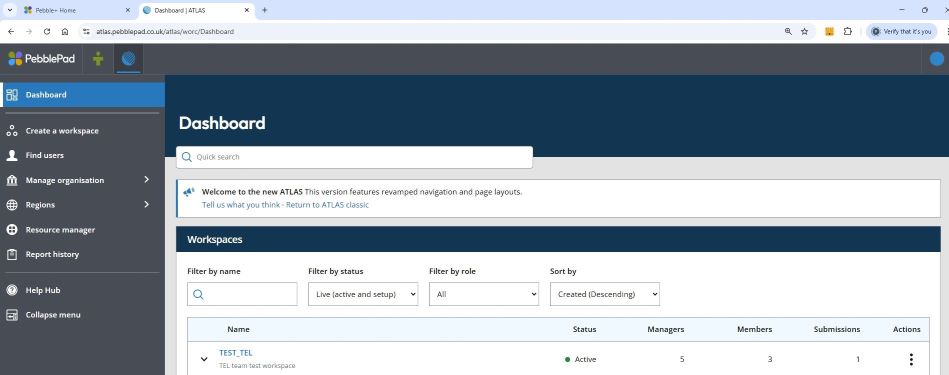
If you are a tutor who assesses student work via PebblePad, you will be pleased to hear that there is a new ATLAS interface that is scheduled to be released in early January 2026. The new ATLAS design is a significant improvement in terms of visual appearance and workflow. The intention is to provide a clearer layout that requires less clicks to complete your tasks.

PebblePad new Atlas Dashboard

To assist you in preparing for this change, we can provide you with the option to toggle into the new ATLAS view. If you find that you want to revert to the original view, you can toggle back again until the end of December.

PebblePad Toggle button - Preview the new Atlas - Try the new ATLAS

If you would like to have this toggle option added to your ATLAS account to familiarise yourself with the new layout, please email TEL@worc.ac.uk

New PebblePad Atlas Interface Read More »

Update on Turnitin Icons in Blackboard

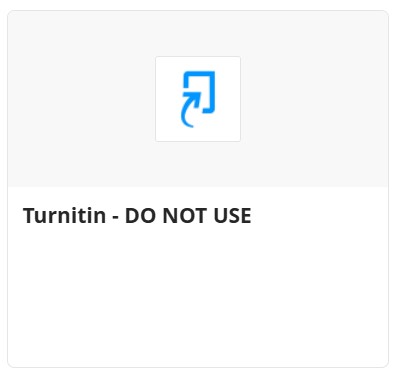
You may have noticed that a second Turnitin logo has recently appeared in the Content Market within Blackboard. This new icon is blue, in contrast to the original red and blue logo. We’ve been in contact with Turnitin to clarify its purpose, as both logos appear to be linked to our current LTI 1.3 integration.

While Turnitin has not provided a definitive explanation for the appearance of the second logo, they have advised us to continue using the original red and blue icon. This version is connected to historical submissions and ensures continuity across existing assessments. To avoid confusion, we have labelled the blue logo with a “Do Not Use” tag.

If you have already created submission points using the blue icon, please don’t worry—these will remain active and unaffected, and students will not notice any difference. However, moving forward, please ensure that all new Turnitin submission points are created using the red and blue logo.

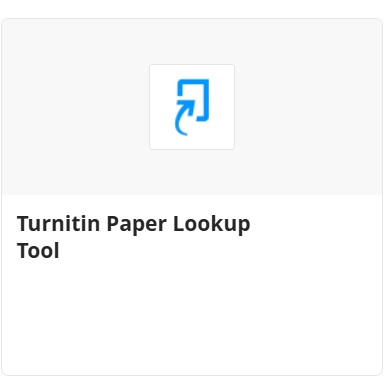
Additionally, you may see a new tool called the Turnitin Paper Lookup Tool. This feature is designed to help you access historical submissions more easily. We will share further guidance on how to use this tool in due course.

Update on Turnitin Icons in Blackboard Read More »

Turnitin Originality Reports in Blackboard Assignments

It is now possible to generate Turnitin originality reports for standard Blackboard assignments. This allows staff and students to view originality matches directly within Blackboard while still using the standard Blackboard grading and feedback tools. (Turnitin Feedback Studio for grading is not currently supported). This may be useful if you would like to have one submission point for marking with Blackboard but need a Turnitin originality check, or track multiple attempts.

It is easy to enable this new functionality with your Blackboard assignments.

To do this, when setting up a new assignment, in the Additional Tools section, click the Enable Turnitin option:

'Enable Turnitin' option shown in red box, within the Blackboard menu options

The integration will load, and you can then toggle the Enable Turnitin switch to the On position.

'Enable Turnitin' sliding toggle button shown below Originality Report in the Assignment Settings.

Select your Turnitin options as usual. Choose the Standard Paper Repository for summative work, or Do not store the submitted papers for formative. Select sources to check, and select the Similarity Report options as needed. Finally, click the Save button to finalise these settings. You can always return to these settings to update later if required.

Originality Report Menu settings are shown - displaying the different tick box options which are available.

When you return to the Additional Tools section in the Assignment Settings, you should see that Turnitin has been enabled:

Image of 'Turnitin enabled' to show how this looks when turned on and the 'Save' button to apply the chosen Turnitin settings.

Once papers have been submitted and processing is complete, staff and students will be able to view the originality report by clicking on the originality percentage button:

An example of an assignment with the 'originality percentage button' highlighted in a box, in the top right-hand corner.

The Originality report will then load in a new tab using the updated Turnitin interface:

Example of an originality report using the updated Turnitin interface. The assignment appears on the left hand side. Then the 'sources' / similarity matches are in a column on the right hand side of the page. A 'filters' option is at the top of the sources list.

Turnitin Originality Reports in Blackboard Assignments Read More »

Vevox is a Blackboard Integration

Vevox icon 'Audience Engagement' displayed on a mobile phone screen, which is being held in a hand.
© Vevox

We are pleased to announce that Vevox polling software is now integrated with our Blackboard VLE. This integration enables tutors to launch an interactive polling session using Vevox directly within their Blackboard course environment, streamlining the use of polls and enhancing the learner experience.

Users connect easily to Vevox via Blackboard without any need to sign in. Student identities remain hidden from public view, but student progress can be tracked via the Blackboard Gradebook by tutors. To add a Vevox poll or survey to your Blackboard course area, you can locate the Vevox tile in the ‘Content Market’.

Vevox have produced a help video and a step by step user guide showing how to link Vevox polls or surveys into your Blackboard course.

Vevox is a Blackboard Integration Read More »

Your 2025–26 Blackboard Modules Are Now Available

People viewing text in books and on laptops.

Adobe stock by alexdndz

Blackboard is now live for the 2025–26 academic year. If you’re someone who likes to get a head start, now is the perfect time to begin building and preparing your module content.

To access your new modules, all staff must enrol – even if you’re the module leader. Full guidance is available here: Enrolling on Modules.

Planning to reuse materials from last year? Please make sure you follow our content copying guidance, which you can find here: Copying Content.

User Manual, Guide Book or Technical Instruction Concept. Tiny Female Character Carry Huge Handbook with Guidance and Tutorial for Users. Customer Support, Aid. Cartoon People Vector Illustration
Adobe stock by Sergii Pavlovskyi

Did you know we’ve created a dedicated support site to help you get the most out of Blackboard Learn Ultra? The Blackboard Learn Ultra Manual covers everything from creating content and setting up assessments to using interactive tools and enhancing student engagement.

If you’d like any further support, please don’t hesitate to contact the TEL team at tel@worc.ac.uk We’re here to help!

Your 2025–26 Blackboard Modules Are Now Available Read More »