AI

AI Knowledge Checks in Documents

The Blackboard ‘Document’ tool now includes a new AI feature for Knowledge Checks. This option enables you to either enter a question manually or autogenerate a question using the built in AI knowledge check generator. Knowledge Checks in Blackboard enhance the learning experience, they allow students to access and engage with content, then receive immediate feedback. Tutors can also view the students’ responses.

How to use documents created elsewhere

'Convert a file' option highlighted under 'Select a type of content to add a block'.

Tutors can convert word, pdf or PowerPoint files directly into html format using the Blackboard ‘Convert a file’ option.

Converting a file in this manner will result in a more accessible experience for students. Once the file has been converted, any additional formatting can be added from the formatting tool bar.
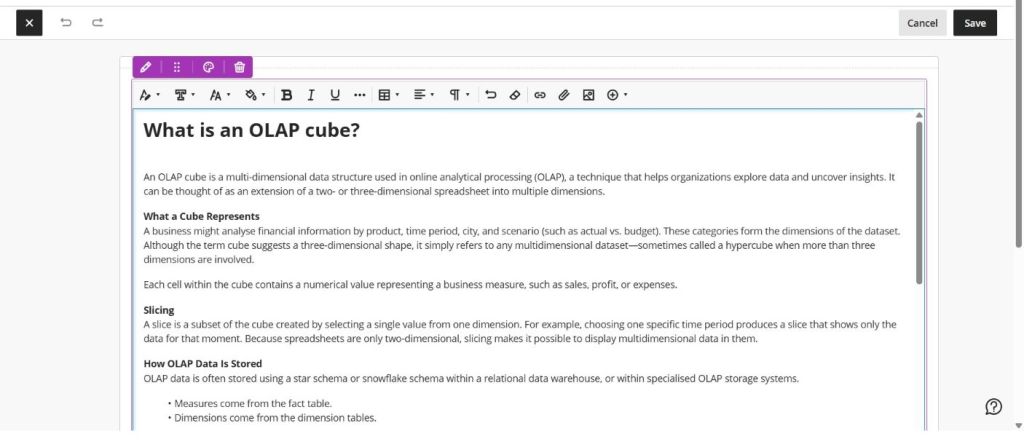
Example of a converted file.

How to add a Knowledge Check

Once the file has been converted, a knowledge check can be added to the document.
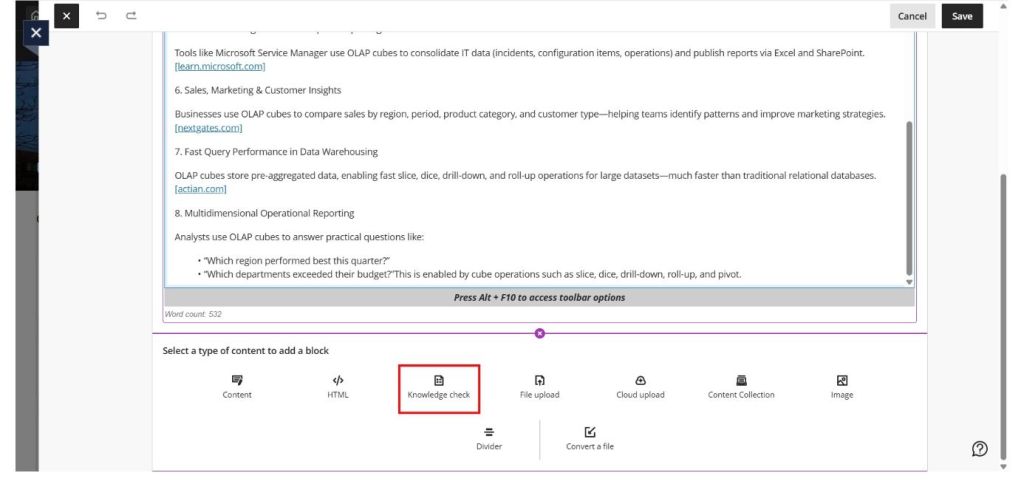
'Select a type of content to add a block' - 'Knowledge check' option highlighted.

You can create your own question or use the built in ‘Auto-generate question’ tool to create one for you. (Auto-generated questions use the Blackboard AI Design Assistant.)
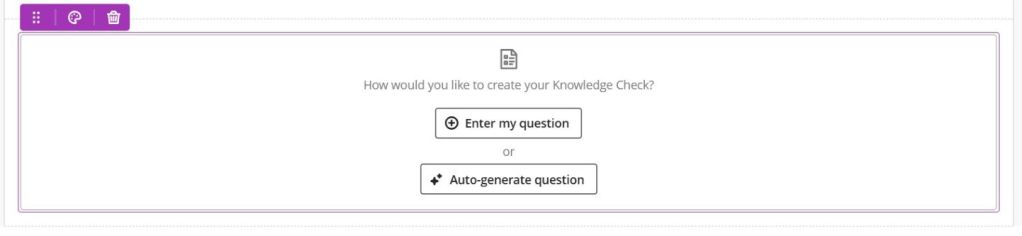
'Enter my question' or 'Auto-generate question' options shown.

The question will then appear at the end of your converted document.
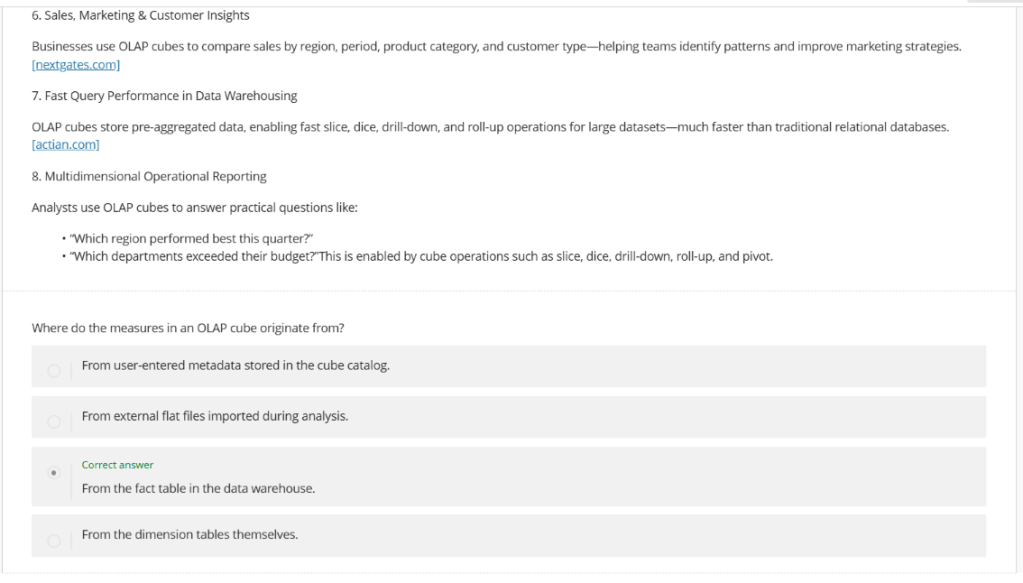
Examples of auto-generated questions based on content.

AI Knowledge Checks in Documents Read More »

Introducing the new Blackboard AI Conversation Tool

Man typing at a laptop, with the image of an android floating above.

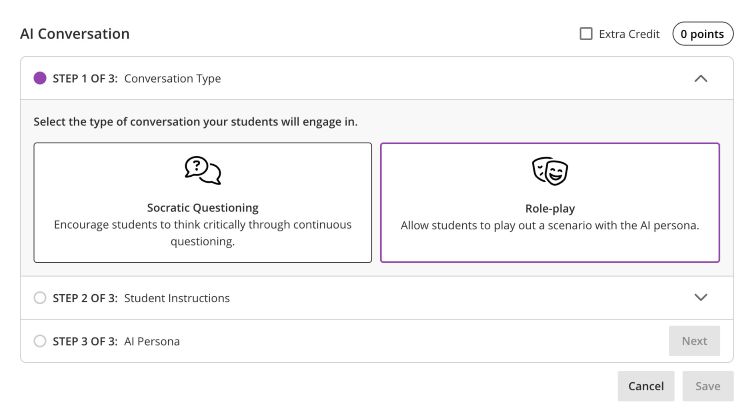
Blackboard instructors now have access to a new AI Conversation tool that supports both ‘Socratic Questioning’ and ‘Role-play’ scenarios. This feature allows students to interact with an AI persona to explore ideas, ask questions, and practise responding to realistic situations.

In Socratic questioning mode, students can ask questions about a specific topic and build their understanding through guided interaction.

Students can also take part in a simulated scenario with an AI-generated character using the Role-play tool. This can be particularly useful for practising professional conversations, decision-making, or problem-solving in a safe environment.

AI Conversions Step 1 of 3 as displayed on screen.

Setting up a Role-play conversation

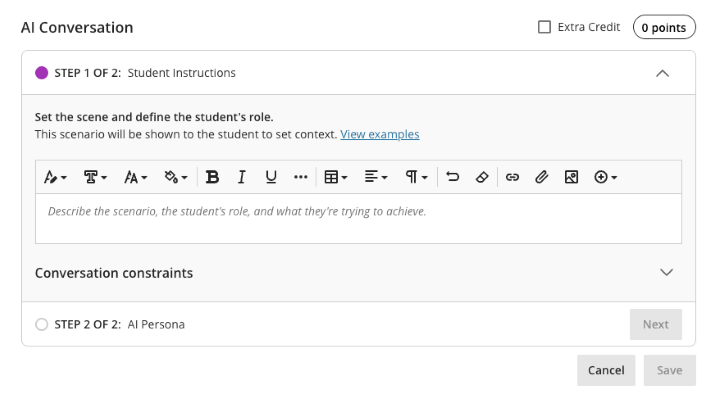
Creating a role-play activity involves two main stages.

1. Set the scene and define the student’s role

  • Describe the scenario
  • Explain the context
  • Define what the student is trying to achieve
AI Conversation Step 1 of 2 for the Role Play option. 'Set the scene and define the student's role'.

2. Create the AI persona

  • Upload a profile image for the AI ‘character’
  • Give them a name
  • Define their personality and behaviour
  • Provide instructions for how they should respond
  • Set the complexity of the responses they will give

Automatic setup

You can also automatically generate a conversation scenario using documents uploaded to the system. The tool can use a range of file types, including PDF, Word, PowerPoint, text, RTF, and HTML files, to help create a conversation based on existing course materials.

Testing

Before releasing the activity to students, you can preview the conversation yourself by interacting with the AI persona. This allows you to check that the responses behave as expected and refine the scenario if needed.

Reviewing Student Interactions

As an instructor, you can review AI conversation transcripts to see how students engaged with the scenario and how they approached the discussion.

Further Information

More details about setting up the Conversations tool can be found on the Blackboard AI Conversation support page.

AI Data Usage and Security 

As an integrated feature within Blackboard, the AI Conversation tool does not use your course data to train or improve external AI models. More information about this can be found on Blackboard’s Trustworthy AI Support pages.

Introducing the new Blackboard AI Conversation Tool Read More »