Since the university moved to Blackboard Ultra in September, there has been a fantastic effort from academic staff to reshape and develop their modules in a variety of creative ways.
To celebrate the end of the first teaching year using the new VLE, the Technology Enhanced Learning Unit will be running a series of short online talks to showcase innovative and successful practice throughout the University, with an overarching theme of student engagement and retention. This will be in partnership with Darren Cooper, the University Lead for Continuing Professional Development in Learning and Teaching.
Topics will include:
Developing fully online and highly blended courses using Blackboard Ultra
Encouraging engagement with course readings and Talis resource lists
Using Blackboard for guided activities in the classroom
Using the reporting tools to monitor student engagement and support retention
Talks will be around 45 minutes to an hour, with time for questions at the end. The sessions will be recorded and hosted via Darren Cooper’s Learning Design For Teaching Excellence site on SharePoint, as a resource for all to use.
The finalised schedule will be published at a later date.
If you would like to set up documents within Blackboard that all enrolled users can contribute to, you can now use the ‘Collaborative Document’ feature.
Collaborative Documents allow you to set up a new document, or use an existing template from Word, Excel or PowerPoint for the class to use. Once set up, the new file will be copied over to your Blackboard course area where it can be edited. (If copied from OneDrive, your original file will not be altered – only the version that has been deployed to Blackboard.)
Collaborative documents can be useful for use cases such as wikis, course glossaries or documents for group collaboration.
As we progress through Semester 2 towards assessment time it’s important to keep an eye on how your students are engaging with your module and identify any who might be struggling – you can then provide support and guidance before the crucial assessment to ensure your students remain engaged, motivated and succeeding.
You can easily track what your students are doing in a Learn Ultra site in a number of different ways. From gaining an overall idea of how long students are spending accessing a particular course site, to getting more targeted information on each resource or activity. This data can then be used to set up alerts for students that might be struggling, and help you provide useful interventions to keep them on track.
You can find more information and practical guidance on how to set up and use these features in our Blackboard Ultra Manual: Analytics and Alerts
The TEL Team are running a staff training session for staff interested in using the Blackboard Tests feature.
Blackboard Tests enable a range of different question types to be added to create self-marking and short answer tests in Blackboard Ultra. These can be for summative exams or formative testing to help gauge student understanding, and ultimately assess student performance.
The workshop will cover the set-up of a test canvas and the various deployment options, together with a closer look at some of the question types and how these might be used.
Participants will engage both as students to experience the student view, and also as tutors setting up and marking their own tests – to gain an all-round appreciation of the online assessment function.
The session will be on 26th March 2025, 10:15 – 11:30 – via MS Teams (online).
To sign up please visit your staff page on the ‘MyWorcester’ Portal and select the iTrent tile. You will then see the menu option for ‘Learning’, where you can view all staff training workshops.
We have had a few queries from staff recently about copying content between Blackboard Ultra Modules. This is a little different to copying in Blackboard Original, we decided that it would be a good idea to go over this again.
The big change is that, in Ultra, you copy content into the destination course, rather than out of the existing course. This has caused some confusion but, once you realise this, the whole process is actually much easier.
The other change is that it’s much easier to be granular about what you copy across. Those of you who copied elements of your Blackboard Original courses will be aware of this. Generally, we would advise against copying the entire course as this will bring announcements and unnecessary content over.
To copy content:
Begin in the course where you want to add the content. Click on the three dots underneath the banner.
Click “Copy Items”
You will see a list of all of the courses you have access to. Locate the course you want to copy from.
You will see a checkbox to the left of the title. Selecting this will allow you to copy the entire course. We would not advise this, as doing so would import content that you do not want. Instead, click on the course title. This will open up a menu of folders on the course. The only folder you should need is the ‘Content’ folder.
Selecting the tick box to the left of the Content folder will bring in all of the course materials. However, you may wish to click on the title of the content folder and bring in materials at a more granular level. This would have the advantage of not filling up your course data quota with files that you do not need.
Once you have identified and ticked the contents that you want to copy over, click ‘Start Copy‘ in the bottom left. This will add all of the contents to the bottom of the course.
Copied materials are hidden from students by default. You will need to unhide anything that you need students to view immediately. You may also need to do some editing and reorganisation of the content that you have copied in order to make the course look professional.
If you have any queries about this, feel free to contact the TEL Unit at tel@worc.ac.uk
With both staff and students accessing Blackboard every day, we thought it would be useful to share some handy hints and tips about managing announcements, module (course) lists and profiles in Blackboard.
Profile and Activity Stream
We have a useful informative video for students about customising Blackboard, with an overview of the main profile and activity stream settings which can be applied:
Please see a link to the video below which can be shared with your students if you wish:
If your students are finding it tricky to find a module they need due to similar module titles / codes, or if they have more than one occurrence visible on their dashboard, they can favourite modules by selecting the star icon:
The favourites star brings the module to the top of their list, which is useful when assignments are due, and students need to locate the correct module quickly. This reduces the chance of a student accidentally submitting to an incorrect assignment submission point in another module occurrence.
Finding Missing or Hidden modules
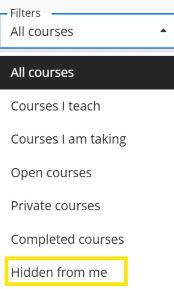
You can use the search bar and filters on your ‘Courses’ page to find modules. If you discover that a module is missing as a staff member, you can enrol again using the Blackboard Access forms. Your access will then be granted within an hour and, as a staff member, it is possible to use the list at the bottom of the form to remove your own access too – so that you can hop on and off modules as necessary when supporting colleagues.
However, sometimes users inadvertently hide a module from their list in Blackboard. If this has happened, you will see the ‘Hidden from me’ option in the filter choices.
You can reveal the hidden module so it appears again in your list by using the three dots in the corner of the module tile → ‘Show Course’.
Announcements
Blackboard has the following guidance for instructors about announcements:
It is possible to save drafts of announcements ahead of when you need to send them, or to schedule announcements so that they are delivered to your students on a particular date and time.
Blackboard also has a student-orientated announcements help page, which you may find useful: How students view announcements
Reports of unwanted Email Announcements:
If any of your students have changed course or have completed earlier undergraduate study but are still receiving email notifications, these are most likely to be coming from a Blackboard organisation page. We can remove staff or students’ enrolments from any historic organisation pages. The unwanted messages will then stop clogging up inboxes.
Staff or students can contact us at tel@worc.ac.uk, to inform us about any announcement issues.
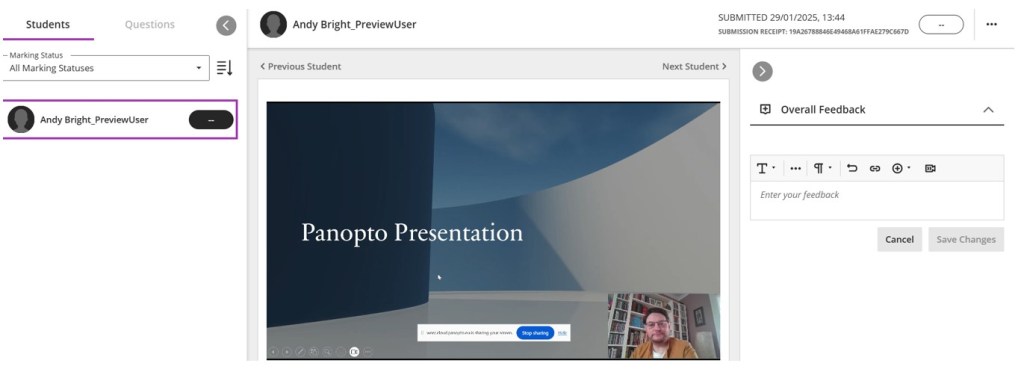
With marking season upon us, many of you will be marking Panopto assignments, so we thought it would be useful to share a little tip based on staff feedback.
You will notice that, when marking Panopto assignments, the video displays a little differently in Blackboard assignment view, which can result in the student’s face obscuring part of the slide that they are presenting. You also don’t automatically see the transcription as you did in the old system.
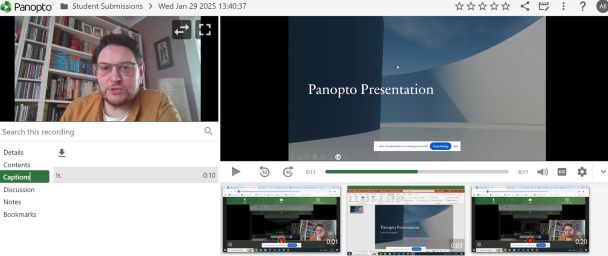
If you find this view difficult to use, you can open the traditional Panopto view by clicking on the arrow in the video control bar.
Although you will still need to add your grade and feedback in the Blackboard assignment view, opening this link will allow you to watch the video uninterrupted, as well as being able to view captions.
If you have any further queries, please contact us at TEL@worc.ac.uk
The TEL Unit are excited to share an upcoming opportunity for students to shape the future of Blackboard Ultra at the University. To ensure the VLE continues to support effective teaching and learning, we’re hosting a series of student focus groups—and we’d love your help spreading the word.
What’s the Goal?
The focus group’s aim is to gather student insights on improving how Blackboard Ultra is used. Their feedback will guide key developments, including:
Creating best practice recommendations for module design.
Enhancing the structure and usability of Blackboard Ultra modules.
Ensuring the VLE better supports the overall learning experience.
Why Should Students Get Involved?
We know from student feedback that the way the VLE is used has a direct impact on their learning experiences. This is a unique opportunity for students to ensure the VLE is developed in ways that support their needs as learners. Their voices will shape how Blackboard Ultra is used, benefitting both current and future cohorts. Plus, they’ll enjoy a relaxed environment with free tea, coffee, and biscuits!
How Can You Help?
We kindly ask you to share this opportunity with your students by:
Please be advised that the Technology Enhanced Learning (TEL) unit will be closed for the Christmas break from end of day Friday, 20th December 2024, until Thursday, 2nd January 2025.
If your students have assignments due during this period or on the close of day on the 20th of December, TEL support will not be available. We kindly ask that you plan accordingly to provide any necessary support to your students during this time.
To ensure a smooth and stress-free submission process:
Establish a clear plan for assisting students with any submission issues.
Communicate this plan to your students in advance, emphasising that the TEL inbox will be unmanned over the break.
Resources for Support
Guidance on Turnitin and Panopto submissions is available on our webpage and in these blog posts:
It has been a pleasure supporting you with learning technologies at the University of Worcester this year, particularly as we’ve worked together on the implementation of our new VLE.
The TEL Team wishes you a wonderful festive break, and we look forward to collaborating with you in the new year!
We use cookies on our website to give you the most relevant experience by remembering your preferences and repeat visits. By clicking “Accept All”, you consent to the use of ALL the cookies. However, you may visit "Cookie Settings" to provide a controlled consent.
This website uses cookies to improve your experience while you navigate through the website. Out of these, the cookies that are categorized as necessary are stored on your browser as they are essential for the working of basic functionalities of the website. We also use third-party cookies that help us analyze and understand how you use this website. These cookies will be stored in your browser only with your consent. You also have the option to opt-out of these cookies. But opting out of some of these cookies may affect your browsing experience.
Necessary cookies are absolutely essential for the website to function properly. These cookies ensure basic functionalities and security features of the website, anonymously.
Cookie
Duration
Description
cookielawinfo-checkbox-analytics
6 months
This cookie is set by GDPR Cookie Consent plugin. The cookie is used to store the user consent for the cookies in the category "Analytics".
cookielawinfo-checkbox-functional
6 months
The cookie is set by GDPR cookie consent to record the user consent for the cookies in the category "Functional".
cookielawinfo-checkbox-necessary
6 months
This cookie is set by GDPR Cookie Consent plugin. The cookies is used to store the user consent for the cookies in the category "Necessary".
cookielawinfo-checkbox-others
6 months
This cookie is set by GDPR Cookie Consent plugin. The cookie is used to store the user consent for the cookies in the category "Other.
cookielawinfo-checkbox-performance
6 months
This cookie is set by GDPR Cookie Consent plugin. The cookie is used to store the user consent for the cookies in the category "Performance".
viewed_cookie_policy
6 months
The cookie is set by the GDPR Cookie Consent plugin and is used to store whether or not user has consented to the use of cookies. It does not store any personal data.
Functional cookies help to perform certain functionalities like sharing the content of the website on social media platforms, collect feedbacks, and other third-party features.
Performance cookies are used to understand and analyze the key performance indexes of the website which helps in delivering a better user experience for the visitors.
Analytical cookies are used to understand how visitors interact with the website. These cookies help provide information on metrics the number of visitors, bounce rate, traffic source, etc.
Advertisement cookies are used to provide visitors with relevant ads and marketing campaigns. These cookies track visitors across websites and collect information to provide customized ads.