
- Please watch this video for instructions of how to submit your Turnitin assignment.
- We recommend familiarising yourself with all the steps.
- We also recommend allowing yourself plenty of time ahead of your assignment deadline date to submit your work.
If you have any questions about your assignment you can ask your tutor in the first instance but please feel free to contact us at TEL TEL@worc.ac.uk for technical advice too.
Please see Blackboard’s guidance for how to submit an assignment.
- You can view and check your Blackboard submission in the usual way, but your Turnitin originality score will be visible above the tool bar options, on the right:

- Clicking on the number % match will open a new window to view your similarity matches in Turnitin (Please be aware that you will be prompted to ‘accept’ Turnitin’s Licensing Agreement in order to view this).
Image example of a Turnitin enabled Blackboard assignment:

- Turnitin have useful guidance here for how to view a Turnitin similarity report in Blackboard.
- You can also find out more about Blackboard Ultra, on our student support page.
View your feedback by going back to the original assignment submission point where you submitted your assignment. Your feedback will only be available after the feedback release date set by your tutor. This video shows you how to access your feedback once you have located your assignment.
Access uploaded work through a Turnitin submission link in Blackboard. You can select your assignment title to review your work.
After the feedback release date, students automatically see any tutor feedback (Classic View) as well as a grade. You can also view rubric comments if one has been used (Classic view). You can view everything from within the ‘Feedback Studio’.
Downloading from Turnitin – Feedback Studio View
Once you have opened your assignment, ensure you have the feedback and similarity layers activated. (You can use the blue and red buttons on the right.)
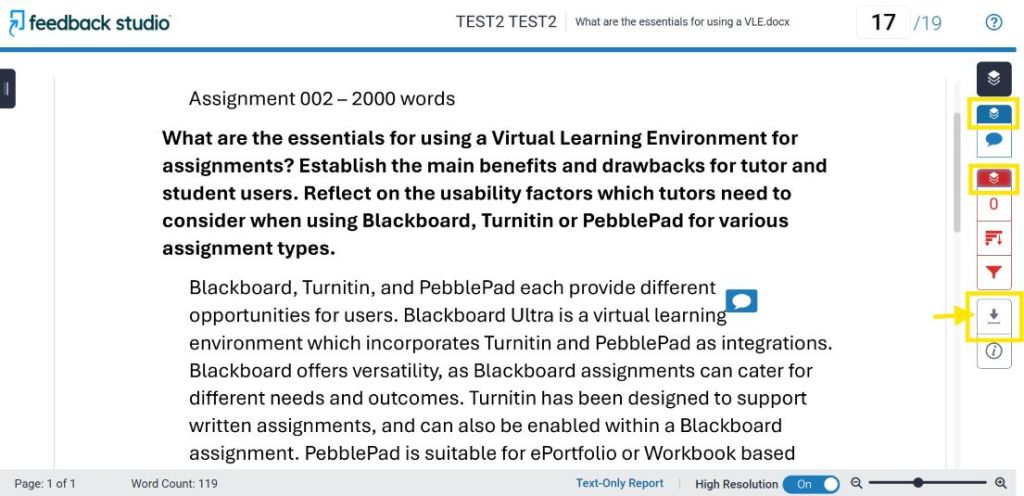
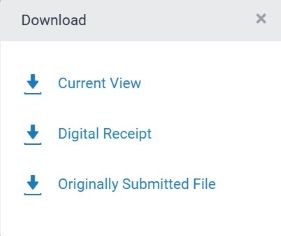
Then click the grey download arrow to show the different options to select:
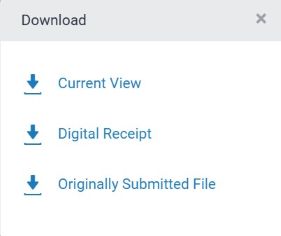
Current View
This will download as a .pdf file document
Digital Receipt
Shows the time and date of submission
Originally Submitted File
Your work as you uploaded it
We recommend choosing to download the Current View with layers showing, if you would like a copy of your assignment, similarity matches, grade, and feedback.
The downloaded ‘Current View’ .pdf file will contain:
- Submission details
- Your Assignment
- Originality Report (Similarity checks)
- GradeMark Report (Grade and Feedback comments)
Your feedback and grade can be found at the end of the .pdf document:

Turnitin is a text matching software. When an item is submitted by the student, depending on how the tutor has set up the submission point, it can check the student’s submission against the following:
- Other student papers in the student paper repository
- Current and archived web site content
Periodicals, journals and publications
When you submit work through Turnitin, a report will be generated to prompt you to check your work and make amendments. This is called a similarity score, however it is not scoring your work – it is flagging up text matches to help you identify where you may need to modify a citation, check a paraphrase, or find a more suitable source.
Find out more:
- Turnitin: Understanding the similarity score for students – in Feedback Studio
- Speak to your academic tutor, for help interpreting your report.
- Your tutor may refer you to an Academic Liaison Librarian, for help with your citations and referencing. Or to the Centre for Academic English and Skills, for help with paraphrasing or other aspects of your academic writing.
There is no official percentage boundary at the University of Worcester. Each report should be reviewed individually to ensure that all sources are correctly referenced.
No. A high score is not necessarily a result of plagiarism. There are various reasons why your similarity report could have a high percentage match for example, your assignment could be based on a template, or it could be made up of lots of small percentage matches. Other reasons may include the overuse of direct quotes or it may be matching your reference list. This is why it is important to review your report and identify where the source matches are located.
A low match could indicate that small sections of the work have been plagiarised or it could indicate other problems with your academic writing.
- After submitting, your Turnitin on screen view can occasionally alter some of the formatting within your assignment.
- You do not need to worry about this as your tutor can download a copy of the originally submitted file at any time.
- If you have any concerns, you can contact your tutor to let them know that the formatting has changed.
- You can also locate and download your work as you uploaded it, using the originally submitted file option, to check everything is as expected.
Please see further details in ‘How do I download my work and feedback from Turnitin?’
Turnitin does not automatically email a submission receipt. We recommend always downloading a submission receipt for any Turnitin Assignments.
- After submitting, Turnitin will remind you to download a receipt, click on the ‘Download Digital Receipt’ link in green above:

- You can download the receipt from the assignment submission dashboard at any point afterwards too, by returning to your assignment. Click the receipt icon to the right of your assignment title to download:
In the first instance, you should speak to your academic tutor, for help interpreting your report. They may then wish to refer you to an Academic Liaison Librarian, for help with your citations and referencing, or to the Centre for Academic English and Skills, for help with paraphrasing or other aspects of your academic writing. The Turnitin website also has some basic information on interpreting your report: Understanding the similarity score for students – Turnitin Guides
In the first instance, you should contact the module tutor.
We recommend allowing yourself plenty of time ahead of your assignment deadline date to submit your work.
- You should ensure you are using one of the recommended browsers (which are Chrome or MS Edge).
- You will need to have third-party cookies enabled for the Blackboard VLE website, https://worcesterbb.blackboard.com by adding this as an exception in your browser settings.
- Ensure you have saved and closed your document before attempting to upload it to Turnitin.
- Check that the submission point is set up to allow you to submit by viewing the summary page. This tells you the assignment deadline date and whether resubmissions are allowed etc.
- If you are still having problems submitting, please contact your tutor.
Further technical troubleshooting steps:
- If can see an error message, you could try an alternative browser or an Incognito or Private window. (Chrome – New Incognito Window, or a New InPrivate Window in MS Edge.)
- Check your file meets the requirements so it can be accepted by Turnitin.
- You can also use the Blackboard browser checker to see if your browser settings are correct for using the VLE and the Turnitin Integration.
- Double check your Internet Connectivity.
After contacting your tutor please also feel free to contact TEL for additional technical support TEL@worc.ac.uk. Please send us through:
- a screenshot of the issue if possible
- the module code
- the title of your assignment
Not all files are accepted by Turnitin, so we recommend checking through Turnitin’s file requirement guidance.
Please be aware that a document must
- have a file size less than 100MB
- have less than 800 pages
- have at least 20 words