

In Ultra modules, the Course Staff list offers students an easy way to see who is teaching their module. Knowing how instructors are displayed can help both staff and students navigate and connect more effectively. Here’s an overview of how the Course Staff display works, the rules that determine who appear, and how to set Primary Instructors for clearer organisation.
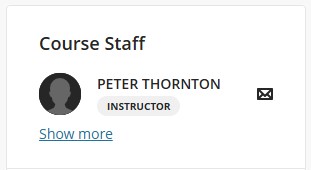
When you open an Ultra module, you’ll find the Course Staff list appears to the right of the page. The Course Staff list includes a selection of instructors based on a few specific parameters.

Course Staff Guidelines
The way instructors appear under Course Staff follows these guidelines:
- Instructor-Only Display: Only individuals assigned the ‘Instructor’ role will display under Course Staff.
- Limited Initial Display: Initially, only two instructor names appear, arranged alphabetically. To see the complete list of instructors, you can click on “Show more.”
- Primary Instructor Priority: If one or more Primary Instructors are set, they take precedence in the list over other instructors, altering the alphabetical display.
Primary Instructors: Setting and Displaying
Staff with the Instructor role can be assigned as Primary Instructors, which changes how they appear in the Course Staff list. Here’s how the list displays instructors based on Primary status:
- No Primary Instructor Set: The first two instructors in alphabetical order are displayed.
- One Primary Instructor Set: Only the designated Primary Instructor’s name appears.
- Two or More Primary Instructors: The first two Primary Instructors, arranged alphabetically, are displayed.
In all cases, students can click on “Show More” to see a complete list of all instructors in the course.
Steps to Set Primary Instructors
Setting an instructor as Primary helps make their presence more prominent on the Course Staff list. Here’s how to assign an instructor as Primary:
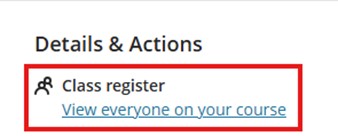
- Go to the Class Register: From the Details and Actions menu, navigate to the Class Register.
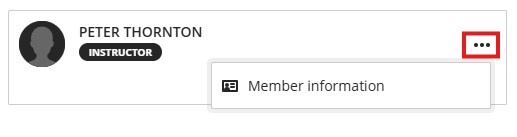
- Edit Member Information: Click the three-dot menu next to the instructor’s name and select Edit Member Information to open the Member Information panel.
- Assign Primary Status: In the panel, you’ll find a checkbox labelled Primary Instructor. Select this box to designate the instructor as a Primary Instructor and save.

The Course Staff list is now updated to display the Primary Instructor.
This blog post was generated with the assistance of AI
