Nisha Atkins

New SharePoint site to support the Design and Delivery of Online and Blended Learning

Modern science or technology abstract background. Cyberspace surface illustration. Vector.

Introducing the Digital Education Hub

The Digital Education Hub is a new SharePoint site created to support colleagues in the design and delivery of online and blended learning.

The Hub brings together practical and technology-enhanced guidance, with examples and resources all in one place – making it easy to access support. It can be used when designing a new course or CPD programme, developing online activities, refreshing existing content, or for exploring different approaches to teaching and learning.

You’ll find step-by-step guidance, templates, examples of practice, and support for using digital tools or platforms at the point of need. The Hub is intended to support colleagues involved in teaching and course development, regardless of experience level.

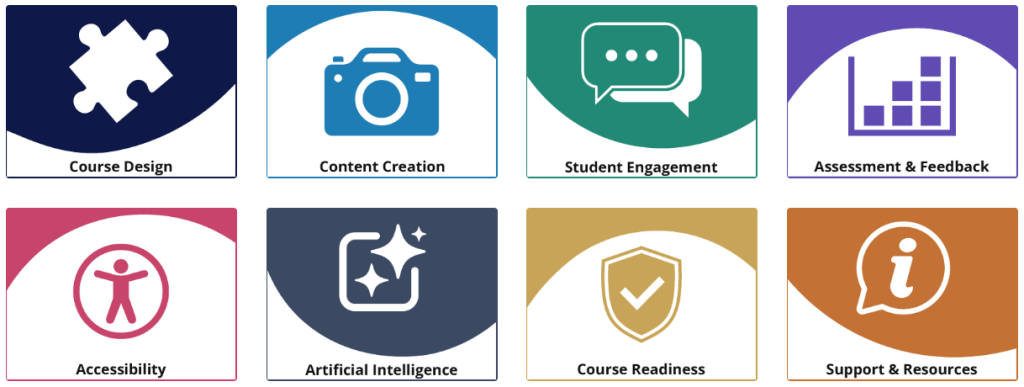
Menu / Sections: Course Design, Content Creation, Student Engagement, Assessment & Feedback, Accessibility, Artificial Intelligence, Course Readiness, Support & Resources

What you’ll find in the Hub

The Hub is structured around key aspects of digital education. It includes guidance on planning and structuring courses, creating engaging content, and encouraging student participation in both asynchronous and live settings. You’ll find advice for designing assessment and feedback, and for making content accessible and inclusive. There is also guidance on course readiness to support reviewing and sense-checking courses before launch, alongside templates, tools and further support.

How to use the Hub

You can use the Hub in a way that suits your needs:

  • Work through sections step-by-step when designing a new course
  • Dip into specific topics for quick guidance
  • Use templates and checklists to support planning and review
  • Revisit sections as part of ongoing course development

The Hub focuses on small, actionable guidance to assist colleagues in designing clear, consistent and well-structured online and blended learning. This includes aligning learning outcomes, activities and assessment, making effective use of digital tools, and ensuring content is accessible and easy to navigate.

The Hub’s guidance is intended to be practical and flexible – you don’t need to use everything, just what’s most helpful for your context.

Explore the Hub

Visit the Digital Education Hub (SharePoint site, UW login required).

We recommend adding the site to your
favourites or following it in SharePoint so it’s easy to find again and remains visible in your navigation.

Gif showing how to select 'Following' in SharePoint

While the Hub provides an on-demand resource, the TEL team are also here to offer one-to-one assistance where needed. If you’d like to talk through your course or project, or explore how the Hub can support your teaching, please feel free to get in touch: tel@worc.ac.uk

New SharePoint site to support the Design and Delivery of Online and Blended Learning Read More »

Designing Online Learning Activities That Aren’t Just ‘Read and Watch’

Three people using different screen devices.

Online learning can sometimes end up looking like a sequence of readings and recorded lectures – especially when time is tight. While these resources are important, learning happens when students do something with the content – even in small, low-pressure ways.

This post shares a few simple approaches to designing online learning activities that move beyond ‘read and watch’, without adding significant workload for staff or students.

1. Designing discussion boards with purpose

Discussion boards can get a bad reputation, often because students are asked to ‘post something’ without a clear reason.

What works better:

  • giving students a specific task (e.g. apply, compare, critique)
  • making expectations clear (length, tone, whether replies are required)
  • framing the discussion as part of the learning process, not an add-on

Example ideas:

  • ‘Post one example from your own experience that links to this week’s concept.’
  • ‘Respond to one peer and explain how their example differs from yours.’
  • ‘Summarise the key takeaway from the discussion at the end of the week.’

Small changes like this can turn a discussion board into a genuine learning activity rather than a compliance exercise.

2. Using quizzes for learning, not just assessment

Used formatively, quizzes can help students:

  • check their understanding
  • identify gaps early
  • build confidence before assessments

Low-stakes quizzes work particularly well when they:

  • allow multiple attempts
  • include feedback on why an answer is correct or incorrect
  • are clearly positioned as practice, not judgement

Even a short quiz with 5–10 questions can make learning more active and support retrieval and reflection.

3. Using low-stakes activities to encourage engagement

Not every activity needs to be assessed to be valuable. Low-stakes activities can help students engage with ideas without the pressure of marks.

These might include:

  • short polls or surveys
  • brief scenario-based questions
  • asking students to upload a single slide, paragraph, or example
  • self-checks or “pause and think” prompts embedded in content

These activities are often quick to set up but can significantly increase student interaction with course materials.

4. Supporting reflection and practice

Reflection helps students make sense of what they’re learning and connect it to prior knowledge or future practice.

Simple reflection activities might ask students to:

  • identify one thing they found challenging
  • explain how a concept applies to their discipline or professional context
  • note one question they still have

These can be:

  • private (e.g. learning journals)
  • shared in small groups
  • used to inform teaching or follow-up activities

Reflection doesn’t need to be long or formal – short, focused prompts are often more effective.

Bringing it together

Designing online learning activities doesn’t have to mean adding lots of extra content or complex tools. Often, it’s about:

  • being clear about what students should do
  • giving them opportunities to practise and reflect
  • using simple tools with intentional design

If you’re reviewing an online module, it can be helpful to ask:

Where are students actively engaging with ideas, not just consuming information?

Designing Online Learning Activities That Aren’t Just ‘Read and Watch’ Read More »

From Feedback to Best Practice: Designing Blackboard Ultra Modules that Work for Students

Book and pencils with colourful background

A new online resource is now available to support staff in designing engaging and effective Blackboard Ultra modules. It draws on research exploring students’ expectations and experiences of the Virtual Learning Environment (VLE), bringing together key insights and practical strategies for effective VLE design.

As part of the Postgraduate Certificate in Learning and Teaching in Higher Education, I explored students’ perceptions of Blackboard Ultra and its role in supporting learning.

The findings from this research have been developed into an online resource that highlights key principles of good course design and offers practical strategies that colleagues can apply to enhance their Blackboard Ultra modules. The resource is structured around six student-informed themes, covering areas such as clear structure and navigation, flexible and accessible content, effective communication, and active engagement. Each theme provides actionable guidance that can be implemented within individual modules or across wider course teams.

The aim of this resource is to support colleagues in reflecting on their current modules and identifying opportunities to build on existing good practice to further enhance the student experience.

👉 You can explore the full resource here.

If you would like support in reviewing your Blackboard modules, implementing these approaches, or simply discussing how these principles might apply to your teaching, please get in touch. You can contact me directly: Nisha Atkins – n.atkins@worc.ac.uk, or reach out via the TEL Team at TEL@worc.ac.uk. We are happy to support you individually or as part of a course team.

From Feedback to Best Practice: Designing Blackboard Ultra Modules that Work for Students Read More »

Increase Engagement with Vevox Polls

Did you know the University of Worcester has a Vevox licence? If you haven’t tried it yet, now’s a great time to explore how it can help increase engagement in your teaching.

What is Vevox?

Vevox is a live polling and Q&A tool that works on any device. Students can answer polls, submit questions, vote in word clouds, or take part in quizzes – all in real time. It’s a quick way to make sessions more interactive, and it gives everyone a voice, not just the confident few.

How could you use it in your teaching?

  • Start with a quick poll to check prior knowledge.
  • Use quizzes mid-session to see if students are following along.
  • Run word clouds to capture key themes or opinions.
  • Open up anonymous Q&A so students can ask what’s really on their minds.
  • Gather feedback at the end of a class to shape your next session.

How to access Vevox

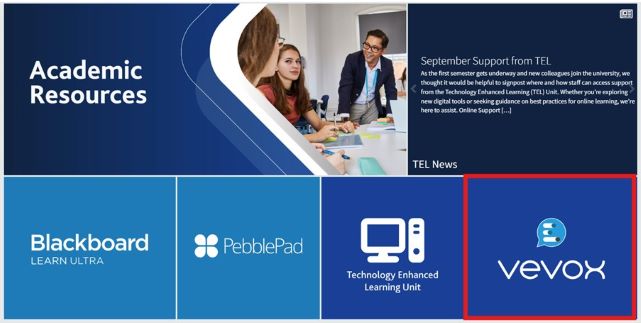
Staff can access Vevox via the Staff Webpage > Academic Resources. It’s straightforward to log in and start creating polls, quizzes, or Q&A sessions for your students.

Want to find out more?

Vevox are running a free webinar on Thursday 6th November. The session will explore practical strategies for engaging large cohorts, fostering interaction in lectures, and maximising engagement in flipped classes

👉 Register for the webinar here

Increase Engagement with Vevox Polls Read More »

Your 2025–26 Blackboard Modules Are Now Available

People viewing text in books and on laptops.

Adobe stock by alexdndz

Blackboard is now live for the 2025–26 academic year. If you’re someone who likes to get a head start, now is the perfect time to begin building and preparing your module content.

To access your new modules, all staff must enrol – even if you’re the module leader. Full guidance is available here: Enrolling on Modules.

Planning to reuse materials from last year? Please make sure you follow our content copying guidance, which you can find here: Copying Content.

User Manual, Guide Book or Technical Instruction Concept. Tiny Female Character Carry Huge Handbook with Guidance and Tutorial for Users. Customer Support, Aid. Cartoon People Vector Illustration
Adobe stock by Sergii Pavlovskyi

Did you know we’ve created a dedicated support site to help you get the most out of Blackboard Learn Ultra? The Blackboard Learn Ultra Manual covers everything from creating content and setting up assessments to using interactive tools and enhancing student engagement.

If you’d like any further support, please don’t hesitate to contact the TEL team at tel@worc.ac.uk We’re here to help!

Your 2025–26 Blackboard Modules Are Now Available Read More »

Turnitin Assignments and Submissions in Blackboard Ultra

Turnitin Assignments and Submissions in Blackboard Ultra

With assessment deadlines approaching, now is a great time to revisit our latest guides and resources for Turnitin assignments in Blackboard Ultra. Whether you are setting up submission points or grading student work, our updated guidance will help you navigate the process smoothly.

Setting Up Turnitin Assignments

Our updated Ultra manual includes the latest recommended settings for Turnitin assignments. We advise checking these settings to ensure everything is configured correctly before your students submit their work.

Grading Turnitin Assignments

In Blackboard Ultra, there is no longer a need to manually hide the Grade Centre column before marking begins—grades remain hidden until the feedback release date. However, if you are working with an older Blackboard module, you will still need to hide grades manually. Once marking is complete, grades are automatically posted on the feedback release date.

Supporting Your Students

You are welcome to share our Ultra Resources and FAQs with students to help them navigate the submission process. We have also created a Turnitin video tutorial, which provides a step-by-step demonstration.

Here are some quick tips to help address common student queries:

Resubmissions before the deadline: If the setting ‘Generate reports immediately (students can resubmit until due date)’ is enabled, students can submit multiple times. However, after the third upload, there will be a 24-hour delay before they receive a new similarity report.

Allowing late submissions: We recommend enabling this option. If a student submits before the due date, they will not be able to resubmit afterwards. However, if they miss the deadline, they will still be allowed a single attempt, which will be marked as late (in red).

Resubmissions and mitigating circumstances: If students require a resit or need to submit due to mitigating circumstances, a new Turnitin submission point must be created within the original module.

Grade visibility: Once grades are released, they will appear in the Blackboard Ultra Grade Centre, with a ‘Posted’ label indicating they are visible to students.

Final Checklist

To ensure a smooth submission process, consider reminding students about:

🔹 The exact submission point title and location within Blackboard.
🔹 Available student support resources as deadlines approach.
🔹 Our Turnitin video guide, which provides a clear walkthrough of the submission process.

If you have any questions, please refer to our updated guides or get in touch for support!

Turnitin Assignments and Submissions in Blackboard Ultra Read More »

Help Us Improve the Student Experience of Blackboard Ultra: Encourage your Students to Participate in a Focus Group! 

Adobe stock PrusarooYakk

The TEL Unit are excited to share an upcoming opportunity for students to shape the future of Blackboard Ultra at the University. To ensure the VLE continues to support effective teaching and learning, we’re hosting a series of student focus groups—and we’d love your help spreading the word. 

What’s the Goal? 

The focus group’s aim is to gather student insights on improving how Blackboard Ultra is used. Their feedback will guide key developments, including: 

  • Creating best practice recommendations for module design. 
  • Enhancing the structure and usability of Blackboard Ultra modules. 
  • Ensuring the VLE better supports the overall learning experience. 

Why Should Students Get Involved? 

We know from student feedback that the way the VLE is used has a direct impact on their learning experiences. This is a unique opportunity for students to ensure the VLE is developed in ways that support their needs as learners. Their voices will shape how Blackboard Ultra is used, benefitting both current and future cohorts. Plus, they’ll enjoy a relaxed environment with free tea, coffee, and biscuits! 

How Can You Help? 

We kindly ask you to share this opportunity with your students by: 

Event Details 

  • Sessions are short (max 1 hour), with various dates and times available across campuses. 
  • All feedback will be anonymous. 
  • Free tea, coffee and biscuits for all students. 

Sign-Up Information 
Students can join by scanning the QR code on the poster, visiting https://forms.office.com/e/MeD1sRmiDY , or emailing n.atkins@worc.ac.uk.

Thank you very much for your support! 

Help Us Improve the Student Experience of Blackboard Ultra: Encourage your Students to Participate in a Focus Group!  Read More »

Understanding Instructor Display in Ultra Modules: A Guide to Course Staff Visibility and Primary Instructor Settings

In Ultra modules, the Course Staff list offers students an easy way to see who is teaching their module. Knowing how instructors are displayed can help both staff and students navigate and connect more effectively. Here’s an overview of how the Course Staff display works, the rules that determine who appear, and how to set Primary Instructors for clearer organisation.


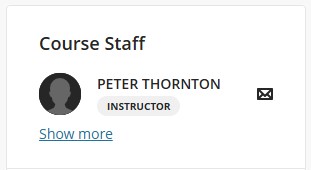
When you open an Ultra module, you’ll find the Course Staff list appears to the right of the page. The Course Staff list includes a selection of instructors based on a few specific parameters.

Course Staff List

Course Staff Guidelines

The way instructors appear under Course Staff follows these guidelines:

  • Instructor-Only Display: Only individuals assigned the ‘Instructor’ role will display under Course Staff.
  • Limited Initial Display: Initially, only two instructor names appear, arranged alphabetically. To see the complete list of instructors, you can click on “Show more.”
  • Primary Instructor Priority: If one or more Primary Instructors are set, they take precedence in the list over other instructors, altering the alphabetical display.

Primary Instructors: Setting and Displaying

Staff with the Instructor role can be assigned as Primary Instructors, which changes how they appear in the Course Staff list. Here’s how the list displays instructors based on Primary status:

  1. No Primary Instructor Set: The first two instructors in alphabetical order are displayed.
  2. One Primary Instructor Set: Only the designated Primary Instructor’s name appears.
  3. Two or More Primary Instructors: The first two Primary Instructors, arranged alphabetically, are displayed.

In all cases, students can click on “Show More” to see a complete list of all instructors in the course.

Steps to Set Primary Instructors

Setting an instructor as Primary helps make their presence more prominent on the Course Staff list. Here’s how to assign an instructor as Primary:

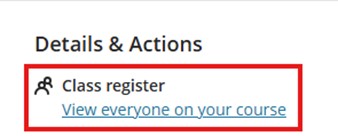
  1. Go to the Class Register: From the Details and Actions menu, navigate to the Class Register.
Details & Actions, Class Register
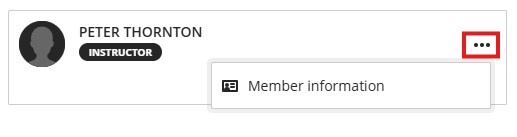
  1. Edit Member Information: Click the three-dot menu next to the instructor’s name and select Edit Member Information to open the Member Information panel.
Member Information
  1. Assign Primary Status: In the panel, you’ll find a checkbox labelled Primary Instructor. Select this box to designate the instructor as a Primary Instructor and save.
Member Information Menu, Primary Instructor selection

The Course Staff list is now updated to display the Primary Instructor.

Primary Instructor course staff view

This blog post was generated with the assistance of AI

Understanding Instructor Display in Ultra Modules: A Guide to Course Staff Visibility and Primary Instructor Settings Read More »

Enrolling on to 24/25 Modules

As in previous years, you’ll need to enrol on each of your modules by completing the request form available on the staff homepage. After submitting the form, you should gain access to your modules within an hour.

With the redesigned staff homepage, you can find the form by navigating to the ‘Staff’ tab on the left-hand side of the page:

Selecting ‘Web Applications’:

Then choosing ‘Blackboard Access 2024/25’:

For new staff members or those taking on new modules, you can also access last year’s version of the module, by filling out the ‘Blackboard Access 2023-24’ form.

Enrolling on to 24/25 Modules Read More »

Blackboard Learn Ultra Virtual Office Hours.

Blackboard Learn Ultra Office Hours

Join Us for Fortnightly MS Teams Meetings!

The TEL team invites staff to our Blackboard Learn Ultra Office Hours, held every two weeks via MS Teams. This is a dedicated time for you to get answers to your Ultra-related queries and receive further support in structuring and developing your new modules.

Who Should Attend?

  • Staff members who have completed the three-hour Blackboard Ultra training session.
  • Those currently building their Ultra modules.
  • Staff with specific questions or in need of additional support.

Details:

Time: Drop in anytime between 11:30 AM – 12:30 PM

Dates:

  • 26/06/2024
  • 10/07/2024
  • 24/07/2024
  • 07/08/2024
  • 21/08/2024

No booking required – just join us on Teams!

Join here: Office Hours Link

Don’t miss this opportunity to enhance your Blackboard Ultra experience with expert guidance from the TEL team. See you there!

Disclaimer:
Please note that this is not a training session. These office hours are for specific Ultra-related queries. If you have not yet attended the dedicated course team Ultra training session, please ensure you attend this first. If you cannot make your team session, you can book onto an ‘open’ session via the Staff Development Workshops page.

Blackboard Learn Ultra Office Hours Read More »