
The TEL Unit have put together some tips and advice for students who wish to obtain copies of their work and feedback from tutors.
Staff are welcome to share this information with their students.
Guidance for Students – Downloading Assessments
While you are a current University of Worcester student, any assignments which you have uploaded to the Blackboard VLE or Turnitin can be downloaded at any point for your own records.
This is particularly important if you are a student who is finishing your course:
Finishing your University of Worcester Course?
- Digital Services have guidance for students who are finishing, or have recently completed their studies.
- We recommend storing any copies of your work securely – outside of the Blackboard VLE or your Microsoft student account. You will need to use personal file storage options instead after leaving the University.
- You may wish to keep a back-up copy for the future too. For example, if your device should have any issues.
Turnitin Assignments
Access uploaded work through a Turnitin submission link in Blackboard. You can select your assignment title to review your work.
After the feedback release date, students automatically see any tutor feedback (Classic View) as well as a grade. You can also view rubric comments if one has been used (Classic view). You can view everything from within the ‘Feedback Studio’.
Downloading from Turnitin – Feedback Studio View
Once you have opened your assignment, ensure you have the feedback and similarity layers activated. (You can use the blue and red buttons on the right.)
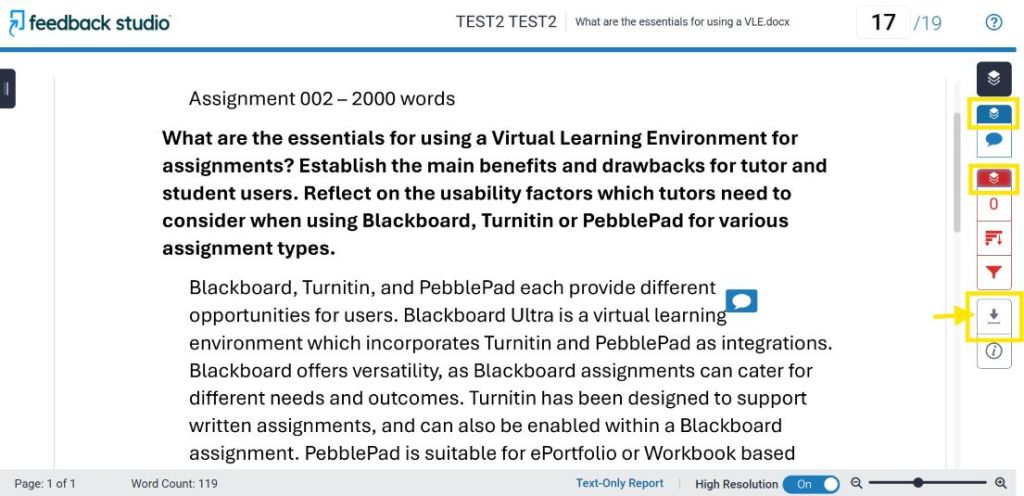
Then click the grey download arrow to show the different options to select:
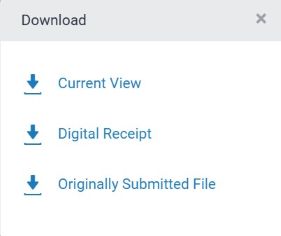
Current View
This will download as a .pdf file document
Digital Receipt
Shows the time and date of submission
Originally Submitted File
Your work as you uploaded it
We recommend choosing to download the Current View with layers showing, if you would like a copy of your assignment, similarity matches, grade, and feedback.
The downloaded ‘Current View’ .pdf file will contain:
- Submission details
- Your Assignment
- Originality Report (Similarity checks)
- GradeMark Report (Grade and Feedback comments)
Your feedback and grade can be found at the end of the .pdf document:

Blackboard Assignments
You can view Submissions and Feedback for a Blackboard Assignment in different places.
How do I download my original assignment from Blackboard?
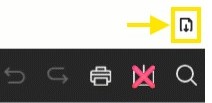
If you only need a copy of your original file you can select the smaller download document icon, above the tool bar options:
How do I view and download my Written Feedback?
Please see the most common written feedback types in the labelled image below:

In the right-hand Feedback Panel, you may see:
- An Attached File – Select the three dots to show the document download icon, and click to download a copy to your device:
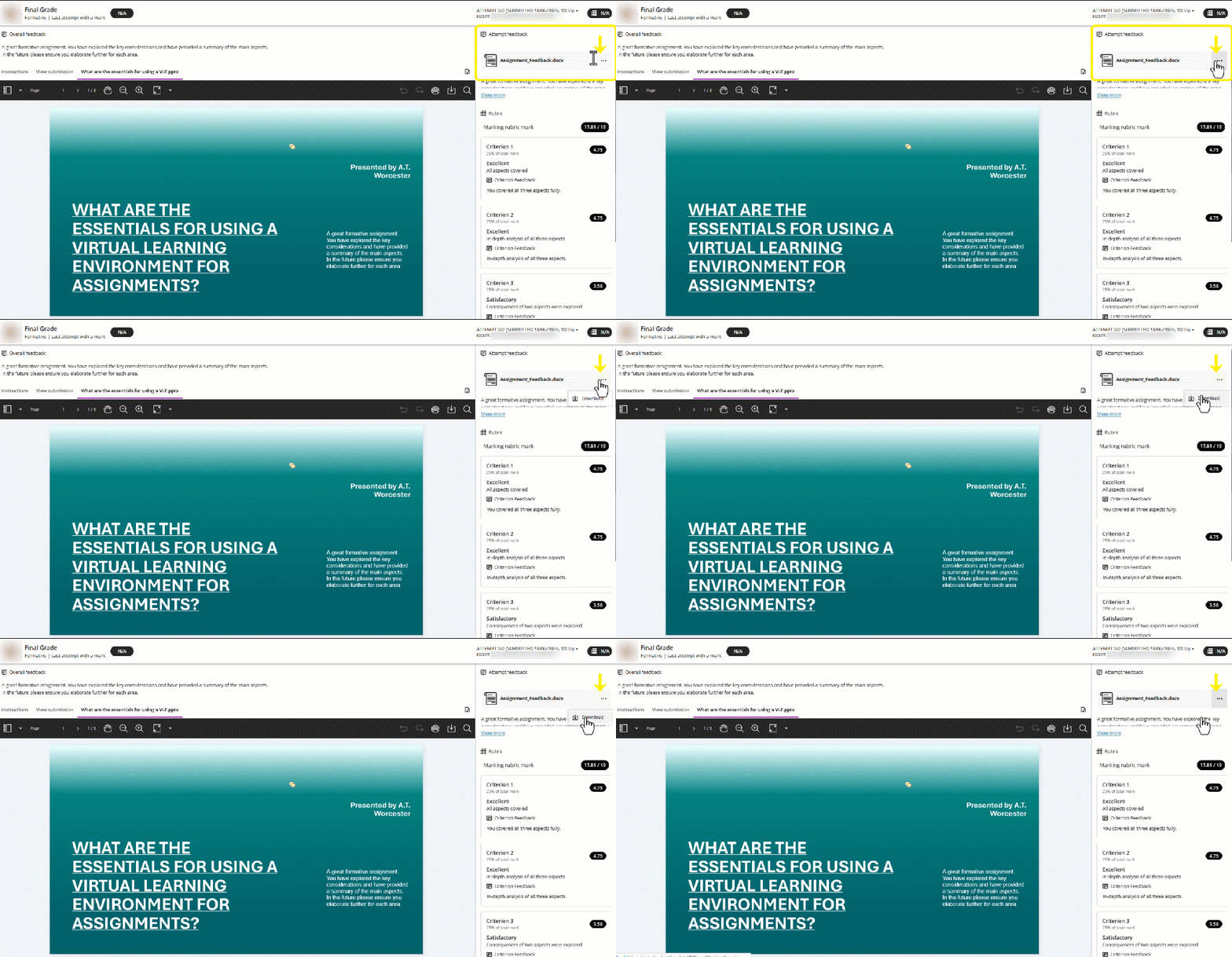
- Overall Feedback – You can click ‘Show more’ to see comments in full.

- Rubric and comments – View this feedback in the panel, by scrolling down.
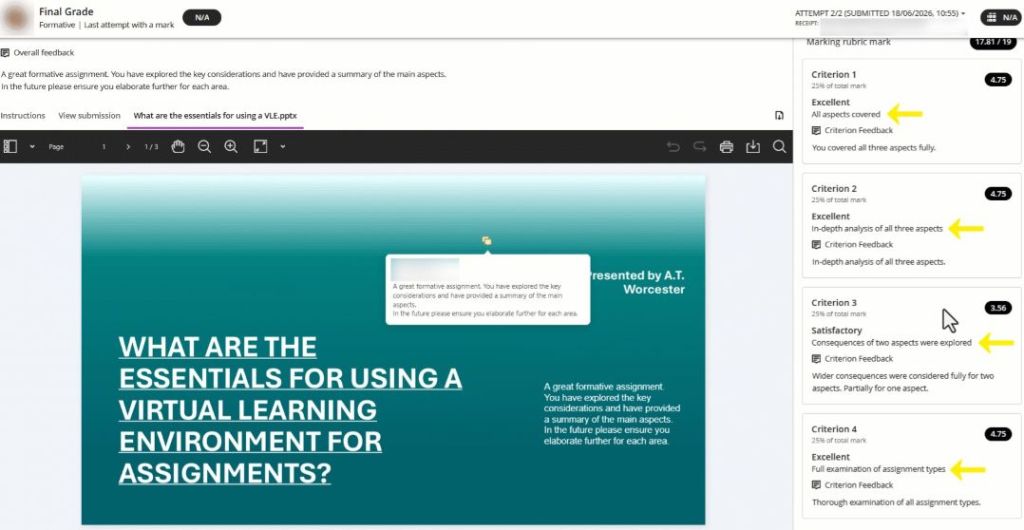
Within your Assignment / the on screen document view:
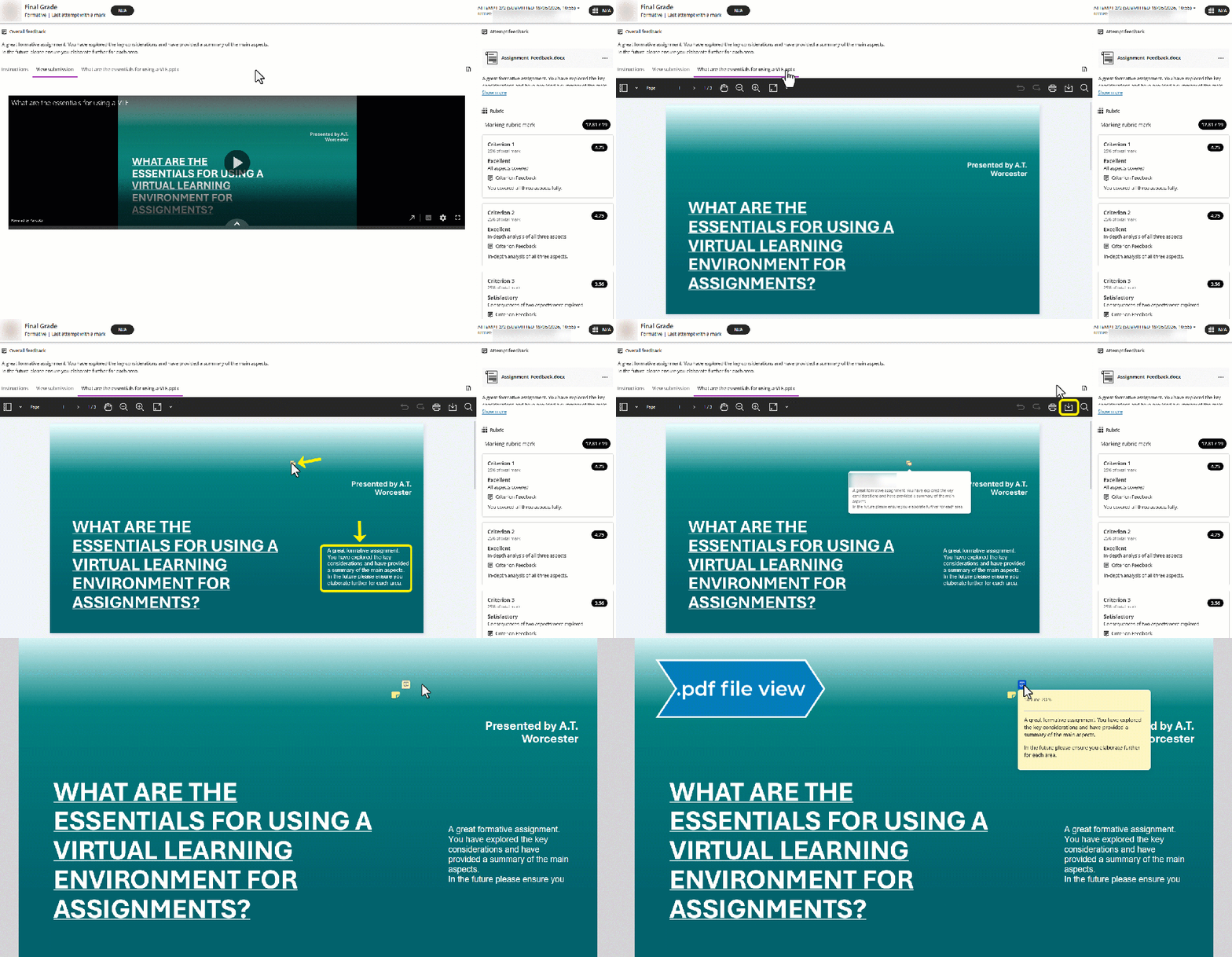
- Document Annotations and Comments
- Comments can show as a Speech Bubble / Callout
- Or as typed text
4a and 4b- Comments / annotations are included in a .pdf download of your work. Clicking on / hovering over the speech bubble reveals comments. You can select the large download arrow in the tool bar options to get a .pdf file copy of your work and feedback:
Audio or Video Feedback
Sometimes, tutors may include Feedback Recordings. (It is not possible to download recorded feedback from Blackboard.)
Downloading Blackboard Assignments with Turnitin enabled
Blackboard assignments can have Turnitin enabled. You can download feedback in the same way. Please see Turnitin’s guidance for how to view your Turnitin similarity report in Blackboard.
Why can’t I download certain feedback or files?
- 1. Overall Feedback
- 3. Rubric comments Feedback
For other written feedback, it is not possible to download a copy straight from Blackboard. You could instead copy and paste tutor comments into a new document on your computer. Or take a screenshot for your own records to store outside of the VLE.
- Embedded Video Assessments
Embedded video assignments are not stored in Blackboard, so cannot be downloaded from here as they are held in Panopto.
Further support
Please contact your tutors if you cannot see your work or feedback, but please also feel free to contact TEL for technical support: TEL@worc.ac.uk