Blackboard

Enrolling on to 24/25 Modules

As in previous years, you’ll need to enrol on each of your modules by completing the request form available on the staff homepage. After submitting the form, you should gain access to your modules within an hour.

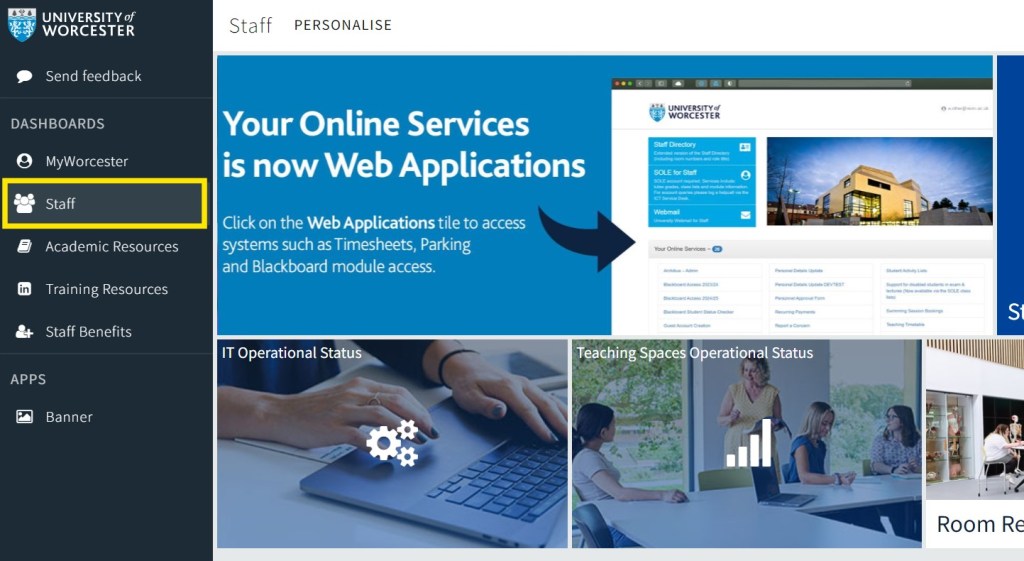
With the redesigned staff homepage, you can find the form by navigating to the ‘Staff’ tab on the left-hand side of the page:

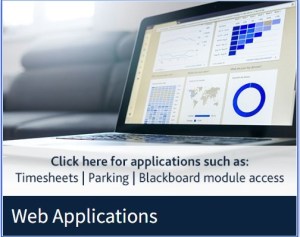
Selecting ‘Web Applications’:

Then choosing ‘Blackboard Access 2024/25’:

For new staff members or those taking on new modules, you can also access last year’s version of the module, by filling out the ‘Blackboard Access 2023-24’ form.

Enrolling on to 24/25 Modules Read More »

Migrating Panopto Video Content

Decorative image of laptop and action camera. technology, camera, sport-2125547.jpg

As we move to the new version of Blackboard ‘Learn Ultra’ ready for September, you may need to reuse older video content, from the ‘Learn 9.1’ system, in your new modules.

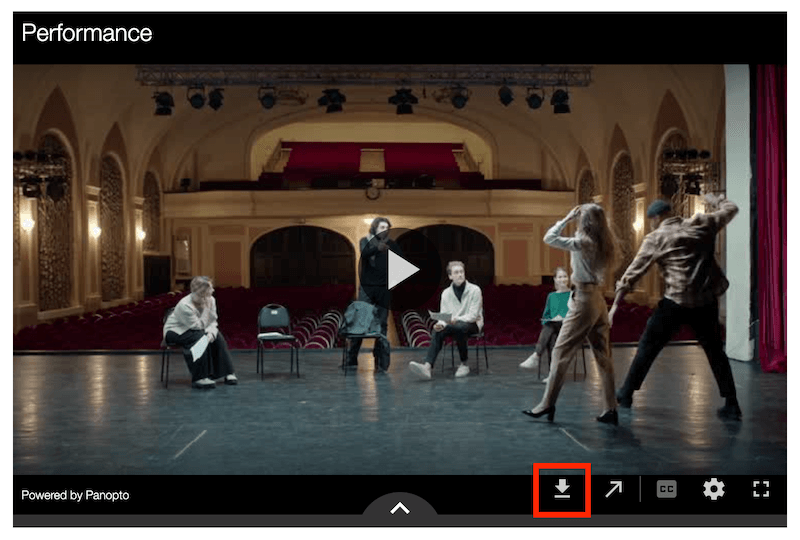
The easiest way to do this is to simply download the videos from the original module, using the download button:

This will save the video file to your computer. Rename the file if you wish, and then follow the instructions to add a link to Panopto from your Blackboard module. This will enable you to upload the video you have just saved, into the new Ultra module ready for use.

You can then add your video to a module document page, or embed it as a full-size video in the Content page.

*If you do not see the download button this means that the original uploader has removed this feature, and you will need to contact the TEL Team for further assistance: tel@worc.ac.uk

Migrating Panopto Video Content Read More »

Choosing the correct Assignment Submission Tool in Blackboard Learn Ultra

Collection of diverse thoughtful people. Six smart men and women thinking or solving problem.

Image by ©Rudzhan

Ensuring that you have chosen the correct submission tool for your students is essential to facilitate a problem free assignment submission experience and minimise stress for your students.

Turnitin Assignments

If you have a largely text based assignment, then Turnitin is the ideal software for this. Turnitin will provide an originality report to help identify sources throughout a student’s paper and is ideal for written assignments, such as, reports or essays.

Blackboard Assignments

For large files, multiple files, zip files, or files which contain mostly imagery, a Blackboard Assignment submission point is most suitable.

Panopto Assignments

If you are asking your students to produce a video or audio file, a Panopto assignment is most likely to provide the best experience for students, allowing them to create and upload videos directly in the Panopto system.

If you have any questions or would like any help with choosing a suitable submission tool for your students, please email TEL@worc.ac.uk in the first instance. The flowchart below summarises the most suitable assignment software for each submission type.

Flow diagram of assignment type choices. Essay/Report to Turnitin. Group; Exam/Test; Blackboard Tools goes to Blackboard Assignment. Portfolio/Practice Assessment to PebblePad. Audio/Video to Panopto.

Choosing the correct Assignment Submission Tool in Blackboard Learn Ultra Read More »

Panopto Video Support for your Students

video production, video, movie-4223885.jpg

Panopto is the University’s main application used for recording, storing, or sharing video content. This cloud-based platform permits students to record or upload assignments and to view live lectures. For Blackboard Ultra assessments students can:

Create and submit videos using Panopto Capture

Record PowerPoint presentations

Upload and submit their own video files (which they have created elsewhere)

Depending on the video assignment type, you can use the most suitable link above and share these with your students.

If you have not yet created an Ultra submission point within a module, please see a link to our Video assignment submission point set up guidance for staff below:

Blackboard Ultra Video Assignments Guidance

Sometimes students may encounter technical issues when using Panopto for the first time or when submitting video assessments. We would recommend communicating with your students the creation and submission process for any upcoming video assignments you may have in Blackboard Ultra ahead of a due date. To help with any potential queries from your students, we thought it would be useful to summarise some useful TEL tips:

Tips for Panopto Assignments

  • Students can refer to our Panopto Guide as this includes advice about the different uses of Panopto when creating or uploading to a Blackboard Ultra submission point, and helpful troubleshooting solutions.
  • When using Panopto capture to make an in browser recording, please see further help and guidance directly from Panopto below. Each step is clearly explained and there is also a short informative video, for Chrome users:

https://support.panopto.com/s/article/How-to-Create-a-Video-Using-Panopto-Capture

  • Ahead of using the Panopto integration, users should remember to check their browser’s ‘permission’ settings. For example, if Panopto is blocked from using a device’s camera or microphone, it will not be possible to make a recording. Settings can be changed to ‘allow’, through ‘Privacy and Security’ within Chrome. (These options can be accessed via the three-dot, kebab menu, towards the top right-hand corner of the window.)
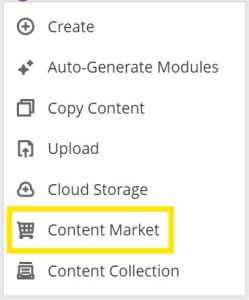
  • For Blackboard video assignment submissions, students should ensure they follow the correct submission process carefully, with use of their assignment submission text box, the Insert Content button, and the Panopto Submissions tool in the Content Market.
  • Students should allow themselves plenty of time to make a submission ahead of a due date.
  • Chrome works well as browser with the Panopto integration, when making a Panopto / Blackboard assignment submission, so we recommend using this if possible. The Blackboard browser checker can also be used to troubleshoot.
  • If a connection times out because a large video file is being uploaded there are additional things for your students to try:
    1. Check their internet connectivity.
    2. When uploading to Panopto, they can help their computer process the data contained in a video file, by closing down any additional applications, such as, PowerPoint.
    3. Check the size and type of video file they are attempting to upload, and then contact the TEL Unit with this information so that we can assist them further.
  • After submitting their work, your students will be given the option to download an Ultra submission receipt for their records.
  • The most important action after a student has made an assessment submission, is to go back to the assignment submission point, to check that they can view their Panopto video. Students should be able to see their video embedded to the submission page.

If your students have any concerns or queries about Panopto or a video assignment submission, alongside making their module leader aware of any problems or contacting the IT Service, they are always welcome to contact us, at the TEL Unit, for further technical support, tel@worc.ac.uk.

Panopto Video Support for your Students Read More »

Blackboard Learn Ultra Virtual Office Hours.

Blackboard Learn Ultra Office Hours

Join Us for Fortnightly MS Teams Meetings!

The TEL team invites staff to our Blackboard Learn Ultra Office Hours, held every two weeks via MS Teams. This is a dedicated time for you to get answers to your Ultra-related queries and receive further support in structuring and developing your new modules.

Who Should Attend?

  • Staff members who have completed the three-hour Blackboard Ultra training session.
  • Those currently building their Ultra modules.
  • Staff with specific questions or in need of additional support.

Details:

Time: Drop in anytime between 11:30 AM – 12:30 PM

Dates:

  • 26/06/2024
  • 10/07/2024
  • 24/07/2024
  • 07/08/2024
  • 21/08/2024

No booking required – just join us on Teams!

Join here: Office Hours Link

Don’t miss this opportunity to enhance your Blackboard Ultra experience with expert guidance from the TEL team. See you there!

Disclaimer:
Please note that this is not a training session. These office hours are for specific Ultra-related queries. If you have not yet attended the dedicated course team Ultra training session, please ensure you attend this first. If you cannot make your team session, you can book onto an ‘open’ session via the Staff Development Workshops page.

Blackboard Learn Ultra Office Hours Read More »

Make a Connection: Crafting an Engaging Blackboard Profile

Personalising your profile on Blackboard Ultra goes beyond aesthetics—it plays a crucial role in creating a more engaging and interactive learning environment for your students. Here’s why you should invest time in customising your profile.

Building Connections

A personalised profile humanises the online learning experience. By adding a photo and personal details, you create a sense of familiarity and approachability, making it easier for students to connect with you.

Enhancing Communication

When students see a face behind the messages and instructions, it fosters better communication. A customised profile picture and relevant information can make your announcements, feedback, and interactions more impactful.

Establishing Credibility

A well-crafted profile demonstrates professionalism and commitment. Including your academic background, teaching philosophy, and relevant experiences can enhance your credibility and authority as a educator.

Encouraging Engagement

Profiles that reflect your personality and teaching style can inspire students to be more active and engaged. Sharing a bit about your interests and teaching methods can make your courses more relatable and interesting.

Streamlining Identification

In large classes, a recognizable profile helps students quickly identify you in forums, discussions, and course materials. This streamlined identification process is important for maintaining effective communication and support.

Promoting Inclusivity

Including your pronouns and preferred name in your profile fosters an inclusive and respectful learning environment. It signals to students that you value diversity and individual identity.

Conclusion

Personalising your Blackboard Ultra profile is a simple yet powerful way to enhance the educational experience for your students. It fosters better connections, improves communication, and creates a more engaging and inclusive learning environment.

For instructions on how to personalise your profile, visit the TEL Ultra Resources page.

Make a Connection: Crafting an Engaging Blackboard Profile Read More »

VLE Briefing Session: Blackboard Learn Ultra

In recent weeks, members of the Technology Enhanced Learning Unit have been actively visiting departments to conduct briefing sessions on the new system and the transition to Blackboard Learn Ultra. Alongside these, the TEL Unit have also organised several online sessions open to all staff members. These sessions have focused on introducing the new system, highlighting its features and functionalities, and offering updates on the practicalities of transitioning to the new system.

If you were unable to attend any of these briefing sessions, you can quickly catch up by watching a recording of one of the sessions provided here. This page also provides a visual overview of the timescale and milestones included in the move to Ultra.

VLE Briefing Session: Blackboard Learn Ultra Read More »

Book your training sessions for the new Blackboard Learn Ultra VLE!

'Book now' words contained in an image

With the new Blackboard Learn Ultra virtual learning environment now out of the pilot phase, it’s time to prepare for the upcoming rollout of live modules. This will ensure your Learn Ultra content and learning tools are set up successfully before the new semester begins in September.

Blackboard staff training sessions will be held for course teams from May through to the end of July. The training will cover best practices for designing your modules in the new system, as well as hands-on experience in building your new Learn Ultra sites. A course team training session will last for around 3 hours. We highly recommend having as many course team members attend as possible to facilitate consistent decision-making across the course.

Here’s what to do next:

  1. Consult with your course team to identify a preferred week for training.
  2. Contact the TEL team, tel@worc.ac.uk, with the following information to book your session:
    • Course that the training is for
    • Module codes the team will be using
    • Names and email addresses of attendees

The TEL team will then be in contact to confirm all the details, including which resources attendees should bring along, so that they can get started on creating their Ultra modules.

Be sure to book your training sessions early to reserve your preferred dates!

Book your training sessions for the new Blackboard Learn Ultra VLE! Read More »

Blackboard Learn Ultra Pilot Update

January saw our Ultra pilot users embark on their new VLE journey. The users were spread across a range of courses with varying modes of delivery, and the TEL team have enjoyed the opportunity to discuss pedagogical considerations, as well as more routine, ‘how do I do that?’ questions. After creating their modules, we asked the pioneers for feedback which is summarised on the images below:

Next Steps

We are using this feedback to guide the broader implementation of the new ‘Blackboard Learn Ultra’ VLE for the wider organisation. Additionally, it will help to inform the training provided by TEL, the customisation of templates, and the system, where feasible.

We are now working with senior colleagues in schools, to offer dedicated workshops for schools and departments, which will begin at the end of April and will continue through into the summer. Check with your teams for further information.

Blackboard Learn Ultra Pilot Update Read More »

teamwork, team, gears-7042560.jpg

Blackboard Learn Ultra – VLE Update 

Copying Content 

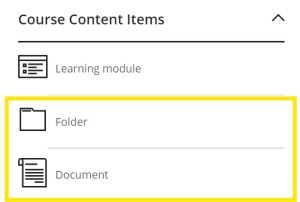
The TEL Unit are pleased to confirm that the various Blackboard copy functions are now available again, for copying module content. As part of the transition to Ultra, copy functions recently were not accessible, and we are sorry for any inconvenience this has caused. Staff should now have the option once again to copy content between modules; which includes copying over items or folders. 

Thank you for meeting with us! 

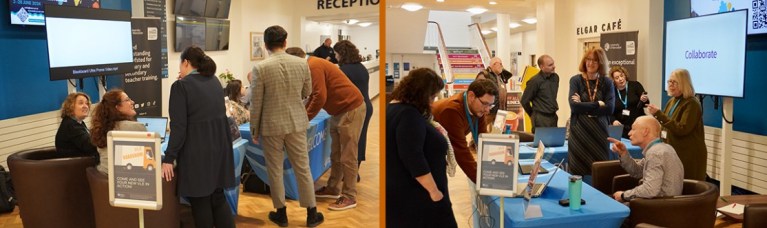
Finally, a big Thank you to everyone who has met with us over the last few weeks. The TEL Unit have enjoyed meeting with staff at the VLE Roadshows, and when attending Departmental Briefing sessions.  

We are excited about the next steps, including meeting with more departments and commencing training after Easter, which staff members will soon be able to sign up to. The TEL team are willing to share further information with any staff members who would like to know more about Blackboard Learn Ultra. Please do continue to contact us, at tel@worc.ac.uk, if you have any questions you would like to ask about our new VLE. 

Blackboard Learn Ultra – VLE Update  Read More »