Blackboard

Important Information: December Assignments & TEL Opening Times

Baubles in snow
By epiximages Adobe Stock

Please be advised that the Technology Enhanced Learning (TEL) unit will be closed for the Christmas break from end of day Friday, 20th December 2024, until Thursday, 2nd January 2025.

If your students have assignments due during this period or on the close of day on the 20th of December, TEL support will not be available. We kindly ask that you plan accordingly to provide any necessary support to your students during this time.

To ensure a smooth and stress-free submission process:

  • Establish a clear plan for assisting students with any submission issues.
  • Communicate this plan to your students in advance, emphasising that the TEL inbox will be unmanned over the break.

Resources for Support

Guidance on Turnitin and Panopto submissions is available on our webpage and in these blog posts:


It has been a pleasure supporting you with learning technologies at the University of Worcester this year, particularly as we’ve worked together on the implementation of our new VLE.

The TEL Team wishes you a wonderful festive break, and we look forward to collaborating with you in the new year!

Warm regards,
The TEL Team

Important Information: December Assignments & TEL Opening Times Read More »

Online speaker / person

Speakers Wanted! – A Scaffolded Approach to Blackboard Ultra for Engagement and Retention

Now that staff have been using Blackboard Ultra for a Semester, we would like to showcase exemplary practice in the academic faculty, with a specific focus on using aspects of course design facilitated by Blackboard Ultra to aid student engagement and retention. As a result, we will be offering a short series of online seminars delivered by academics and members of the TEL and Library teams to generate ideas for methodologies that can be employed on your own Ultra modules. These sessions will be recorded and offered as resources for all staff.

While we have some sessions planned already, we would like to offer the opportunity for staff to volunteer as speakers to demonstrate innovative practice in their modules. Examples do not need to be perfect as areas where you can adapt your methodologies in future can provide a rich seam of discussion.

Areas that we are particularly interested in hearing from staff about include:

  • Using the in-built AI tools offered in Blackboard to create content.
  • Using Blackboard Ultra to help students engage with reading materials on Talis resource lists.
  • Innovative approaches to assessment, either formative or summative.
  • Using blended tuition structures, such as pre and post-session asynchronous tasks.
  • Using the Analytics tools to track student engagement.

If you would be interested in presenting, or discussing any ideas for presentations, please email Andrew Bright at a.bright@worc.ac.uk

Speakers Wanted! – A Scaffolded Approach to Blackboard Ultra for Engagement and Retention Read More »

Understanding Instructor Display in Ultra Modules: A Guide to Course Staff Visibility and Primary Instructor Settings

In Ultra modules, the Course Staff list offers students an easy way to see who is teaching their module. Knowing how instructors are displayed can help both staff and students navigate and connect more effectively. Here’s an overview of how the Course Staff display works, the rules that determine who appear, and how to set Primary Instructors for clearer organisation.


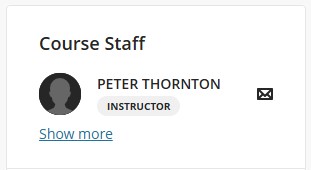
When you open an Ultra module, you’ll find the Course Staff list appears to the right of the page. The Course Staff list includes a selection of instructors based on a few specific parameters.

Course Staff List

Course Staff Guidelines

The way instructors appear under Course Staff follows these guidelines:

  • Instructor-Only Display: Only individuals assigned the ‘Instructor’ role will display under Course Staff.
  • Limited Initial Display: Initially, only two instructor names appear, arranged alphabetically. To see the complete list of instructors, you can click on “Show more.”
  • Primary Instructor Priority: If one or more Primary Instructors are set, they take precedence in the list over other instructors, altering the alphabetical display.

Primary Instructors: Setting and Displaying

Staff with the Instructor role can be assigned as Primary Instructors, which changes how they appear in the Course Staff list. Here’s how the list displays instructors based on Primary status:

  1. No Primary Instructor Set: The first two instructors in alphabetical order are displayed.
  2. One Primary Instructor Set: Only the designated Primary Instructor’s name appears.
  3. Two or More Primary Instructors: The first two Primary Instructors, arranged alphabetically, are displayed.

In all cases, students can click on “Show More” to see a complete list of all instructors in the course.

Steps to Set Primary Instructors

Setting an instructor as Primary helps make their presence more prominent on the Course Staff list. Here’s how to assign an instructor as Primary:

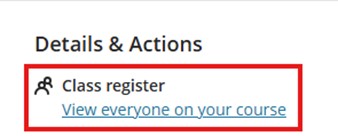
  1. Go to the Class Register: From the Details and Actions menu, navigate to the Class Register.
Details & Actions, Class Register
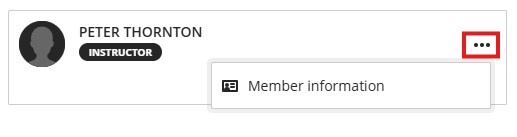
  1. Edit Member Information: Click the three-dot menu next to the instructor’s name and select Edit Member Information to open the Member Information panel.
Member Information
  1. Assign Primary Status: In the panel, you’ll find a checkbox labelled Primary Instructor. Select this box to designate the instructor as a Primary Instructor and save.
Member Information Menu, Primary Instructor selection

The Course Staff list is now updated to display the Primary Instructor.

Primary Instructor course staff view

This blog post was generated with the assistance of AI

Understanding Instructor Display in Ultra Modules: A Guide to Course Staff Visibility and Primary Instructor Settings Read More »

Updating Your Blackboard Courses for Semester 2!

2024 Loading to 2025 icon
© Supatman - Adobe stock

As we approach the end of the year, it’s time to start preparing your course content for Semester 2, which students will be able to access from December. Below are some effective tools and strategies to help you organise your Blackboard Learn Ultra courses:

Organise with Learning Modules

Structure your course content with Learning Modules, which provide an immersive and trackable experience. These modules allow students to follow a cohesive learning journey, and you’ll be able to see who’s engaging with each section.

Use the Content Market to add useful tools

Set up Turnitin assignments, add Panopto videos, and incorporate Talis Aspire Reading Lists (resource lists) directly into your Learning Modules. These integrations streamline access to essential course materials.

Convert or Create Course Documents

You can easily upload existing Word files and convert them into web pages that are accessible and editable directly within Blackboard. This makes updates convenient and ensures students always have the latest version to work from. Alternatively, create your own web pages using the content blocks to construct pages with multiple types of content all in one place.

Enhance Interactivity with AI Tools and Discussion Boards

Use AI Tests to set up quick, formative knowledge checks based on your course content. You can also incorporate Discussion Boards to foster peer interaction and co-construction of knowledge (and see who has participated!).

Leverage Analytics to Track Engagement

Adding interactive elements not only enhances the learning experience but also feeds valuable data into your Analytics. This can help you identify students who may need additional support or who aren’t fully engaging with the course material.

Updating Your Blackboard Courses for Semester 2! Read More »

Blackboard Ultra Implementation Feedback

Feedback © Web Buttons Inc

To All Blackboard users,

Phase one of the implementation of the new Blackboard Ultra VLE is now completed and the platform has been in use for learning and teaching since the beginning of this semester. The project team would like to get some feedback on how staff and students have been getting on with Ultra and have put together a very short feedback form to gather your thoughts and feelings about the new system.

The form should take no longer than five minutes to complete and any feedback you provide will be fed into the evaluation report and next phase developments. You can choose to remain anonymous.

Many thanks for taking the time to contribute.

Organisations in Ultra

Phase two of the Ultra implementation includes reviewing the use of Blackboard organisation sites. As a first step we are looking at which sites are no longer being used, and will be carrying out a housekeeping exercise to remove any organisations which have not been accessed within the past 12 months. If you have Blackboard Organisation sites you still wish to use, please contact e.symonds@worc.ac.uk and we can arrange a discussion about future provision.

Blackboard Ultra Implementation Feedback Read More »

Turnitin assignments and submissions

With various assessment deadlines approaching soon, you may wish to refamiliarise yourself with our new guides and resources for Turnitin, and your submission points within Blackboard Ultra.

Our new Ultra manual includes settings for Turnitin Assignments. You can use this to check through the recommended settings, to ensure that everything is as it should be ahead of your students’ submissions. 

We have new guidance for Grading Turnitin assignments. In Ultra, there is no longer a need to manually hide the grade centre column, ahead of marking commencing. However, if this is within an older module, which uses our original Blackboard VLE, this action will still need to be taken.

Once marking has been completed, grades are automatically posted on the feedback release date, for Turnitin assignments. We have further details about releasing grades in Blackboard Ultra within our manual, and Blackboard also have additional advice for instructors: Assign Grades (blackboard.com)

You are most welcome to share our new Ultra Resources and FAQs with your students. Please see our Turnitin video below, which includes a demonstration of the submission process for students.

Here are some quick reference tips – if your students have any queries about their submissions:

  • Students can resubmit work to the submission point as many times as they like, until the due date if  ‘Generate reports immediately (students can resubmit until due date): After 3 resubmissions reports generate after 24 hours’ is selected:
Generate reports immediately
  • After the 3rd upload, there will be a delay of 24 hours until the next similarity report is received.
  • We recommend using ‘allow late submissions’ as a setting. Once the due date has passed, students who have already submitted ahead of this date and time, will be unable to resubmit again. However, if they have not made a submission until after the due date, a single attempt will be allowed, and this will appear as a late submission, highlighted in red.
  • Resubmissions, resits and mitigating circumstances, will require a new Turnitin submission point to be created in the original module.
  • Grades and feedback are automatically released to students, on the ‘Feedback Release Date’ and ‘Time’, for Turnitin assignments. Grades will then be visible within the Blackboard Ultra grade centre – where you will be able to see whether grades have been released, as these will have the label ‘Posted’ next to them.
  • You may wish to share relevant student support sources, in the run up to submissions, and to clarify with your students the title & location of the submission point.

Turnitin assignments and submissions Read More »

New Microsoft Integrations with Blackboard

We are currently in the process of installing some exciting new Microsoft integrations to our Blackboard virtual learning environment. While these integrations are being installed and tested, you may see references to Microsoft OneDrive and Microsoft Teams throughout various menus within your Ultra courses.

MS Teams in Ultra

While we understand that you are looking forward to trialling these, please could we ask that you refrain from using these features, until they have been fully tested and commissioned.

We will let you know when these features are ready to use with your students.

If you have any questions, please do not hesitate to contact us at TEL, tel@worc.ac.uk

New Microsoft Integrations with Blackboard Read More »

A new version of our VLE, Blackboard Ultra

Lightbulb and laptop by ©The KonG
Image ©The KonG

Further Blackboard support from the TEL Unit

Now that term is well underway and many of you have completed Blackboard training, here’s a reminder of where and how to access continuing support for using Ultra.

We have an Online Training session scheduled, which is available to book through your MyDay page: ‘Training Resources’ tile → ‘Staff Development’ booking system. We will then send out invitations via Teams.

Blackboard Ultra Staff Training

Wednesday 9th October 14:30 – 16:00

This session is an overview of the main features within Blackboard Ultra and is suitable for members of staff who for one reason or another, have been unable to attend previous training – or for anyone who would like a brushup on their skills.

We also have resources available for your day-to-day activities on Blackboard Ultra and guidance for how to support your students using the VLE on our website.

The site below from the TEL Team contains all you need to know about starting in Blackboard Ultra, Building your course, Tests and Assignments and Student Support. As well as the new Blackboard Ultra Manual.

If you have any questions or need any technical support when using Ultra, please do not hesitate to contact the TEL Team, tel@worc.ac.uk.

A new version of our VLE, Blackboard Ultra Read More »

Blackboard Ultra – Quick Catch-Up and Further Mop-Ups

Over the last couple of months, we at the TEL Unit have trained over 400 colleagues in using Blackboard Ultra to build engaging modules for students.

Hopefully most of you have made a good start building your modules but, perhaps, if you took the training a while ago now, a couple of things might have become…a little hazy. Here are a few key points to bring you back up to speed.

1. Organise your content into Learning Modules

Learning modules are the building blocks of your course. You can use these to structure your content and adding these is the first step you can take when building your course. They have a few advantages over folders:

  • They are designed to be immersive, so that students work through the content like a book, clicking ‘Next’ to get to the next content area.
  • You can add a thumbnail image which can give visual differentiation and make the module look more attractive and engaging.
  • Learning modules are trackable, so allow both students and you as tutors to track student progress through the course. Students are given an indicator of which sections they have viewed, and are given the option to mark items as complete.

You can add learning modules by clicking on the purple line on the module background and opening the Create menu.

2. Use folders if you need to, but documents may be a better option

You have the facility to add a folder level inside your learning module to further divide your content if needed. Before you do so however, just bear in mind that this will be an additional click for students and consider whether this is strictly necessary. Documents are a great way to pull together different types of content, including text, images, links, videos (YouTube, Panopto), files like PowerPoint slides, sections of your Talis resource lists etc. They may be a better way to build your content, giving additional structure and context, rather than a list of documents and links that gives students no indication how it all fits together.

For example, if you are using a weekly structure, you might have a folder for day 1, day 2 etc. but consider whether the content for these might work better in a document for “Day 1 Materials”, “Day 2 Materials” etc. instead.

3. The Create menu vs. the Content Market (and where to set up a Turnitin point)

Hopefully you recall that you add content via the purple line that appears where you hover your mouse. This brings up a menu, from which you can use the Create option to access native Blackboard functionality, and the Content Market, from which you can access external systems that link to Blackboard. Primarily these are

We have received a few queries about adding Turnitin vs Blackboard assignments. Just remember that the assignment option in the Create menu is a Blackboard assignment. For Turnitin, you need to go to the Content Market.

Student Resources and Further Training

We have also received some enquiries about Student Resources. You can find some helpful videos on our website via the link below:

https://uwtel.co.uk/student-support-with-ultra/

For those of you who feel that you need a fuller refresher, or if you were unable to attend any of our previous training sessions, we will be offering some additional mop ups, which you will find on the Staff Development Portal – you can find this under “Training Resources” on the new Staff Portal. Our first two sessions are on the 17th and the 25th September. 

We will also be providing a series of training sessions covering more in-depth topics relating to Ultra Course design later in the semester. Details to follow! 

Blackboard Ultra – Quick Catch-Up and Further Mop-Ups Read More »

Enrolling on to 24/25 Modules

As in previous years, you’ll need to enrol on each of your modules by completing the request form available on the staff homepage. After submitting the form, you should gain access to your modules within an hour.

With the redesigned staff homepage, you can find the form by navigating to the ‘Staff’ tab on the left-hand side of the page:

Selecting ‘Web Applications’:

Then choosing ‘Blackboard Access 2024/25’:

For new staff members or those taking on new modules, you can also access last year’s version of the module, by filling out the ‘Blackboard Access 2023-24’ form.

Enrolling on to 24/25 Modules Read More »