From Feedback to Best Practice: Designing Blackboard Ultra Modules that Work for Students

As the first semester gets underway and new colleagues join the university, we thought it would be helpful to signpost where and how staff can access support from the Technology Enhanced Learning (TEL) Unit. Whether you’re exploring new digital tools or seeking guidance on best practices for online learning, we’re here to assist.
Online Support Resources
Our TEL Blog:
Staff members are welcome to subscribe to our Blog posts. These keep staff updated about recent changes to the VLE and its’ integrations and also provide handy hints or tips for using our suite of Learning Technologies. We have included some blog highlights below, from last year, which are helpful to refer to early on in a semester:
Additional help and training:
We run staff training sessions through the year. Our workshops are included in Staff Development / iTrent bookings. In addition, our team of Learning Technologists are available for departmental or small group training sessions for staff. So, if you or your colleagues have any Learning Technology training needs, please do get in touch. Also, if you have any questions or queries about the systems we manage, please contact us at TEL tel@worc.ac.uk.
September Support from TEL Read More »
We have listened carefully to feedback from both staff and students regarding Panopto assignment submissions, particularly around challenges with the submission process. In summary, the main issues raised are:
In response, we have reviewed the situation and decided to standardise the recommended process so that all Panopto submissions follow one clear, simple workflow. This approach is designed to ensure consistency and ease of use for all students, regardless of the device they are using.
Going forward, we recommend that video submissions are created as a PowerPoint presentation with Cameo voiceover, saved as an MP4, and then uploaded to Panopto. This method is more straightforward and relies on familiar tools, making it far simpler than Panopto’s browser capture. PowerPoint is a tool that is available to all students as part of the free Office 365 subscription through the University. Should you as the course tutor wish to stipulate a different method of video creation, such as using Camtasia, this is your choice. The main point is that the video should be created first and then submitted.
While this workflow has always been an available option — particularly for students experiencing difficulties — some tutors have raised concerns about academic integrity. To address this, we consulted with the University’s Academic Integrity Tutors, who have confirmed that this process fully meets academic integrity requirements.
Please read the guidance on using Panopto with PowerPoint.
To set up a Panopto Video submission, please follow the guide. This part of the process will be unchanged from last year.
If you have any questions, please email me at a.bright@worc.ac.uk
Andrew Bright
Interim Head of Technology Enhanced Learning
New Recommended Panopto Assignment Process Read More »

Knowledge checks are an element of interactive learning, which tutors can weave into their module content as an informal form of assessment, providing immediate feedback for students.
The knowledge check block can be included in a Blackboard document as an engagement tool. Tutors can pose multiple choice or multiple answer questions, and tailor their feedback for correct / incorrect answers. Knowledge checks permit unlimited attempts for students and lecturers will have access to useful metrics to review levels of understanding.
How are knowledge checks beneficial to learning?
Knowledge checks can be used:
Multiple attempts are permitted for these brief informal quizzes, so this will hopefully reduce the pressure for students to get everything correct the first time. Academic staff can tailor the feedback for both correct and incorrect answers, this allows tutors to encourage their students and add additional clarification. Feedback can be used to reveal an explanation, to reduce the chance of common misconceptions forming.
How can I use the metrics?
Knowledge check metrics can be helpful for lecturers to determine any knowledge or understanding blind spots their students may have as a group. Results can be used to inform additional teaching activities, providing their students with the opportunity to tackle gaps in their knowledge. The metrics are only visible for tutors and give a general overview of question attempts. Unlike Blackboard tests, the results are not included in the Gradebook alongside names (so it is not possible to track individual interactions), but a summary is displayed in the original document for instructors, where the knowledge check quiz was added.
Where can I add knowledge checks within module contents?
These multiple-choice quizzes can be added to a document at any point within a module, allowing flexibility in approach. For example:
Please see our guidance about how to add Knowledge Checks here.
Blackboard also have useful information about the features of knowledge checks in their online guidance and video.
Knowledge Checks in Blackboard Read More »

We are pleased to announce that Vevox polling software is now integrated with our Blackboard VLE. This integration enables tutors to launch an interactive polling session using Vevox directly within their Blackboard course environment, streamlining the use of polls and enhancing the learner experience.
Users connect easily to Vevox via Blackboard without any need to sign in. Student identities remain hidden from public view, but student progress can be tracked via the Blackboard Gradebook by tutors. To add a Vevox poll or survey to your Blackboard course area, you can locate the Vevox tile in the ‘Content Market’.
Vevox have produced a help video and a step by step user guide showing how to link Vevox polls or surveys into your Blackboard course.
Vevox is a Blackboard Integration Read More »

Adobe stock by alexdndz
Blackboard is now live for the 2025–26 academic year. If you’re someone who likes to get a head start, now is the perfect time to begin building and preparing your module content.
To access your new modules, all staff must enrol – even if you’re the module leader. Full guidance is available here: Enrolling on Modules.
Planning to reuse materials from last year? Please make sure you follow our content copying guidance, which you can find here: Copying Content.
Did you know we’ve created a dedicated support site to help you get the most out of Blackboard Learn Ultra? The Blackboard Learn Ultra Manual covers everything from creating content and setting up assessments to using interactive tools and enhancing student engagement.
If you’d like any further support, please don’t hesitate to contact the TEL team at tel@worc.ac.uk We’re here to help!
Your 2025–26 Blackboard Modules Are Now Available Read More »

Adobe stock by adrian_ilie825
The Technology Enhanced Learning Unit’s Blackboard Ultra Insights Week proved to be a resounding success, drawing in enthusiastic participation across all sessions. By shifting from a full-day in-person event to several shorter, focused online sessions spread throughout the week, the format offered a more accessible and flexible experience for attendees. We had some people who attended every session and others who dipped into those sessions that were especially relevant to their interests.
The sessions covered a range of topics around engagement and retention in Blackboard Ultra:
Recordings are now available on the LDTE CPD SharePoint site at the link below:
Thanks again to Ros Sykes, Michelle Sterry, Helen Watts, Helen Hope, Louise Martin and Sarah Davis for presenting some fantastic sessions, and to everyone who attended.
Reflections and Review – Blackboard Ultra Insights Week Read More »

You can now create no points rubrics for Blackboard Ultra assignments, just like you can for Turnitin.
Previously, Blackboard rubrics required each feedback item to have a points value or percentage associated with it, which was automatically added to the gradebook. This value needed to be overridden so that students would not see an incorrect grade.
When creating a new rubric, just choose the No points selection in the Rubric Type dropdown:
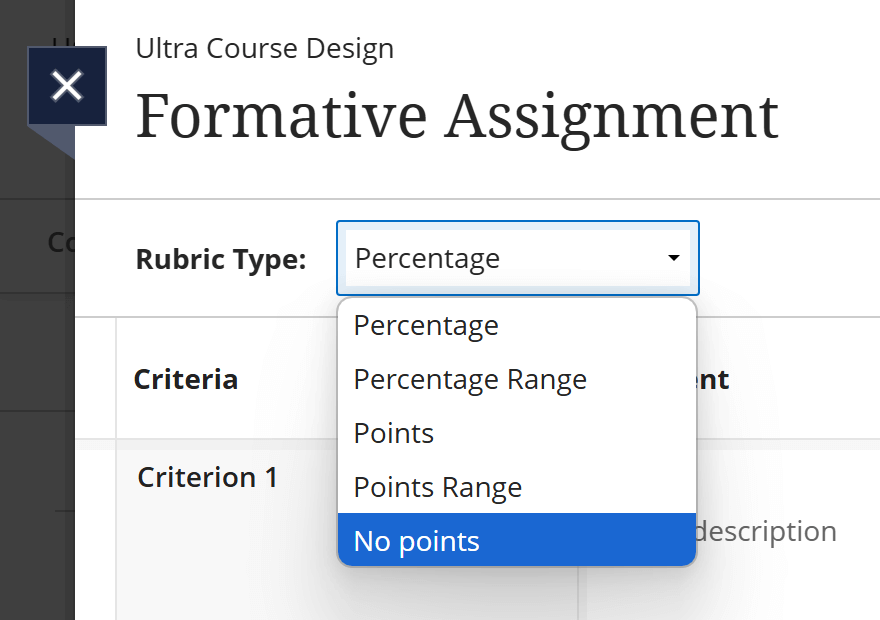
Complete the rubric table and save your content. You can then apply the new rubric to any Blackboard assignment.
For detailed guidance on how to create a new rubric, or how to export an existing rubric from another Blackboard course area, access the Blackboard Manual.
Blackboard Rubrics Read More »

Adobe stock by Triative
As part of Blackboard Ultra Insights Week, the TEL team will be hosting some online drop-in sessions open to all staff. These will offer support and ideas on enhancing course engagement and interactivity, improving course structure, and copying content effectively for the new academic year. Come along and chat to us, bounce some ideas around or ask any questions that you may have.
Tuesday 20th May, 14:30pm -15:30
Friday 23rd May, 10:00 – 11:00
Additionally, as part of the week’s events, staff are invited to participate in a quick survey about Ultra – just three questions that will help us identify what tools are most useful to staff.
Blackboard Ultra Insights Week – Drop in Sessions Read More »