
Over the last couple of months, we at the TEL Unit have trained over 400 colleagues in using Blackboard Ultra to build engaging modules for students.
Hopefully most of you have made a good start building your modules but, perhaps, if you took the training a while ago now, a couple of things might have become…a little hazy. Here are a few key points to bring you back up to speed.
1. Organise your content into Learning Modules
Learning modules are the building blocks of your course. You can use these to structure your content and adding these is the first step you can take when building your course. They have a few advantages over folders:
- They are designed to be immersive, so that students work through the content like a book, clicking ‘Next’ to get to the next content area.
- You can add a thumbnail image which can give visual differentiation and make the module look more attractive and engaging.
- Learning modules are trackable, so allow both students and you as tutors to track student progress through the course. Students are given an indicator of which sections they have viewed, and are given the option to mark items as complete.
You can add learning modules by clicking on the purple line on the module background and opening the Create menu.

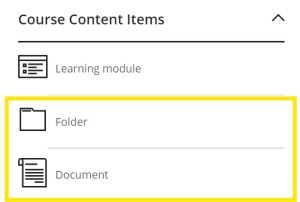
2. Use folders if you need to, but documents may be a better option
You have the facility to add a folder level inside your learning module to further divide your content if needed. Before you do so however, just bear in mind that this will be an additional click for students and consider whether this is strictly necessary. Documents are a great way to pull together different types of content, including text, images, links, videos (YouTube, Panopto), files like PowerPoint slides, sections of your Talis resource lists etc. They may be a better way to build your content, giving additional structure and context, rather than a list of documents and links that gives students no indication how it all fits together.
For example, if you are using a weekly structure, you might have a folder for day 1, day 2 etc. but consider whether the content for these might work better in a document for “Day 1 Materials”, “Day 2 Materials” etc. instead.
3. The Create menu vs. the Content Market (and where to set up a Turnitin point)
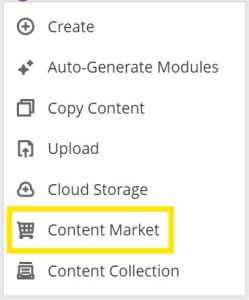
Hopefully you recall that you add content via the purple line that appears where you hover your mouse. This brings up a menu, from which you can use the Create option to access native Blackboard functionality, and the Content Market, from which you can access external systems that link to Blackboard. Primarily these are
We have received a few queries about adding Turnitin vs Blackboard assignments. Just remember that the assignment option in the Create menu is a Blackboard assignment. For Turnitin, you need to go to the Content Market.
Student Resources and Further Training
We have also received some enquiries about Student Resources. You can find some helpful videos on our website via the link below:
https://uwtel.co.uk/student-support-with-ultra/
For those of you who feel that you need a fuller refresher, or if you were unable to attend any of our previous training sessions, we will be offering some additional mop ups, which you will find on the Staff Development Portal – you can find this under “Training Resources” on the new Staff Portal. Our first two sessions are on the 17th and the 25th September.
We will also be providing a series of training sessions covering more in-depth topics relating to Ultra Course design later in the semester. Details to follow!
