Turnitin

Cookies and computer keyboard. 'Cookie' © By poko42

Important Changes to Chrome

Photo: ‘Cookie’ © By poko42

New Chrome changes and your use of online systems, including Blackboard VLE.

We recommend using Chrome or Mozilla Firefox browsers, when using the Blackboard VLE. However, you may be aware that Google Chrome have started testing a new feature, with the intention of protecting users from third-party cookie tracking. This will result in all third-party cookies being disabled, as a default setting. Initially a selection of Chrome users will be notified, but the intention is that all users will experience this change by the end of 2024.

Why you still need your Third-Party Cookies for the Blackboard VLE.

Third-party cookies are often used as an essential element for the functionality of different websites. Within Blackboard there are several integrated tools which require third-party cookies to be enabled. If you experience any issues with the Blackboard VLE, such as pages not loading correctly, even after a refresh – you may need to alter your third-party cookie settings.

How to change your settings:

  • Users who have been selected by Google Chrome, will have a notification, when they open their Chrome browser. If you are viewing the initial notification, it is possible at this stage, to click on the cog, to select and confirm your account third-party cookie choices.
  • Chrome users will be able to tell whether any cookies are active on a webpage, by looking for the ‘eye icon’ within the address bar, in the top right of the Chrome browser. If third-party cookies have been blocked, there will be a line through the eye. A click on the eye icon, will permit users to select and choose whether they wish to have third-party cookies enabled.
  • Alternatively, you can alter your Chrome account settings, as a whole, by selecting the three dots, in the top right-hand corner of the browser. A menu will appear, where you can select ‘Settings’ → ‘Privacy and Security’ from the left-hand side-bar menu, → then ‘Cookies and other site data’ to view all the possible cookie settings for your account.

To find out more, you make wish to read Google Chrome’s recent blog post:

https://blog.google/products/chrome/privacy-sandbox-tracking-protection/

Important Changes to Chrome Read More »

Managing Turnitin Submissions

Turnitin is our most frequently used system for assessment and is where students can submit their text-based assignments, such as, essays, reports, and presentations.

With various assessment deadlines occurring in the coming days and weeks, you may wish to refamiliarise yourself with our guide to Turnitin, and submission points within Blackboard:

https://lttu.uk/support/Turnitin/Guide/index.html

Useful points to remember:

  • Students can resubmit work to the submission point as many times as they like, until the due date.
  • After the 3rd upload, there will be a delay of 24 hours until the similarity report is received.
  • Once the due date has passed, students will be unable to resubmit again. However, if they have not made a submission until after the due date, this will appear as a late submission, highlighted in red. (We recommend using ‘allow late submissions’ as a setting.)
  • Resubmissions, resits and mitigating circumstances, will require a new Turnitin submission point to be created.
  • Before you begin grading, you will need to hide the Blackboard ‘Grade Center’ column from students – otherwise they will be able to access their grades as soon as they have been entered. (Instructions can be found in ‘Part 1’ of the Turnitin guide, linked above.)
  • Grades and feedback are automatically released to students on the ‘Feedback Release Date’ and ‘Time’, through Turnitin.
  • You may wish to share relevant student support sources, in the run up to submissions: https://uwtel.co.uk/support-resources/#studentresources

If you have any queries, feel free to contact the TEL team at: tel@worc.ac.uk

Managing Turnitin Submissions Read More »

Time to Turnitin

Turnitin Logo

With courses now in full flow, it is a good time to for a quick reminder on how to set up a Turnitin submission point. This is just an overview; further information and step by step instructions can be found on our website.

What is the process?

Turnitin submission points are created via the ‘add content’ option on Blackboard. At this point you can add the assignment name, instructions, maximum grade and the relevant dates.

Clicking on the Optional Settings’ will bring up additional tick boxes to customise the assignment to fit with University protocols. If you are unsure what any of the options mean, hover over the question mark icon and an additional text box will pop up to give clarifcation.

screen shot of recommended optional settings

A newer feature that you may wish to use is the grammar checker. By ticking this option an additional report will be generated that allows you to view any grammatical errors in the submission. More information about this feature can be found here.

Rubrics

Before you save your submission point, you may wish to add a Rubric. These are completely optional and provide quick way of adding standardised feedback. Further information about how to import a rubric can be found here.

Ready to go

Your submission point is now ready to go and will appear as a link in Blackboard.

Things to remember

  • Students can resubmit work to the submission point as many times as they like until the due date.
  • After the 3rd upload, there will be a delay of 24 hours until the similarity report is received.
  • Once the due date has passed they will be unable to submit again.
  • Resubmissions, resits and mitigating circumstances will require a new Turnitin submission point.
  • Before you begin grading you will need to hide the Blackboard Grade Center column from students – otherwise they will be able to access their grades as soon as they have been entered. Instructions can be found here
  • Grades and feedback are automatically released to students on the Feedback Release Date and time through Turnitin.

Time to Turnitin Read More »

Grammar and Spelling Reports on Turnitin

Image of a magnifying glass highlighting the word Grammar in a dictionary

Gud news U can now use the grammer and speling report on Turnitin!

When creating a new submission point in Turnitin you now have the option to turn on additional spelling, grammar and punctuation checks. When activated, they will generate an e-rater® report that can be accessed by students and tutors in the same way as similarity reports.

How can I use this feature?

To enable the feature to be used you will need to check the ETS® e-rater® tick box when creating your submission point. This will generate an additional list of options.

Image showing the tick boxes needing to be selected to enable grammar check

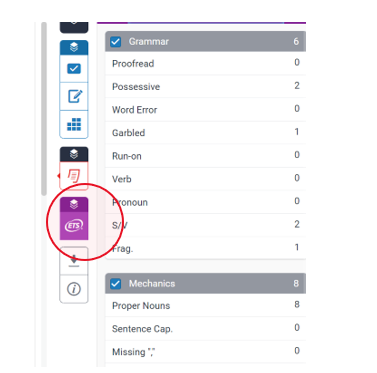
When work is submitted and the report is generated, you will see additional options to view the e-rater® report. The results can be turned on or off from the right-hand panel.

Image showing the button to select for the grammar report

If you have any questions about how to use this feature please email us tel@worc.ac.uk

Grammar and Spelling Reports on Turnitin Read More »

Scheduled Maintenance 8th January

Please be aware that two of our suppliers have scheduled downtime for updates early in the new year.

  • Panopto will be down on 8/1/22 from 10pm for 4 hours
  • Turnitin will be down on 8/1/22 from 0.00 to 8.00

Both systems will be unavailable during this time. If this will impact on your students, for example for assignment submission, we recommend that you send an announcement to make them aware.

Scheduled Maintenance 8th January Read More »

Hiding Turnitin Assignments in the Grade Centre

A reminder that, following the changes to Turnitin in September 2020, it is possible for students to access their grades and feedback prior to the feedback release date via the Grades section if the assignment column is not hidden in the grade centre.

This is a simple step that just needs to be completed as part of the assignment setup process. If you did not do this at the time you set up the submission point, make sure that it is hidden before you start marking in order to prevent feedback being accessed prematurely.

See the \’Post Setup Actions\’ section of our Turnitin Guidance for instructions.


Hiding Turnitin Assignments in the Grade Centre Read More »

Technology Enhanced Learning Support Sessions for Academics

Following the government announcement that Universities should move to online teaching by 9th December, we thought it would be a good time to reinstate the TEL drop-in sessions for academic staff via Collaborate.

 We know that it can be daunting moving your tuition online and sometimes it’s not always clear where to begin, or how to effectively adapt your materials for online delivery so that your students still get the most out of your sessions.

That’s why the Technology Enhanced Learning Unit will be offering drop-in sessions over the next four weeks for academics to pop in and speak to us. We’ll be there to listen to your requirements and help you bounce ideas around for moving your sessions online successfully. We’ll be able to offer suggestions on various tools that you can use to achieve your learning objectives and offer expertise on how to adapt your existing face to face sessions so that they run smoothly when you come to delivering them online.

Sessions will run from 10am-11am every Tuesday and Thursday, with the first taking place on Tuesday 24th November and the final session on Thursday 17th December. There\’s no need to book. Just click on the link below to access the sessions:

Join Drop-in Session

As ever, make sure that you are using either Chrome or Firefox to join.

Technology Enhanced Learning Support Sessions for Academics Read More »

Save the Date! – ‘TEL’ Me More Seminar

On Wednesday 16th December, the Technology Enhanced Learning Unit will be hosting their annual ‘TEL’ Me More Seminar.

The event, which was originally planned for March, will be fully online and colleagues from across the University will be showcasing their use of technology as part of their learning and teaching.

With the current environment, online teaching has grown significantly over the past several months and this event will provide a fantastic opportunity to network with colleagues from different areas of academia, generate ideas and learn new skills, which you can take forward in to your own learning and teaching.

To secure your place, sign up via the ‘Staff Development Workshops’ page.

Full programme details will be released shortly.

Are you interested in presenting at the seminar? We currently have one slot available. If you would like to present (no more than 10 minutes), please email tel@worc.ac.uk with a short summary of your presentation.

Save the Date! – ‘TEL’ Me More Seminar Read More »

TEL November Workshops

Following the fantastic response to our September workshops, we will be running another series of online training sessions throughout November.

All sessions run from 10:15 to 11:15 and will take place online via Collaborate. Guest links will be emailed to the attendees before the session.

  • Thursday 5th November – Using tests and surveys in Blackboard
  • Monday 9th November – Recording from your desktop using Panopto
  • Tuesday 10th November – Blackboard accessibility and Ally
  • Wednesday 11th November – Camtasia
  • Tuesday 17th November – Collaborate Virtual Classroom
  • Thursday 19th November – Vevox polling software
  • Tuesday 24th November – Using Blackboard for blended and mobile learning
  • Thursday 26th November – Assessing Student Presentations online using Collaborate and Panopto

If you are interested in attending, please sign up via the Staff Development Workshops pages on the Staff Portal. Places are set at 20 but, if overbooked (within reason), will likely be extended to include the waiting list.

TEL November Workshops Read More »

Woman working at laptop

Upcoming Workshops

Need to sharpen your skills on Blackboard? Maybe you would like to explore the advantages of marking in Turnitin or using Collaborate to facilitate remote learning? Or perhaps you would like to explore the functions of the Retention Centre to monitor student engagement and identify those who may be struggling.

The Technology Enhanced Learning Unit is running a series of workshops to help get you up and running. There will also be a session covering Vevox, the University\’s new polling software. The courses on offer are:

  • Vevox – find out how to use the university\’s new in-lecture polling system – 04/02/2020, EE1022
  • Camtasia – learn how to create your own video resources – 17/02/2020, EEG023, 10:15-11:45
  • Running an Online Session in Collaborate – explore remote learning using the Collaborate Virtual Classroom – 18/02/2020, online class, 10:00-11:15
  • Setting up and Using Turnitin – find out how to use Turnitin for online assessment and marking – 03/03/2020, EEG031, 10:30-12:00
  • Using Quizzes, Tests and Surveys in Blackboard – learn how to utilise Blackboard\’s extensive range of testing tools – 04/03/2020, EEG023, 09:45-11:15
  • Turnitin Peer Assessment – discover the pedagogical advantages of having students review the work of their peers – 18/03/2020, EEG031, 10:00-12:15
  • Designing Accessible Courses – find out how to ensure that your online content is accessible to all students – 25/03/2020, EEG031, 14:00-16:15
  • Tracking Student Engagement in Blackboard – use the retention centre to track how well your students are engaging and to identify problems before they arise – 23/03/2020, EEG023, 14:15-15:45
  • Advanced Turnitin – learn how to use rubrics and quick marks within Turnitin (you will need to be familiar with the basics of Turnitin beforehand) – 06/04/2020, EE1022 09:45-11:15

Please book places via the Staff Development Workshops page.

Upcoming Workshops Read More »