wagd1

Introducing the new Blackboard AI Conversation Tool

Man typing at a laptop, with the image of an android floating above.

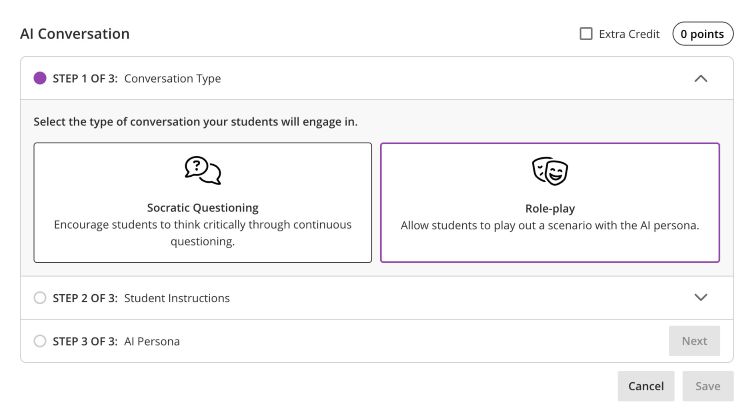
Blackboard instructors now have access to a new AI Conversation tool that supports both ‘Socratic Questioning’ and ‘Role-play’ scenarios. This feature allows students to interact with an AI persona to explore ideas, ask questions, and practise responding to realistic situations.

In Socratic questioning mode, students can ask questions about a specific topic and build their understanding through guided interaction.

Students can also take part in a simulated scenario with an AI-generated character using the Role-play tool. This can be particularly useful for practising professional conversations, decision-making, or problem-solving in a safe environment.

AI Conversions Step 1 of 3 as displayed on screen.

Setting up a Role-play conversation

Creating a role-play activity involves two main stages.

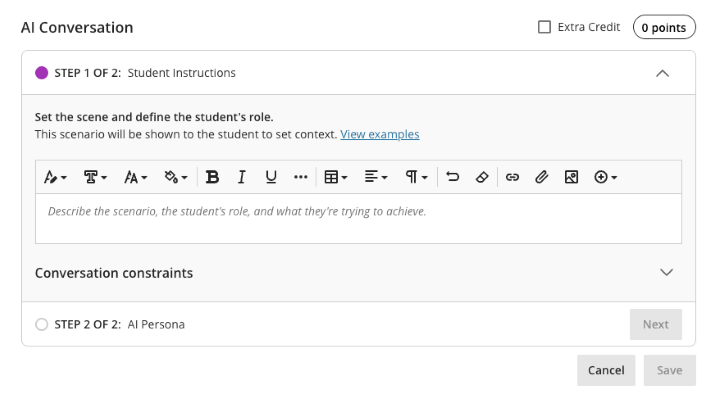
1. Set the scene and define the student’s role

  • Describe the scenario
  • Explain the context
  • Define what the student is trying to achieve
AI Conversation Step 1 of 2 for the Role Play option. 'Set the scene and define the student's role'.

2. Create the AI persona

  • Upload a profile image for the AI ‘character’
  • Give them a name
  • Define their personality and behaviour
  • Provide instructions for how they should respond
  • Set the complexity of the responses they will give

Automatic setup

You can also automatically generate a conversation scenario using documents uploaded to the system. The tool can use a range of file types, including PDF, Word, PowerPoint, text, RTF, and HTML files, to help create a conversation based on existing course materials.

Testing

Before releasing the activity to students, you can preview the conversation yourself by interacting with the AI persona. This allows you to check that the responses behave as expected and refine the scenario if needed.

Reviewing Student Interactions

As an instructor, you can review AI conversation transcripts to see how students engaged with the scenario and how they approached the discussion.

Further Information

More details about setting up the Conversations tool can be found on the Blackboard AI Conversation support page.

AI Data Usage and Security 

As an integrated feature within Blackboard, the AI Conversation tool does not use your course data to train or improve external AI models. More information about this can be found on Blackboard’s Trustworthy AI Support pages.

Introducing the new Blackboard AI Conversation Tool Read More »

Module Designer Tool

Laptop computer on a cluttered desk, with chalkboard diagrams on screen and drawn on wall around this.

Whether you’re building a new module from scratch, revalidating an existing one, or developing a clear blueprint to enhance student outcomes, the Module Designer Tool supports you through every stage of the design process. From initial preparation all the way through to evaluation, it helps you maintain constructive alignment between learning outcomes, activities, and assessments, while embedding accessibility and Universal Design for Learning (UDL) principles throughout.

Everything you enter saves automatically as you work, with all data stored securely in your browser so nothing ever leaves your device. You can revisit any section at any time to refine and enhance your ideas, and when you’re ready to share your work with colleagues or stakeholders, you can export the complete documentation to PDF or Word format.

The tool integrates proven pedagogic frameworks, including Bloom’s Taxonomy, Laurillard’s Learning Types, and the Cognitive Apprenticeship model to help you structure learning that is purposeful, inclusive, and aligned. 

You can also use this tool for general guidance on how to set up online content and activities, supporting well designed and easy to use Blackboard course areas for other staff and students to interact with.

Try the Module Designer Tool now!

Module Designer Tool Read More »

Turnitin Originality Reports in Blackboard Assignments

It is now possible to generate Turnitin originality reports for standard Blackboard assignments. This allows staff and students to view originality matches directly within Blackboard while still using the standard Blackboard grading and feedback tools. (Turnitin Feedback Studio for grading is not currently supported). This may be useful if you would like to have one submission point for marking with Blackboard but need a Turnitin originality check, or track multiple attempts.

It is easy to enable this new functionality with your Blackboard assignments.

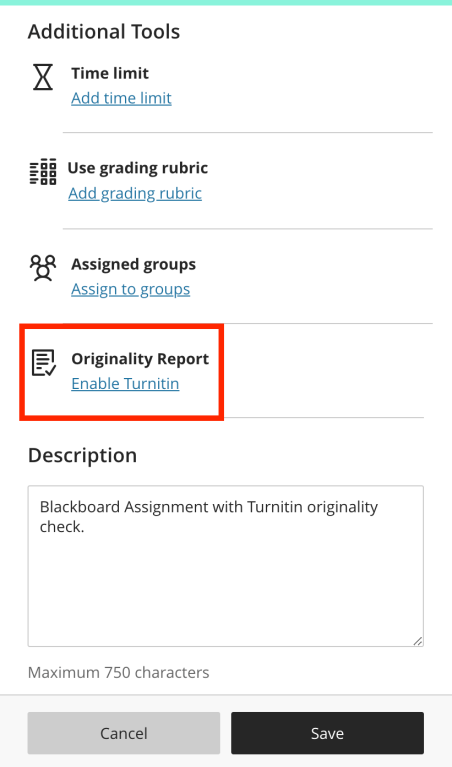
To do this, when setting up a new assignment, in the Additional Tools section, click the Enable Turnitin option:

'Enable Turnitin' option shown in red box, within the Blackboard menu options

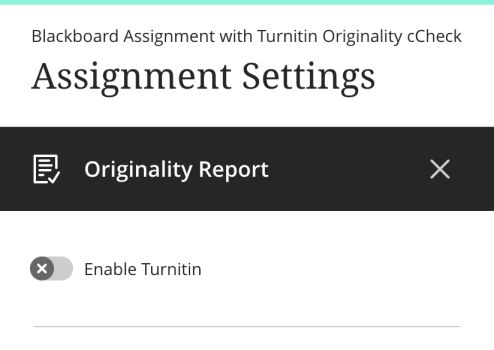
The integration will load, and you can then toggle the Enable Turnitin switch to the On position.

'Enable Turnitin' sliding toggle button shown below Originality Report in the Assignment Settings.

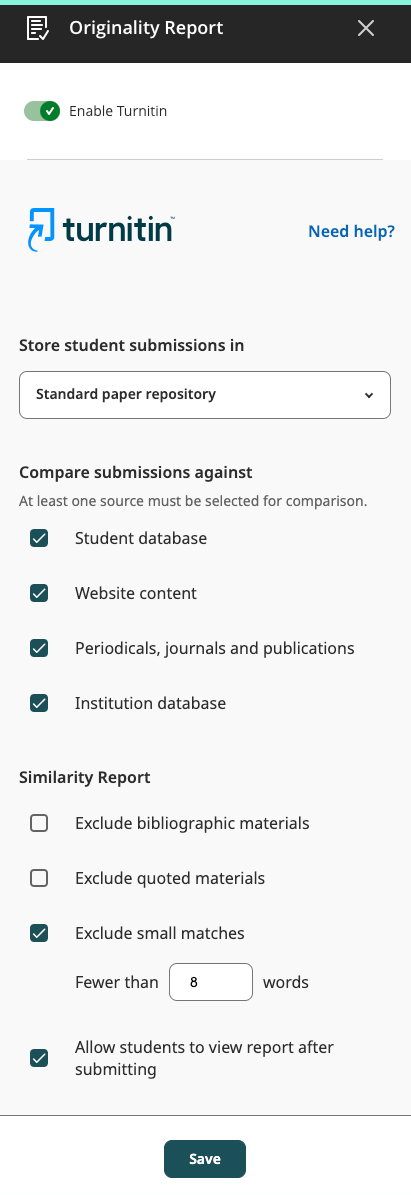
Select your Turnitin options as usual. Choose the Standard Paper Repository for summative work, or Do not store the submitted papers for formative. Select sources to check, and select the Similarity Report options as needed. Finally, click the Save button to finalise these settings. You can always return to these settings to update later if required.

Originality Report Menu settings are shown - displaying the different tick box options which are available.

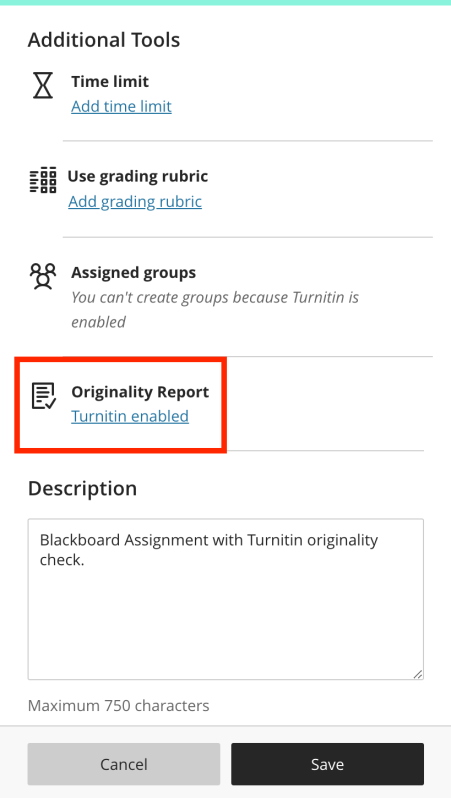
When you return to the Additional Tools section in the Assignment Settings, you should see that Turnitin has been enabled:

Image of 'Turnitin enabled' to show how this looks when turned on and the 'Save' button to apply the chosen Turnitin settings.

Once papers have been submitted and processing is complete, staff and students will be able to view the originality report by clicking on the originality percentage button:

An example of an assignment with the 'originality percentage button' highlighted in a box, in the top right-hand corner.

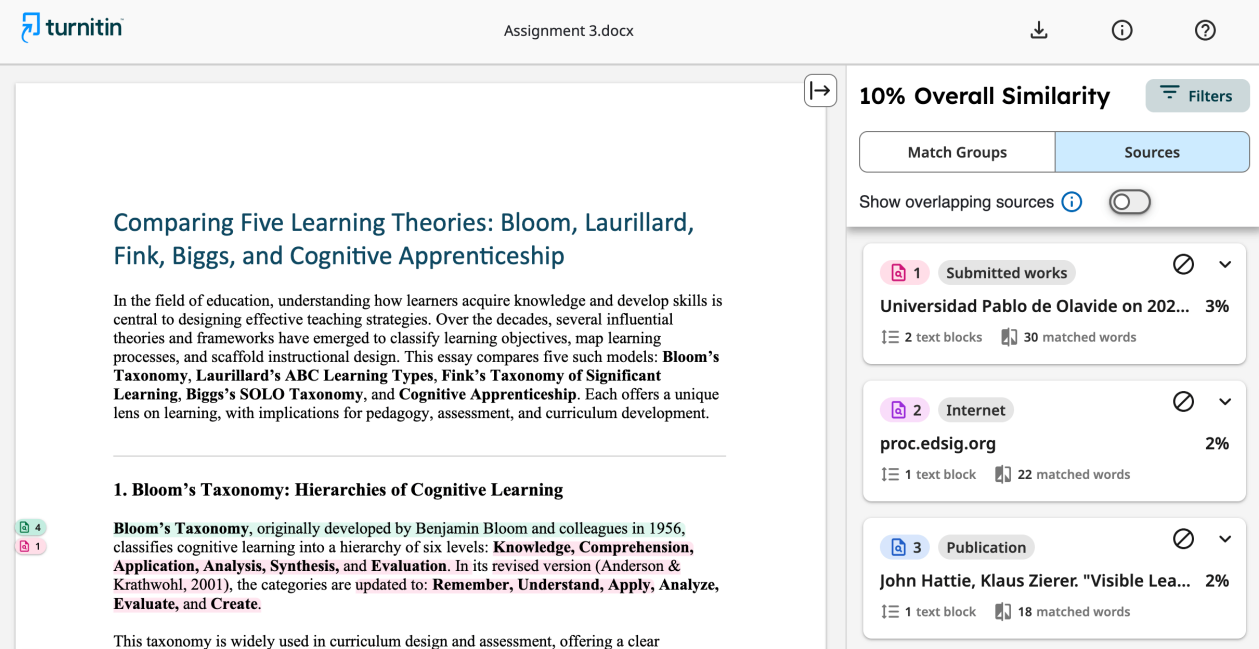
The Originality report will then load in a new tab using the updated Turnitin interface:

Example of an originality report using the updated Turnitin interface. The assignment appears on the left hand side. Then the 'sources' / similarity matches are in a column on the right hand side of the page. A 'filters' option is at the top of the sources list.

Turnitin Originality Reports in Blackboard Assignments Read More »

Blackboard Rubrics

Rubric Grid icon with ticks

You can now create no points rubrics for Blackboard Ultra assignments, just like you can for Turnitin.

Previously, Blackboard rubrics required each feedback item to have a points value or percentage associated with it, which was automatically added to the gradebook. This value needed to be overridden so that students would not see an incorrect grade.

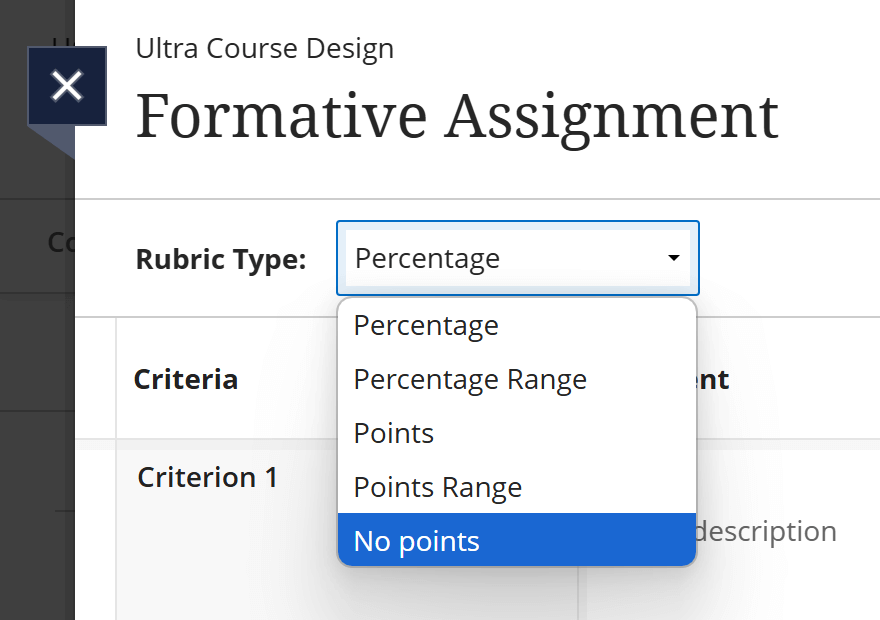
When creating a new rubric, just choose the No points selection in the Rubric Type dropdown:

Formative Assignment 'No Points' selected in drop-down menu

Complete the rubric table and save your content. You can then apply the new rubric to any Blackboard assignment.

For detailed guidance on how to create a new rubric, or how to export an existing rubric from another Blackboard course area, access the Blackboard Manual.

Blackboard Rubrics Read More »

Collaborative Documents in Blackboard

People with a laptop and some papers
Adobe stock by Diana

If you would like to set up documents within Blackboard that all enrolled users can contribute to, you can now use the ‘Collaborative Document’ feature.

Collaborative Documents allow you to set up a new document, or use an existing template from Word, Excel or PowerPoint for the class to use. Once set up, the new file will be copied over to your Blackboard course area where it can be edited. (If copied from OneDrive, your original file will not be altered – only the version that has been deployed to Blackboard.)

Collaborative documents can be useful for use cases such as wikis, course glossaries or documents for group collaboration.

See more on how to add a collaborative document in the Blackboard Manual.

Collaborative Documents in Blackboard Read More »

Updating Your Blackboard Courses for Semester 2!

2024 Loading to 2025 icon
© Supatman - Adobe stock

As we approach the end of the year, it’s time to start preparing your course content for Semester 2, which students will be able to access from December. Below are some effective tools and strategies to help you organise your Blackboard Learn Ultra courses:

Organise with Learning Modules

Structure your course content with Learning Modules, which provide an immersive and trackable experience. These modules allow students to follow a cohesive learning journey, and you’ll be able to see who’s engaging with each section.

Use the Content Market to add useful tools

Set up Turnitin assignments, add Panopto videos, and incorporate Talis Aspire Reading Lists (resource lists) directly into your Learning Modules. These integrations streamline access to essential course materials.

Convert or Create Course Documents

You can easily upload existing Word files and convert them into web pages that are accessible and editable directly within Blackboard. This makes updates convenient and ensures students always have the latest version to work from. Alternatively, create your own web pages using the content blocks to construct pages with multiple types of content all in one place.

Enhance Interactivity with AI Tools and Discussion Boards

Use AI Tests to set up quick, formative knowledge checks based on your course content. You can also incorporate Discussion Boards to foster peer interaction and co-construction of knowledge (and see who has participated!).

Leverage Analytics to Track Engagement

Adding interactive elements not only enhances the learning experience but also feeds valuable data into your Analytics. This can help you identify students who may need additional support or who aren’t fully engaging with the course material.

Updating Your Blackboard Courses for Semester 2! Read More »

Migrating Panopto Video Content

Decorative image of laptop and action camera. technology, camera, sport-2125547.jpg

As we move to the new version of Blackboard ‘Learn Ultra’ ready for September, you may need to reuse older video content, from the ‘Learn 9.1’ system, in your new modules.

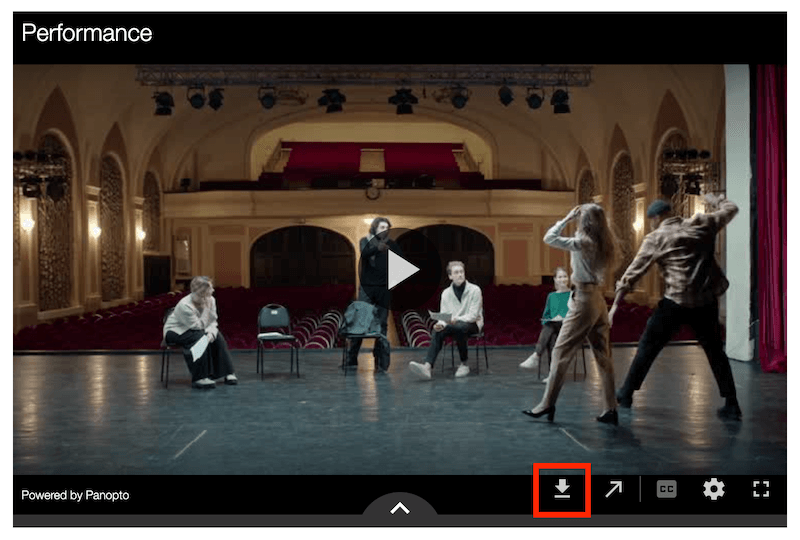
The easiest way to do this is to simply download the videos from the original module, using the download button:

This will save the video file to your computer. Rename the file if you wish, and then follow the instructions to add a link to Panopto from your Blackboard module. This will enable you to upload the video you have just saved, into the new Ultra module ready for use.

You can then add your video to a module document page, or embed it as a full-size video in the Content page.

*If you do not see the download button this means that the original uploader has removed this feature, and you will need to contact the TEL Team for further assistance: tel@worc.ac.uk

Migrating Panopto Video Content Read More »

Book your training sessions for the new Blackboard Learn Ultra VLE!

'Book now' words contained in an image

With the new Blackboard Learn Ultra virtual learning environment now out of the pilot phase, it’s time to prepare for the upcoming rollout of live modules. This will ensure your Learn Ultra content and learning tools are set up successfully before the new semester begins in September.

Blackboard staff training sessions will be held for course teams from May through to the end of July. The training will cover best practices for designing your modules in the new system, as well as hands-on experience in building your new Learn Ultra sites. A course team training session will last for around 3 hours. We highly recommend having as many course team members attend as possible to facilitate consistent decision-making across the course.

Here’s what to do next:

  1. Consult with your course team to identify a preferred week for training.
  2. Contact the TEL team, tel@worc.ac.uk, with the following information to book your session:
    • Course that the training is for
    • Module codes the team will be using
    • Names and email addresses of attendees

The TEL team will then be in contact to confirm all the details, including which resources attendees should bring along, so that they can get started on creating their Ultra modules.

Be sure to book your training sessions early to reserve your preferred dates!

Book your training sessions for the new Blackboard Learn Ultra VLE! Read More »