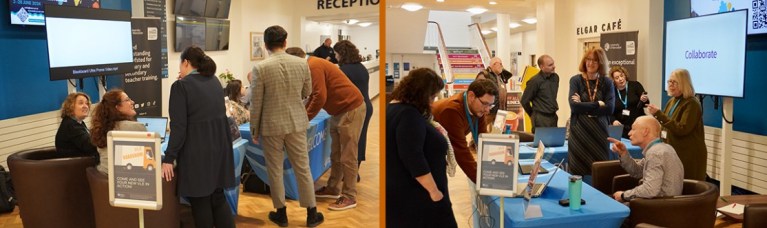
As part of Blackboard Ultra Insights Week, the TEL team will be hosting some online drop-in sessions open to all staff. These will offer support and ideas on enhancing course engagement and interactivity, improving course structure, and copying content effectively for the new academic year. Come along and chat to us, bounce some ideas around or ask any questions that you may have.
Additionally, as part of the week’s events, staff are invited to participate in a quick survey about Ultra – just three questions that will help us identify what tools are most useful to staff.
The Technology Enhanced Learning Unit is celebrating the successful first year of the University using the new Blackboard Ultra VLE with a Blackboard Ultra Insights Week. Throughout the week, online presentations will be delivered by colleagues from academic faculties, Library Services, and the TEL team, showcasing innovative and effective uses of Blackboard Ultra. Sessions have been scheduled around lunchtime, offering a timely break and a chance to engage with something different during the marking period. The presentations will be recorded for those who are unable to attend.
In addition, the TEL team will host online drop-in sessions open to all—offering support and ideas on enhancing course engagement and interactivity, improving course structure, and copying content effectively for the new academic year.
There will also be an opportunity to take part in an online survey designed to gather insights into which areas and tools within the VLE staff find most valuable.
The itinerary for the week is as follows:
Staff Presentations:
Student Engagement with Module Readings
Monday 19th May, 11:00 – 12:00
Ros Sykes, Andrew Bright, Michelle Sterry
This session will explore strategies to boost student engagement with course literature and resources, focusing on practical techniques in Blackboard to encourage the use of your Talis resource lists.
VLE Engagement and Course Analytics
Tuesday 20th May, 12:00 – 12:45
Helen Watts, Helen Hope
This session will look at VLE engagement and student retention, and the practical use of Blackboard Ultra’s analytic tools.
Guided in-class Activities in Blackboard Ultra
Wednesday 21st May, 12:30 – 13:30
Louise Martin
In this session, Louise Martin will demonstrate how guided activities in Blackboard Ultra can be used to support in-class learning, showcasing interactive tasks she has designed to actively engage students and reinforce key concepts.
Developing Fully Online Courses
Thursday 22nd May, 12:00 – 13:00
Sarah Davis
In this session, Sarah Davis will share her experience of developing a fully online course using Blackboard. This session is ideal for anyone considering the design of fully online or highly blended courses—an area of growing strategic importance for the University.
Drop-in sessions:
Tuesday 20th May, 14:30 -15:30
Friday 23rd May, 10:00 – 11:00
Links for all presentations and drop-in sessions will be shared at a later date.
Since the university moved to Blackboard Ultra in September, there has been a fantastic effort from academic staff to reshape and develop their modules in a variety of creative ways.
To celebrate the end of the first teaching year using the new VLE, the Technology Enhanced Learning Unit will be running a series of short online talks to showcase innovative and successful practice throughout the University, with an overarching theme of student engagement and retention. This will be in partnership with Darren Cooper, the University Lead for Continuing Professional Development in Learning and Teaching.
Topics will include:
Developing fully online and highly blended courses using Blackboard Ultra
Encouraging engagement with course readings and Talis resource lists
Using Blackboard for guided activities in the classroom
Using the reporting tools to monitor student engagement and support retention
Talks will be around 45 minutes to an hour, with time for questions at the end. The sessions will be recorded and hosted via Darren Cooper’s Learning Design For Teaching Excellence site on SharePoint, as a resource for all to use.
The finalised schedule will be published at a later date.
We have had a few queries from staff recently about copying content between Blackboard Ultra Modules. This is a little different to copying in Blackboard Original, we decided that it would be a good idea to go over this again.
The big change is that, in Ultra, you copy content into the destination course, rather than out of the existing course. This has caused some confusion but, once you realise this, the whole process is actually much easier.
The other change is that it’s much easier to be granular about what you copy across. Those of you who copied elements of your Blackboard Original courses will be aware of this. Generally, we would advise against copying the entire course as this will bring announcements and unnecessary content over.
To copy content:
Begin in the course where you want to add the content. Click on the three dots underneath the banner.
Click “Copy Items”
You will see a list of all of the courses you have access to. Locate the course you want to copy from.
You will see a checkbox to the left of the title. Selecting this will allow you to copy the entire course. We would not advise this, as doing so would import content that you do not want. Instead, click on the course title. This will open up a menu of folders on the course. The only folder you should need is the ‘Content’ folder.
Selecting the tick box to the left of the Content folder will bring in all of the course materials. However, you may wish to click on the title of the content folder and bring in materials at a more granular level. This would have the advantage of not filling up your course data quota with files that you do not need.
Once you have identified and ticked the contents that you want to copy over, click ‘Start Copy‘ in the bottom left. This will add all of the contents to the bottom of the course.
Copied materials are hidden from students by default. You will need to unhide anything that you need students to view immediately. You may also need to do some editing and reorganisation of the content that you have copied in order to make the course look professional.
If you have any queries about this, feel free to contact the TEL Unit at tel@worc.ac.uk
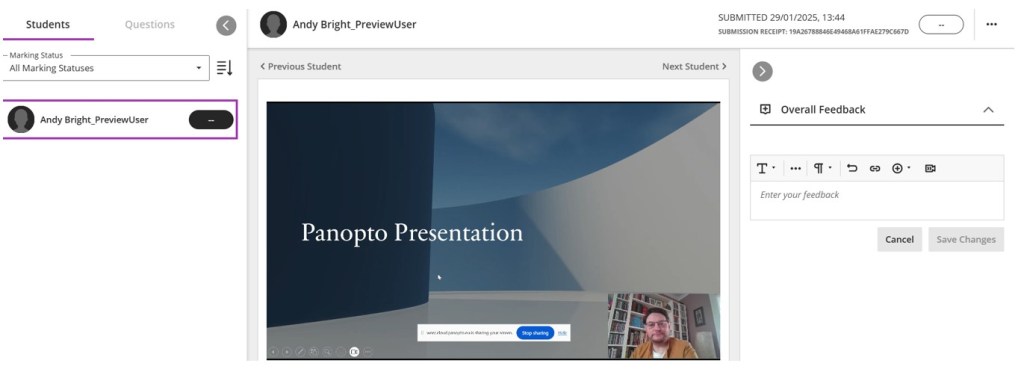
With marking season upon us, many of you will be marking Panopto assignments, so we thought it would be useful to share a little tip based on staff feedback.
You will notice that, when marking Panopto assignments, the video displays a little differently in Blackboard assignment view, which can result in the student’s face obscuring part of the slide that they are presenting. You also don’t automatically see the transcription as you did in the old system.
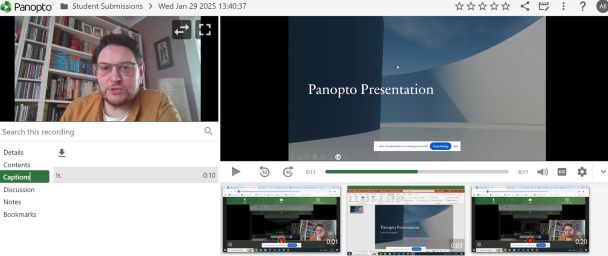
If you find this view difficult to use, you can open the traditional Panopto view by clicking on the arrow in the video control bar.
Although you will still need to add your grade and feedback in the Blackboard assignment view, opening this link will allow you to watch the video uninterrupted, as well as being able to view captions.
If you have any further queries, please contact us at TEL@worc.ac.uk
Now that staff have been using Blackboard Ultra for a Semester, we would like to showcase exemplary practice in the academic faculty, with a specific focus on using aspects of course design facilitated by Blackboard Ultra to aid student engagement and retention. As a result, we will be offering a short series of online seminars delivered by academics and members of the TEL and Library teams to generate ideas for methodologies that can be employed on your own Ultra modules. These sessions will be recorded and offered as resources for all staff.
While we have some sessions planned already, we would like to offer the opportunity for staff to volunteer as speakers to demonstrate innovative practice in their modules. Examples do not need to be perfect as areas where you can adapt your methodologies in future can provide a rich seam of discussion.
Areas that we are particularly interested in hearing from staff about include:
Using the in-built AI tools offered in Blackboard to create content.
Using Blackboard Ultra to help students engage with reading materials on Talis resource lists.
Innovative approaches to assessment, either formative or summative.
Using blended tuition structures, such as pre and post-session asynchronous tasks.
Using the Analytics tools to track student engagement.
If you would be interested in presenting, or discussing any ideas for presentations, please email Andrew Bright at a.bright@worc.ac.uk
Over the last couple of months, we at the TEL Unit have trained over 400 colleagues in using Blackboard Ultra to build engaging modules for students.
Hopefully most of you have made a good start building your modules but, perhaps, if you took the training a while ago now, a couple of things might have become…a little hazy. Here are a few key points to bring you back up to speed.
1. Organise your content into Learning Modules
Learning modules are the building blocks of your course. You can use these to structure your content and adding these is the first step you can take when building your course. They have a few advantages over folders:
They are designed to be immersive, so that students work through the content like a book, clicking ‘Next’ to get to the next content area.
You can add a thumbnail image which can give visual differentiation and make the module look more attractive and engaging.
Learning modules are trackable, so allow both students and you as tutors to track student progress through the course. Students are given an indicator of which sections they have viewed, and are given the option to mark items as complete.
You can add learning modules by clicking on the purple line on the module background and opening the Create menu.
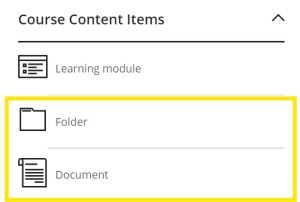
2. Use folders if you need to, but documents may be a better option
You have the facility to add a folder level inside your learning module to further divide your content if needed. Before you do so however, just bear in mind that this will be an additional click for students and consider whether this is strictly necessary. Documents are a great way to pull together different types of content, including text, images, links, videos (YouTube, Panopto), files like PowerPoint slides, sections of your Talis resource lists etc. They may be a better way to build your content, giving additional structure and context, rather than a list of documents and links that gives students no indication how it all fits together.
For example, if you are using a weekly structure, you might have a folder for day 1, day 2 etc. but consider whether the content for these might work better in a document for “Day 1 Materials”, “Day 2 Materials” etc. instead.
3. The Create menu vs. the Content Market (and where to set up a Turnitin point)
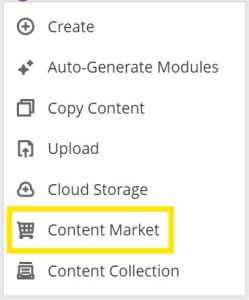
Hopefully you recall that you add content via the purple line that appears where you hover your mouse. This brings up a menu, from which you can use the Create option to access native Blackboard functionality, and the Content Market, from which you can access external systems that link to Blackboard. Primarily these are
We have received a few queries about adding Turnitin vs Blackboard assignments. Just remember that the assignment option in the Create menu is a Blackboard assignment. For Turnitin, you need to go to the Content Market.
Student Resources and Further Training
We have also received some enquiries about Student Resources. You can find some helpful videos on our website via the link below:
For those of you who feel that you need a fuller refresher, or if you were unable to attend any of our previous training sessions, we will be offering some additional mop ups, which you will find on the Staff Development Portal – you can find this under “Training Resources” on the new Staff Portal. Our first two sessions are on the 17th and the 25th September.
We will also be providing a series of training sessions covering more in-depth topics relating to Ultra Course design later in the semester. Details to follow!
The training programme for the new Blackboard Learn Ultra VLE continues apace, with the majority of academic teams now having received their initial training.
The TEL Unit has offered a selection of mop up sessions for those staff members who were unable to attend their main team session. All of the original mop up sessions are now fully booked so, due to popular demand, two additional sessions will be offered in July. These will take place on:
As any PebblePad user will know, after working with the system for a while, the asset store can become cluttered with a large number of assets and resources. Sometimes, even with meticulous attention to naming conventions for your assets, it’s possible to lose sight of those few that you need to access often.
To address this, PebblePad have introduced a new ‘Favourite’ option, which allows users to access their most important assets more readily, either directly via the PebblePad dashboard or from the new Favourites section of the asset store.
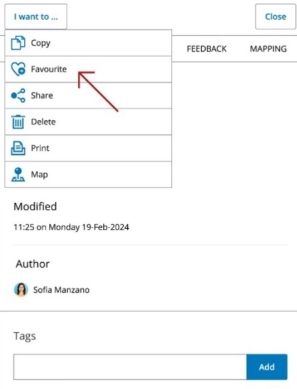
How to make an asset a favourite
To mark any asset or resource as a favourite, simply use the new ‘Favourite’ option in the ‘I want to’ menu.
Locating your favourited assets
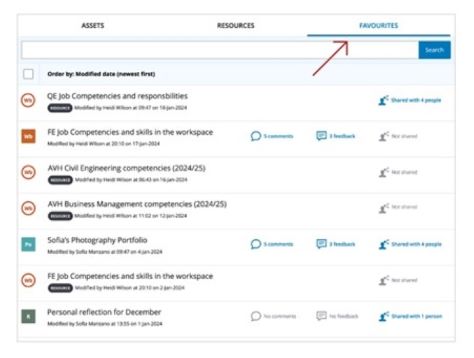
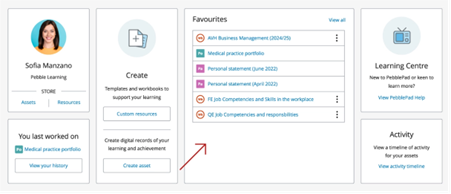
Once you have completed the above process, you will find your favourited assets in two places.
The first is via the Favourites tab in the Asset store, as pictured below:
The other way is via the new Favourites tile on the PebblePad dashboard:
While this feature will be useful to tutors, particularly those who are managing a large number of assets, it will be especially beneficial to students, so please feel free to share this blog post with your students who are using PebblePad.
We bring dire news form the North! Winter (or September at least) is coming! Do you have everything in place, ready for the Wildlings your students to arrive? Here is our checklist to help you survive prepare.
Have you enrolled on your modules?
As has been the case for the last few years, you will need to enrol on your modules via the Blackboard 2022-23 form, which you will find on the staff portal after signing in. Please allow 24 hours for your request to be actioned. Please note that course leaders also need to complete this step. If you are no longer a course lead but are still receiving enrolment notification emails you will need to let Registry know so that SITS can be updated.
There is also a Blackboard Access 2021-22 form still live on the staff portal. If you are taking over a module this year, it may be useful to enrol on last year’s module.
Have you transferred your content?
As ever, modules will be empty and you may want to transfer content from the 21-22 instance of the module. Do not transfer the Assessment page as assignments need to be set up afresh each year. Migrating assignments can cause serious problems in the grade centre of the new module, so it really is best avoided.
We run a range of courses designed to help you get the most out of Blackboard. These are published on the Staff Development Workshop page and will be advertised via our Twitter, blog and the staff newsletter.
If you require one-to-one training on a specific area of Blackboard, email us with details at TEL@worc.ac.uk
We use cookies on our website to give you the most relevant experience by remembering your preferences and repeat visits. By clicking “Accept All”, you consent to the use of ALL the cookies. However, you may visit "Cookie Settings" to provide a controlled consent.
This website uses cookies to improve your experience while you navigate through the website. Out of these, the cookies that are categorized as necessary are stored on your browser as they are essential for the working of basic functionalities of the website. We also use third-party cookies that help us analyze and understand how you use this website. These cookies will be stored in your browser only with your consent. You also have the option to opt-out of these cookies. But opting out of some of these cookies may affect your browsing experience.
Necessary cookies are absolutely essential for the website to function properly. These cookies ensure basic functionalities and security features of the website, anonymously.
Cookie
Duration
Description
cookielawinfo-checkbox-analytics
6 months
This cookie is set by GDPR Cookie Consent plugin. The cookie is used to store the user consent for the cookies in the category "Analytics".
cookielawinfo-checkbox-functional
6 months
The cookie is set by GDPR cookie consent to record the user consent for the cookies in the category "Functional".
cookielawinfo-checkbox-necessary
6 months
This cookie is set by GDPR Cookie Consent plugin. The cookies is used to store the user consent for the cookies in the category "Necessary".
cookielawinfo-checkbox-others
6 months
This cookie is set by GDPR Cookie Consent plugin. The cookie is used to store the user consent for the cookies in the category "Other.
cookielawinfo-checkbox-performance
6 months
This cookie is set by GDPR Cookie Consent plugin. The cookie is used to store the user consent for the cookies in the category "Performance".
viewed_cookie_policy
6 months
The cookie is set by the GDPR Cookie Consent plugin and is used to store whether or not user has consented to the use of cookies. It does not store any personal data.
Functional cookies help to perform certain functionalities like sharing the content of the website on social media platforms, collect feedbacks, and other third-party features.
Performance cookies are used to understand and analyze the key performance indexes of the website which helps in delivering a better user experience for the visitors.
Analytical cookies are used to understand how visitors interact with the website. These cookies help provide information on metrics the number of visitors, bounce rate, traffic source, etc.
Advertisement cookies are used to provide visitors with relevant ads and marketing campaigns. These cookies track visitors across websites and collect information to provide customized ads.