
PebblePad

New ‘Favourite’ Feature in PebblePad

As any PebblePad user will know, after working with the system for a while, the asset store can become cluttered with a large number of assets and resources. Sometimes, even with meticulous attention to naming conventions for your assets, it’s possible to lose sight of those few that you need to access often.

To address this, PebblePad have introduced a new ‘Favourite’ option, which allows users to access their most important assets more readily, either directly via the PebblePad dashboard or from the new Favourites section of the asset store.

How to make an asset a favourite

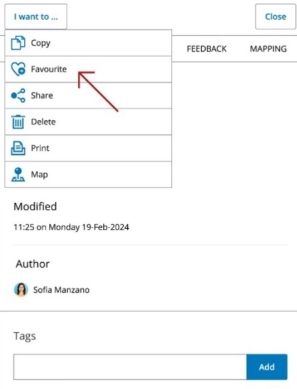
To mark any asset or resource as a favourite, simply use the new ‘Favourite’ option in the ‘I want to’ menu.
Locating your favourited assets

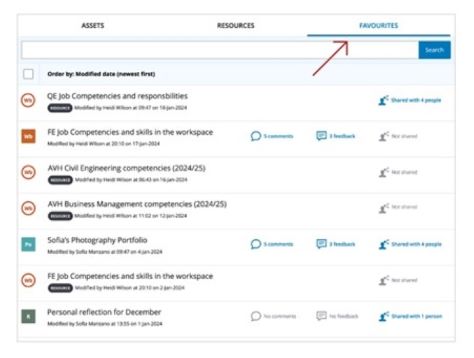
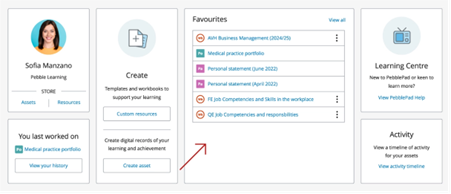
Once you have completed the above process, you will find your favourited assets in two places.

The first is via the Favourites tab in the Asset store, as pictured below:
The other way is via the new Favourites tile on the PebblePad dashboard:
While this feature will be useful to tutors, particularly those who are managing a large number of assets, it will be especially beneficial to students, so please feel free to share this blog post with your students who are using PebblePad.

New ‘Favourite’ Feature in PebblePad Read More »

PebblePad Alumni Accounts for students who are leaving the University. 

If you are a tutor who teaches students who are using PebblePad, you may want to remind your final year students that they can take a free PebblePad alumni account.  

Students who have used PebblePad during their studies may want to retain the work they have done for the purposes of CPD when they leave the University. They can do this by creating an alumni account, when they are about to leave the University. Work in the student’s University account will then be copied into their alumni account, and for this reason it is recommended that students do not create the alumni account until they are ready to leave. There is no charge for an alumni account for students. This guide provides further information about PebblePad Alumni accounts.

PebblePad Alumni Accounts for students who are leaving the University.  Read More »

Cookies and computer keyboard. 'Cookie' © By poko42

Important Changes to Chrome

Photo: ‘Cookie’ © By poko42

New Chrome changes and your use of online systems, including Blackboard VLE.

We recommend using Chrome or Mozilla Firefox browsers, when using the Blackboard VLE. However, you may be aware that Google Chrome have started testing a new feature, with the intention of protecting users from third-party cookie tracking. This will result in all third-party cookies being disabled, as a default setting. Initially a selection of Chrome users will be notified, but the intention is that all users will experience this change by the end of 2024.

Why you still need your Third-Party Cookies for the Blackboard VLE.

Third-party cookies are often used as an essential element for the functionality of different websites. Within Blackboard there are several integrated tools which require third-party cookies to be enabled. If you experience any issues with the Blackboard VLE, such as pages not loading correctly, even after a refresh – you may need to alter your third-party cookie settings.

How to change your settings:

  • Users who have been selected by Google Chrome, will have a notification, when they open their Chrome browser. If you are viewing the initial notification, it is possible at this stage, to click on the cog, to select and confirm your account third-party cookie choices.
  • Chrome users will be able to tell whether any cookies are active on a webpage, by looking for the ‘eye icon’ within the address bar, in the top right of the Chrome browser. If third-party cookies have been blocked, there will be a line through the eye. A click on the eye icon, will permit users to select and choose whether they wish to have third-party cookies enabled.
  • Alternatively, you can alter your Chrome account settings, as a whole, by selecting the three dots, in the top right-hand corner of the browser. A menu will appear, where you can select ‘Settings’ → ‘Privacy and Security’ from the left-hand side-bar menu, → then ‘Cookies and other site data’ to view all the possible cookie settings for your account.

To find out more, you make wish to read Google Chrome’s recent blog post:

https://blog.google/products/chrome/privacy-sandbox-tracking-protection/

Important Changes to Chrome Read More »

You CAN take it with you when you go

pebbles arranged decoratively with one of them holding a diploma

It will soon be time to say goodbye to your students, but this does not mean that they need to leave all of their university life behind. Students are entitled to a free Pebble+ Alumni Account, enabling them to take their portfolios and assets with them.

Information on how to do this can be found here but should not be followed until the course is completely finished – once the institution account is converted to an alumni account, it cannot be reversed.

You CAN take it with you when you go Read More »

TEL Workshops and Facilitated Discussions

Between now and the end of March, we will be running a series of online workshops to help staff get to grips with a range of learning technologies.  In addition to our familiar sessions, we will also be running five facilitated discussions covering topics such as moving tuition online, student engagement and best practice using PebblePad. Staff will have the opportunity to share their experiences and learn new approaches from colleagues, guided by members of the Technology Enhanced Learning Unit.


Blackboard Made Simple  25th January, 10.15 – 11.15 
Collaborate Virtual Classroom  27th January, 10:15  11:15am 
Using Tests and Surveys in Blackboard  3rd February, 10.15 – 11.30 
Blackboard Accessibility and Ally  5th February, 10.15  11.30 
Facilitated discussion – moving to online teaching: what works?  8th February, 11.15  12.15 
Camtasia  10th February, 10.15 – 11.30 
Using Blackboard for Blended and Mobile Learning  12th February, 10.15  11.30 
Recording from your Desktop using Panopto  17th February, 10.15  11.30 
Vevox Polling Software  19th February, 10.15  1130 
Facilitated discussion: Good practice with PebblePad  3rd March, 10.15  11.30 
Assessing student presentations online using Collaborate and Panopto  11th March, 10.15  11.30 
Facilitated discussion: approaches to online assessment 17th March, 10.15  11.15 
Facilitated discussion: recording teaching sessions tips and tricks  25th March, 10.15  11.15 

If you are interested in attending any of these sessions, please sign up via the Staff Development Workshops pages on the staff portal.

TEL Workshops and Facilitated Discussions Read More »
