Blackboard Learn Ultra

Turnitin Assignments and Submissions in Blackboard Ultra

Turnitin Assignments and Submissions in Blackboard Ultra

With assessment deadlines approaching, now is a great time to revisit our latest guides and resources for Turnitin assignments in Blackboard Ultra. Whether you are setting up submission points or grading student work, our updated guidance will help you navigate the process smoothly.

Setting Up Turnitin Assignments

Our updated Ultra manual includes the latest recommended settings for Turnitin assignments. We advise checking these settings to ensure everything is configured correctly before your students submit their work.

Grading Turnitin Assignments

In Blackboard Ultra, there is no longer a need to manually hide the Grade Centre column before marking begins—grades remain hidden until the feedback release date. However, if you are working with an older Blackboard module, you will still need to hide grades manually. Once marking is complete, grades are automatically posted on the feedback release date.

Supporting Your Students

You are welcome to share our Ultra Resources and FAQs with students to help them navigate the submission process. We have also created a Turnitin video tutorial, which provides a step-by-step demonstration.

Here are some quick tips to help address common student queries:

Resubmissions before the deadline: If the setting ‘Generate reports immediately (students can resubmit until due date)’ is enabled, students can submit multiple times. However, after the third upload, there will be a 24-hour delay before they receive a new similarity report.

Allowing late submissions: We recommend enabling this option. If a student submits before the due date, they will not be able to resubmit afterwards. However, if they miss the deadline, they will still be allowed a single attempt, which will be marked as late (in red).

Resubmissions and mitigating circumstances: If students require a resit or need to submit due to mitigating circumstances, a new Turnitin submission point must be created within the original module.

Grade visibility: Once grades are released, they will appear in the Blackboard Ultra Grade Centre, with a ‘Posted’ label indicating they are visible to students.

Final Checklist

To ensure a smooth submission process, consider reminding students about:

🔹 The exact submission point title and location within Blackboard.
🔹 Available student support resources as deadlines approach.
🔹 Our Turnitin video guide, which provides a clear walkthrough of the submission process.

If you have any questions, please refer to our updated guides or get in touch for support!

Turnitin Assignments and Submissions in Blackboard Ultra Read More »

Clapper board

Panopto Assignment Submission Points

Now there will be no need for tutors to take any additional steps when setting up a Blackboard assignment to enable Panopto functionality within Ultra. The assignments will work slightly differently to what was required in our original VLE. To create a submission point, a standard Blackboard Ultra assignment will enable students to submit text and attach files, or add Panopto video as content for their assignment. 

Our Blackboard Ultra Manual for staff has further guidance for video assignments and we have an updated Panopto Staff Manual

If you need to attach a rubric for any Blackboard Ultra assignments, please see further details here.

When your Students come to make a submission they will instead need to select the Panopto Submission Tool from the ‘Content Market’. We are recommending that lecturers provide students with details about the new submission process for Panopto assignments.

We have further guidance in our TEL Panopto Manual for students:

https://lttu.uk/support/Panopto/students/

The student manual includes details about how to create video using Panopto capture or PowerPoint, and information about how to submit / upload video assignments which have been recorded elsewhere. Students will need to access Panopto from their Blackboard assignment submission point to create or upload any work.

When using Blackboard integrations we recommend using Chrome as a browser and to check the permission settings for the Blackboard site, to ensure third party cookies are allowed.

If your students encounter any problems, the manual also has a troubleshooting section and where students can get help. We also have an additional Blog post for lecturers which includes Top Tips for your students when creating or submitting Panopto assignments in Ultra.

Please do not hesitate to contact us at TEL, tel@worc.ac.uk, if you have any questions or if you would like further support with Panopto.

Panopto Assignment Submission Points Read More »

Enrolling on to 24/25 Modules

As in previous years, you’ll need to enrol on each of your modules by completing the request form available on the staff homepage. After submitting the form, you should gain access to your modules within an hour.

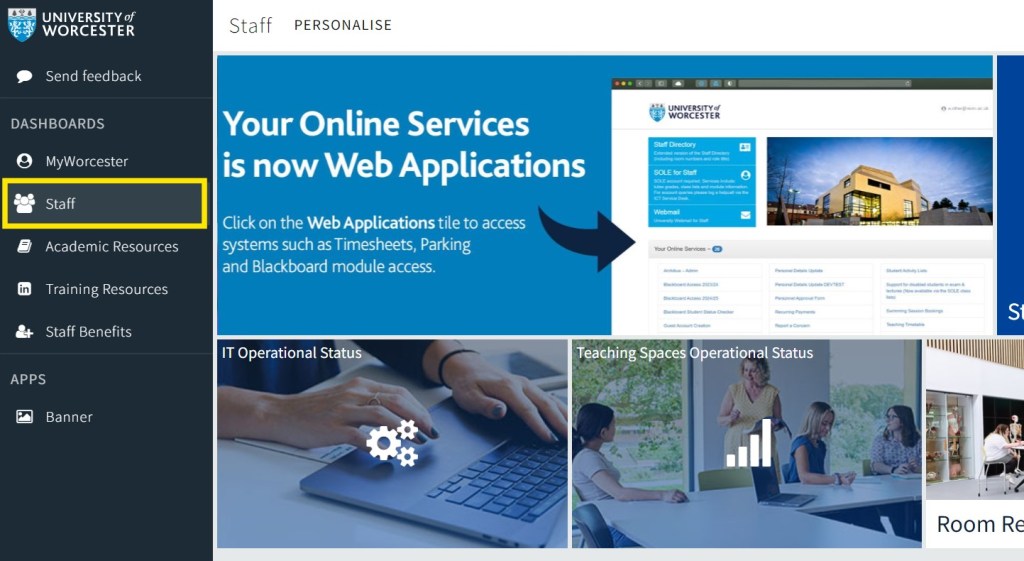
With the redesigned staff homepage, you can find the form by navigating to the ‘Staff’ tab on the left-hand side of the page:

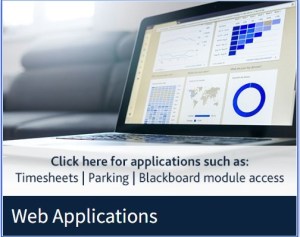
Selecting ‘Web Applications’:

Then choosing ‘Blackboard Access 2024/25’:

For new staff members or those taking on new modules, you can also access last year’s version of the module, by filling out the ‘Blackboard Access 2023-24’ form.

Enrolling on to 24/25 Modules Read More »

Migrating Panopto Video Content

Decorative image of laptop and action camera. technology, camera, sport-2125547.jpg

As we move to the new version of Blackboard ‘Learn Ultra’ ready for September, you may need to reuse older video content, from the ‘Learn 9.1’ system, in your new modules.

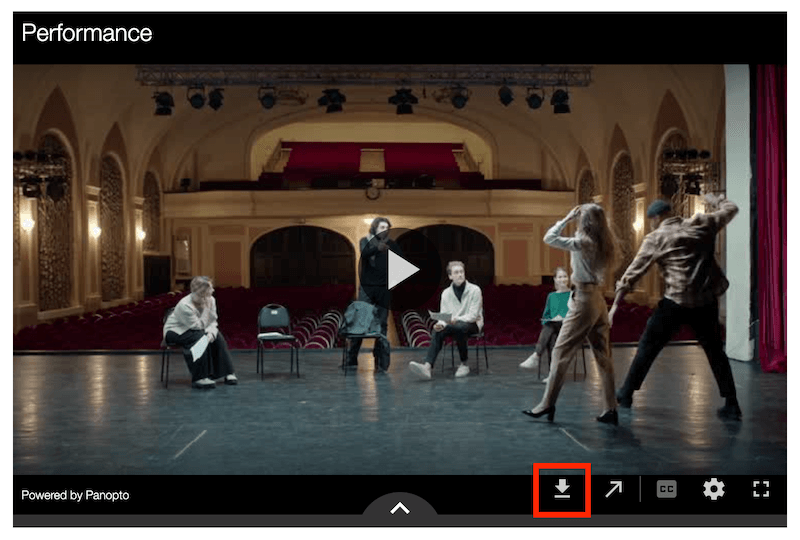
The easiest way to do this is to simply download the videos from the original module, using the download button:

This will save the video file to your computer. Rename the file if you wish, and then follow the instructions to add a link to Panopto from your Blackboard module. This will enable you to upload the video you have just saved, into the new Ultra module ready for use.

You can then add your video to a module document page, or embed it as a full-size video in the Content page.

*If you do not see the download button this means that the original uploader has removed this feature, and you will need to contact the TEL Team for further assistance: tel@worc.ac.uk

Migrating Panopto Video Content Read More »

Choosing the correct Assignment Submission Tool in Blackboard Learn Ultra

Collection of diverse thoughtful people. Six smart men and women thinking or solving problem.

Image by ©Rudzhan

Ensuring that you have chosen the correct submission tool for your students is essential to facilitate a problem free assignment submission experience and minimise stress for your students.

Turnitin Assignments

If you have a largely text based assignment, then Turnitin is the ideal software for this. Turnitin will provide an originality report to help identify sources throughout a student’s paper and is ideal for written assignments, such as, reports or essays.

Blackboard Assignments

For large files, multiple files, zip files, or files which contain mostly imagery, a Blackboard Assignment submission point is most suitable.

Panopto Assignments

If you are asking your students to produce a video or audio file, a Panopto assignment is most likely to provide the best experience for students, allowing them to create and upload videos directly in the Panopto system.

If you have any questions or would like any help with choosing a suitable submission tool for your students, please email TEL@worc.ac.uk in the first instance. The flowchart below summarises the most suitable assignment software for each submission type.

Flow diagram of assignment type choices. Essay/Report to Turnitin. Group; Exam/Test; Blackboard Tools goes to Blackboard Assignment. Portfolio/Practice Assessment to PebblePad. Audio/Video to Panopto.

Choosing the correct Assignment Submission Tool in Blackboard Learn Ultra Read More »

Panopto Video Support for your Students

video production, video, movie-4223885.jpg

Panopto is the University’s main application used for recording, storing, or sharing video content. This cloud-based platform permits students to record or upload assignments and to view live lectures. For Blackboard Ultra assessments students can:

Create and submit videos using Panopto Capture

Record PowerPoint presentations

Upload and submit their own video files (which they have created elsewhere)

Depending on the video assignment type, you can use the most suitable link above and share these with your students.

If you have not yet created an Ultra submission point within a module, please see a link to our Video assignment submission point set up guidance for staff below:

Blackboard Ultra Video Assignments Guidance

Sometimes students may encounter technical issues when using Panopto for the first time or when submitting video assessments. We would recommend communicating with your students the creation and submission process for any upcoming video assignments you may have in Blackboard Ultra ahead of a due date. To help with any potential queries from your students, we thought it would be useful to summarise some useful TEL tips:

Tips for Panopto Assignments

  • Students can refer to our Panopto Guide as this includes advice about the different uses of Panopto when creating or uploading to a Blackboard Ultra submission point, and helpful troubleshooting solutions.
  • When using Panopto capture to make an in browser recording, please see further help and guidance directly from Panopto below. Each step is clearly explained and there is also a short informative video, for Chrome users:

https://support.panopto.com/s/article/How-to-Create-a-Video-Using-Panopto-Capture

  • Ahead of using the Panopto integration, users should remember to check their browser’s ‘permission’ settings. For example, if Panopto is blocked from using a device’s camera or microphone, it will not be possible to make a recording. Settings can be changed to ‘allow’, through ‘Privacy and Security’ within Chrome. (These options can be accessed via the three-dot, kebab menu, towards the top right-hand corner of the window.)
  • For Blackboard video assignment submissions, students should ensure they follow the correct submission process carefully, with use of their assignment submission text box, the Insert Content button, and the Panopto Submissions tool in the Content Market.
  • Students should allow themselves plenty of time to make a submission ahead of a due date.
  • Chrome works well as browser with the Panopto integration, when making a Panopto / Blackboard assignment submission, so we recommend using this if possible. The Blackboard browser checker can also be used to troubleshoot.
  • If a connection times out because a large video file is being uploaded there are additional things for your students to try:
    1. Check their internet connectivity.
    2. When uploading to Panopto, they can help their computer process the data contained in a video file, by closing down any additional applications, such as, PowerPoint.
    3. Check the size and type of video file they are attempting to upload, and then contact the TEL Unit with this information so that we can assist them further.
  • After submitting their work, your students will be given the option to download an Ultra submission receipt for their records.
  • The most important action after a student has made an assessment submission, is to go back to the assignment submission point, to check that they can view their Panopto video. Students should be able to see their video embedded to the submission page.

If your students have any concerns or queries about Panopto or a video assignment submission, alongside making their module leader aware of any problems or contacting the IT Service, they are always welcome to contact us, at the TEL Unit, for further technical support, tel@worc.ac.uk.

Panopto Video Support for your Students Read More »

Blackboard Ultra Training – Additional Mop Up Sessions

calendar, agenda, online-7041843.jpg

The training programme for the new Blackboard Learn Ultra VLE continues apace, with the majority of academic teams now having received their initial training.

The TEL Unit has offered a selection of mop up sessions for those staff members who were unable to attend their main team session.  All of the original mop up sessions are now fully booked so, due to popular demand, two additional sessions will be offered in July. These will take place on:

Thursday 18th July, 09:15 – 12:15

Tuesday 23rd July, 13:30 – 16:30

Interested parties can sign up via the Staff Development Workshops on the Staff Portal.

Blackboard Ultra Training – Additional Mop Up Sessions Read More »

Blackboard Ultra Staff Training

Blackboard Learn Ultra Staff Training

Blackboard Ultra training is now underway and we are delivering sessions for departmental, course and school teams over the coming weeks and months.  Feedback from the early sessions has been very positive and colleagues seem to be leaving the sessions with more confidence and a clear plan of how to use the new system.

Additional Ultra Workshops

We recommend that colleagues attend their departmental sessions where possible, to collaborate on their modules and establish a unified approach. However, we appreciate that not everyone is able to make a particular date or time so we have arranged some extra workshops to enable academic staff, who are unable to attend their bespoke departmental training sessions, to participate and get training and support from the TEL team in additional generic workshops.

Workshops have been arranged for the 21st and 28th June, and the 30th July. You can sign up for these through the Staff Development Workshops booking system.

Further communication and information about how the project is going will follow in further updates.

Blackboard Ultra Staff Training Read More »

VLE Briefing Session: Blackboard Learn Ultra

In recent weeks, members of the Technology Enhanced Learning Unit have been actively visiting departments to conduct briefing sessions on the new system and the transition to Blackboard Learn Ultra. Alongside these, the TEL Unit have also organised several online sessions open to all staff members. These sessions have focused on introducing the new system, highlighting its features and functionalities, and offering updates on the practicalities of transitioning to the new system.

If you were unable to attend any of these briefing sessions, you can quickly catch up by watching a recording of one of the sessions provided here. This page also provides a visual overview of the timescale and milestones included in the move to Ultra.

VLE Briefing Session: Blackboard Learn Ultra Read More »

Book your training sessions for the new Blackboard Learn Ultra VLE!

'Book now' words contained in an image

With the new Blackboard Learn Ultra virtual learning environment now out of the pilot phase, it’s time to prepare for the upcoming rollout of live modules. This will ensure your Learn Ultra content and learning tools are set up successfully before the new semester begins in September.

Blackboard staff training sessions will be held for course teams from May through to the end of July. The training will cover best practices for designing your modules in the new system, as well as hands-on experience in building your new Learn Ultra sites. A course team training session will last for around 3 hours. We highly recommend having as many course team members attend as possible to facilitate consistent decision-making across the course.

Here’s what to do next:

  1. Consult with your course team to identify a preferred week for training.
  2. Contact the TEL team, tel@worc.ac.uk, with the following information to book your session:
    • Course that the training is for
    • Module codes the team will be using
    • Names and email addresses of attendees

The TEL team will then be in contact to confirm all the details, including which resources attendees should bring along, so that they can get started on creating their Ultra modules.

Be sure to book your training sessions early to reserve your preferred dates!

Book your training sessions for the new Blackboard Learn Ultra VLE! Read More »