Katie Gayton

Getting ready for the New Academic Year

As we prepare to welcome students for the new academic year, now is the perfect time to make sure your digital learning spaces are ready. Taking a few minutes to review your Blackboard modules, PebblePad resources, and online learning tools can help ensure a smooth start to teaching.

  1. Check what students can see when they access your Blackboard module

When students access your Blackboard module for the first time, they should be able to find key information quickly and easily.

Before teaching begins, it is beneficial to use ‘Student Preview’ to check what content is visible to your students. If you have been developing content over the summer, check that everything students need for the first few weeks has been made visible.

If you need to update the visibility of multiple documents and/or learning modules, you can use the ‘batch edit’ option to select all of the content you want to make visible.

  1. Check any links are working

Over the summer, resources can move, files may be updated, and links can change.

Before teaching begins:

  • Open key documents and presentations
  • Test external website links
  • Ensure embedded media still works
  1. Ensure PebblePad Resources and Workspaces are requested

If you use PebblePad as part of your module, please ensure you have requested a new resource for the upcoming academic year and for the workspace to be set up by the TEL unit, if you have not done so already.

It is particularly important to let us know if there are changes needed to your PebblePad resource, before it is made available to students.

At this time of year, enquiries can be high, so giving as much notice as possible is appreciated. Getting this done early means your students will have access to their PebblePad resource when they need it.

  1. Make sure you are familiar with Microsoft Teams for online sessions

From this academic year, online teaching sessions will take place through Microsoft Teams. If you are unfamiliar with Teams or would like a refresher, take a look at our previous blog post containing useful guidance videos. For additional support or training, please contact Digital Services.

  1. Reminders for student inductions
  • As part of your student’s induction week, ensure you check that students have access to their Blackboard modules. If they do not, it may be because they have not yet completed their registration. Information for students is available through our ‘Student Blackboard Ultra FAQs’ webpage.
  • You may also choose to share suitable links from our student support pages with your students.
  • Please also point out the ‘Alternative formats’ available to students on Blackboard, to support them with using your Blackboard pages. Information for students is available via our new Blackboard Ally guide for students.
  1. Plan your first Blackboard announcement

Announcements are a great way to establish communication with students and can be scheduled in advance.

Consider scheduling a message which:

  • Welcomes students to the module
  • Highlights where key information can be found
  • Explains expectations for the first week
  • Encourages students to get in touch if they have questions

Taking a little time now can make the start of the academic year smoother, clearer, and more welcoming for both staff and students.

Need support? The Technology Enhanced Learning (TEL) unit is here to help with Blackboard, PebblePad and digital learning tools more broadly. Get in touch if you need any advice before teaching begins. TEL@worc.ac.uk

Getting ready for the New Academic Year Read More »

Get Ready for Digital Accessibility Week

As we approach our first Digital Accessibility Week (1st – 5th June 2026), it is a great time to review the current accessibility of your digital learning resources. This is particularly important as you prepare to migrate your Blackboard module content for Semester 1. Reviewing your materials now can help you identify and address accessibility issues early.

How to check the accessibility of learning resources?

Blackboard Ally is a valuable tool for identifying accessibility issues within your content and providing guidance on how to improve it.

Many of the issues highlighted by Blackboard Ally can be resolved quickly. Our 5-minute fixes resource offers practical guidance on addressing commonly identified accessibility issues in documents using Blackboard Ally.

Top tips for digital accessibility

The TEL website provides further guidance and resources to support with improving the accessibility of documents and resources. Some key aspects to consider are:

  • Adding alternative (alt) text to images
  • Using high colour contrast to ensure text stands out from the background
  • Structuring content clearly using headings and sections
  • Keeping slides or documents easy to read by limiting text and using clear, readable font sizes
  • Using meaningful link text and file names to support navigation

Further support

For more information about the events throughout digital accessibility week, including TEL drop-in sessions, please see the website link below:

Digital Accessibility Week Website

Need help? Contact us at TEL@worc.ac.uk or book a 20 minutes with TEL appointment via our Microsoft bookings page.

Get Ready for Digital Accessibility Week Read More »

Planning Ahead: Moving Your Blackboard Class Collaborate Recordings to Panopto

You may be aware that conversations are currently ongoing about the future of Blackboard Class Collaborate and the move to Microsoft Teams for online teaching. While no final decisions have yet been confirmed, now is a good time to ensure that any Class Collaborate recordings you wish to keep are safely stored elsewhere.

To help safeguard your teaching materials, we strongly recommend downloading your Blackboard Class Collaborate recordings and uploading them to Panopto for future use. This blog post outlines the steps involved in the process.

What you will need

Before you begin, please ensure you have access to the following:

  • The Blackboard Class Collaborate session recordings that you wish to retain
  • A Panopto link added to your Blackboard module
  • Sufficient space on your computer to download and temporarily store the recorded files

If the Panopto LTI link is not already present in your Blackboard module, you will need to add this before uploading your recordings, which can be added through the content market.

Step 1: Download your Blackboard Class Collaborate recording

  1. Log in to Blackboard and open the relevant module.
  2. Click the three dots (⋮) next to Class Collaborate and select ‘view all recordings’.
Under Details & Actions - 'View all recordings' option shown within the 'Class Collaborate' three dot menu.
  1. Locate the recording you want to save.
  2. Click the three dots (⋮) next to the recording and choose ‘Download’.
  3. The recording will download as an MP4 file to your computer.
Drop-down menu options shown, with 'Download' highlighted.

Step 2: Upload the recording to Panopto

  1. Click on the Panopto website link within your Blackboard module.
Course Content - 'Panopto Website' link
  1. Navigate to or create a folder for the module’s recordings. You can use your existing module folder if this is already set up.
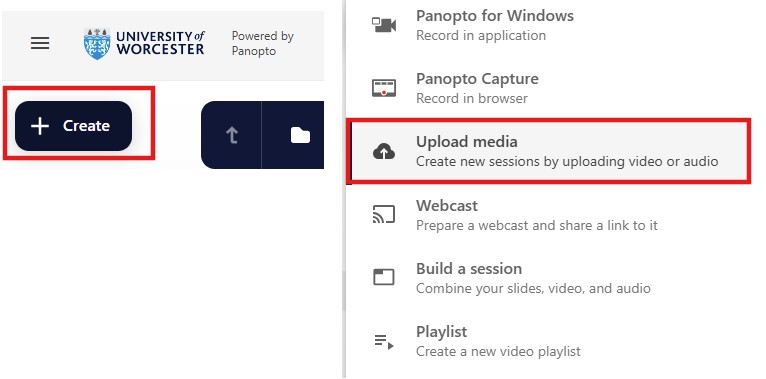
  2. Select Create > Upload media:
'Create' button shown on left and the 'Upload Media' option shown in the main menu on the right.
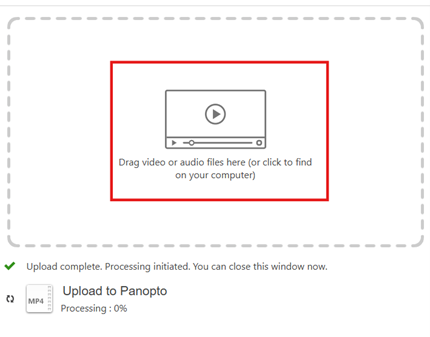
  1. Drag and drop the downloaded MP4 file or browse to select it.
Drag and Drop 'Upload to Panopto' window
  1. Wait for the file to upload and finish processing.

After your recording appears in Panopto, you may want to check playback to ensure the audio and video are correct.

Your recording will now be available in Panopto for students on the module to view.

We recommend completing this process before August, particularly for any recordings you may need again in the future. Once the future of Class Collaborate and Teams has been approved, we will communicate the outcome.

Need help or want someone to walk you through it?

If you would like support with downloading or uploading recordings, or advice on managing your Panopto content, please contact TEL@worc.ac.uk or book a 20 minutes with TEL appointment via MS bookings.

Planning Ahead: Moving Your Blackboard Class Collaborate Recordings to Panopto Read More »