
Ally

Get Ready for Digital Accessibility Week: See What’s Happening 
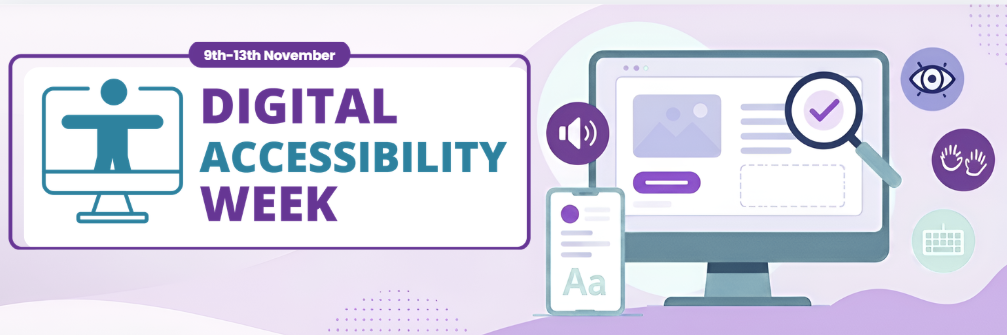
Digital Accessibility week logo, with a computer screen on the right.

We are less than two weeks away from our next digital accessibility week, taking place during the week commencing 9th November 2026.  

We are pleased to share the schedule for this year’s programme. Throughout the week, we will highlight tools and resources that help everyone create and access content more inclusively, with a particular focus on Blackboard Ally. Our student drop-in sessions will show students how to download alternative formats of their learning materials, so please encourage them to come along. 

Monday 9 November 2026

Blackboard Ally: Quick Wins for Fix Your Content Day (LDTE) – Microsoft Teams – 12:30-13:30 

Small changes can make a big difference to how students access and engage with learning materials. Join us to discover what Blackboard Ally offers students and learn some quick, practical ways to improve the accessibility of your own content ahead of Fix Your Content Day.

Student Drop in – St Johns Campus, Main Reception – 11:00 – 13:30 

Tuesday 10 November 2026

Fix your Content Day

Staff can take part from wherever they are or join us for the University’s fix-a-thon in EEG169 between 9:00 and 16:00. Drop in at any point during the day and help us make as many accessibility improvements to Blackboard content as possible. 

Wednesday 11 November 2026 

Student Drop in – The Hive – 11:00 – 13:30 

Thursday 12 November 2026

Student Drop in – St Johns Campus, Main Reception – 11:00 – 13:00 
Fancy a Cuppa – St Johns Campus, Firstpoint – 13:00-14:00 

Friday 13 November 2026

Student Drop in – Severn Campus, Elizabeth Garrett Anderson Building – 11:00 – 13:30 

Please encourage your students to attend one of the drop-in sessions, and we hope many University staff will join us for Fix Your Content Day. If you need support with Blackboard Ally before the event, please see our staff guide or contact the TEL team. 

Get Ready for Digital Accessibility Week: See What’s Happening  Read More »

Digital Accessibility Week and Blackboard Fix Your Content Day

Digital Accessibility week logo with dates 9th-13th November above, Image of a desktop computer and icons around this with a magnifying glass.

The week beginning 9th November will see the University’s second Digital Accessibility Week, organised by the Technology Enhanced Learning Unit to promote inclusive and accessible approaches to teaching and learning.

Building on the success of our summer event, which focused on supporting staff as they prepared their 2026-27 Blackboard modules, this year’s programme will place a greater emphasis on supporting students and raising awareness of the tools and resources available to help everyone create and engage with accessible content. In particular, we will be highlighting the benefits of Blackboard Ally, which provides alternative formats and accessibility guidance to support diverse learning needs.

Throughout the week, colleagues from the TEL Unit, Library Services and Student Services will be hosting a series of informal drop-in sessions across campus, offering advice, demonstrations and opportunities to learn more about digital accessibility. Further details of locations and timings will be shared shortly.

As part of the week, the University will also be taking part in Blackboard’s Fix Your Content Day on Tuesday 10th November. This global event brings institutions together in a friendly competition to improve the accessibility of digital learning materials using Blackboard Ally.

To support staff who would like to get involved, the TEL Unit will be hosting a Fix-a-thon Drop-in in EEG169 throughout the day. Whether you have a single document to review or are looking to improve an entire area of content, we will be on hand to help, with refreshments available throughout the day.

We hope you will join us in helping to create a more accessible and inclusive digital learning environment for all.

Digital Accessibility Week and Blackboard Fix Your Content Day Read More »

Using Ally to improve Accessibility in Blackboard

Image of 'Ultra Course Design Demo' page with Blackboard Ally report scores shown on screen, as graphs and data tables -with buttons to 'view' or 'start' fixing issues.

Making learning materials accessible helps every student engage with their module. Ally is built into Blackboard, to help staff find and fix accessibility issues in their content. It also lets students download materials in formats that suit them. We’ve written short guides for both.

For staff

Ally runs automatically across your modules, so there’s nothing to switch on. It checks the files you upload and the pages you build in Blackboard. Each item gets a score, shown as a colour-coded dial. Ally flags common barriers such as scanned PDFs, missing image descriptions, poor heading structure, untagged PDFs and low colour contrast.

There are two ways to see the feedback:

  • For a single item: 
    • Select the dial next to it. Ally explains the issue, why it matters for students and how to fix it; often without leaving Blackboard.
  • For the whole module: 
    • Go to Details & Actions > Books & Tools > Accessibility Report. This gives you an overall score and guided lists of the easiest fixes.

The score is guidance, not a grade. It isn’t a judgement of your teaching, and you don’t need to chase 100%. Start with low-scoring red and orange items, which usually cause the biggest barriers, and prioritise the content students use most.

Ally checks structure, not meaning. It can’t tell whether your alt text actually describes the image accurately or whether your writing is clear. A green dial means the building blocks are in place, not that the content is finished. The most effective approach is to build accessibility in from the start: Use heading styles, add alt text to meaningful images; check colour contrast and captions; and avoid scanned PDFs.

The staff guide sets out five steps to improve accessibility and includes a cheat sheet of common issues and quick fixes. There’s also a one-page quick guide to keep to hand.

What you can tell your students

Students can download Blackboard files and pages in alternative formats, including:

  • audio
  • ePub
  • HTML
  • tagged PDF
  • electronic braille
  • BeeLine Reader
  • Immersive Reader
  • a translated version

These formats are free and private, and tutors aren’t notified of downloads. They’re available to every student, not only those with a disability. Many students simply prefer to listen on the move or read on their phone.

You can help by mentioning this in your module welcome or an announcement, and linking to the student guide. Students should look for the alternative formats icon (an A with a downward arrow) next to a file.

Because the formats are generated from your originals, a more accessible original produces better alternative formats. 

Find out more

For help, contact the TEL team at tel@worc.ac.uk.

Using Ally to improve Accessibility in Blackboard Read More »