It will soon be time to say goodbye to your students, but this does not mean that they need to leave all of their university life behind. Students are entitled to a free Pebble+ Alumni Account, enabling them to take their portfolios and assets with them.
Information on how to do this can be found here but should not be followed until the course is completely finished – once the institution account is converted to an alumni account, it cannot be reversed.
With courses now in full flow, it is a good time to for a quick reminder on how to set up a Turnitin submission point. This is just an overview; further information and step by step instructions can be found on our website.
What is the process?
Turnitin submission points are created via the ‘add content’ option on Blackboard. At this point you can add the assignment name, instructions, maximum grade and the relevant dates.
Clicking on the‘Optional Settings’ will bring up additional tick boxes to customise the assignment to fit with University protocols. If you are unsure what any of the options mean, hover over the question mark icon and an additional text box will pop up to give clarifcation.
A newer feature that you may wish to use is the grammar checker. By ticking this option an additional report will be generated that allows you to view any grammatical errors in the submission. More information about this feature can be found here.
Rubrics
Before you save your submission point, you may wish to add a Rubric. These are completely optional and provide quick way of adding standardised feedback. Further information about how to import a rubric can be found here.
Ready to go
Your submission point is now ready to go and will appear as a link in Blackboard.
Things to remember
Students can resubmit work to the submission point as many times as they like until the due date.
After the 3rd upload, there will be a delay of 24 hours until the similarity report is received.
Once the due date has passed they will be unable to submit again.
Resubmissions, resits and mitigating circumstances will require a new Turnitin submission point.
Before you begin grading you will need to hide the Blackboard Grade Center column from students – otherwise they will be able to access their grades as soon as they have been entered. Instructions can be found here
Grades and feedback are automatically released to students on the Feedback Release Date and time through Turnitin.
Gud news U can now use the grammer and speling report on Turnitin!
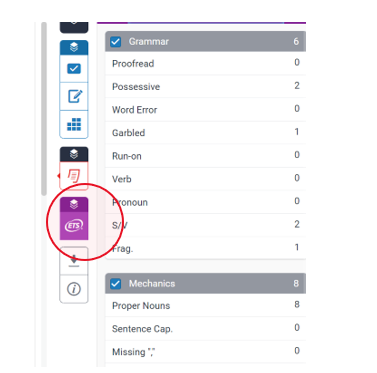
When creating a new submission point in Turnitin you now have the option to turn on additional spelling, grammar and punctuation checks. When activated, they will generate an e-rater® report that can be accessed by students and tutors in the same way as similarity reports.
How can I use this feature?
To enable the feature to be used you will need to check the ETS® e-rater® tick box when creating your submission point. This will generate an additional list of options.
When work is submitted and the report is generated, you will see additional options to view the e-rater® report. The results can be turned on or off from the right-hand panel.
If you have any questions about how to use this feature please email us tel@worc.ac.uk
We use cookies on our website to give you the most relevant experience by remembering your preferences and repeat visits. By clicking “Accept All”, you consent to the use of ALL the cookies. However, you may visit "Cookie Settings" to provide a controlled consent.
This website uses cookies to improve your experience while you navigate through the website. Out of these, the cookies that are categorized as necessary are stored on your browser as they are essential for the working of basic functionalities of the website. We also use third-party cookies that help us analyze and understand how you use this website. These cookies will be stored in your browser only with your consent. You also have the option to opt-out of these cookies. But opting out of some of these cookies may affect your browsing experience.
Necessary cookies are absolutely essential for the website to function properly. These cookies ensure basic functionalities and security features of the website, anonymously.
Cookie
Duration
Description
cookielawinfo-checkbox-analytics
6 months
This cookie is set by GDPR Cookie Consent plugin. The cookie is used to store the user consent for the cookies in the category "Analytics".
cookielawinfo-checkbox-functional
6 months
The cookie is set by GDPR cookie consent to record the user consent for the cookies in the category "Functional".
cookielawinfo-checkbox-necessary
6 months
This cookie is set by GDPR Cookie Consent plugin. The cookies is used to store the user consent for the cookies in the category "Necessary".
cookielawinfo-checkbox-others
6 months
This cookie is set by GDPR Cookie Consent plugin. The cookie is used to store the user consent for the cookies in the category "Other.
cookielawinfo-checkbox-performance
6 months
This cookie is set by GDPR Cookie Consent plugin. The cookie is used to store the user consent for the cookies in the category "Performance".
viewed_cookie_policy
6 months
The cookie is set by the GDPR Cookie Consent plugin and is used to store whether or not user has consented to the use of cookies. It does not store any personal data.
Functional cookies help to perform certain functionalities like sharing the content of the website on social media platforms, collect feedbacks, and other third-party features.
Performance cookies are used to understand and analyze the key performance indexes of the website which helps in delivering a better user experience for the visitors.
Analytical cookies are used to understand how visitors interact with the website. These cookies help provide information on metrics the number of visitors, bounce rate, traffic source, etc.
Advertisement cookies are used to provide visitors with relevant ads and marketing campaigns. These cookies track visitors across websites and collect information to provide customized ads.