
Sometimes it is necessary to carry out editing on a video of a teaching session that has been recorded using Panopto. This may be a section at the end, where you want to remove student questions for instance, or it could be during the middle of the session, where the video has continued running while you were having a break. Panopto has some simple but effective video editing tools, that mean basic editing functions can be applied easily and quickly to your videos. It also offers the advantage that all edits are non-destructive, so you always have the option to safely revert back to your original video.
To edit your video, hover over the video you wish to edit and select the ‘Edit’ icon.

On the video timeline, use the left mouse button to click and drag to select sections of the video you want to remove. Edits can be made at any point within the video timeline.
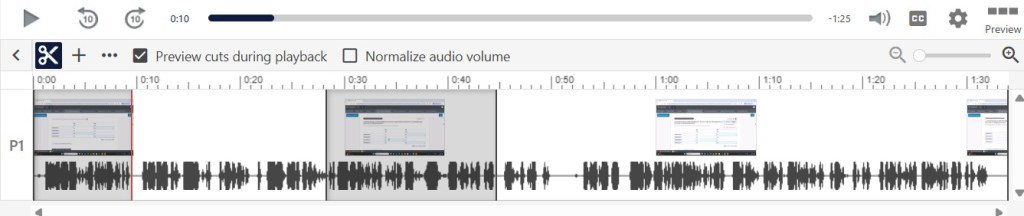
You can then play the video and the edited sections (shown in grey above) will not be included in your video.
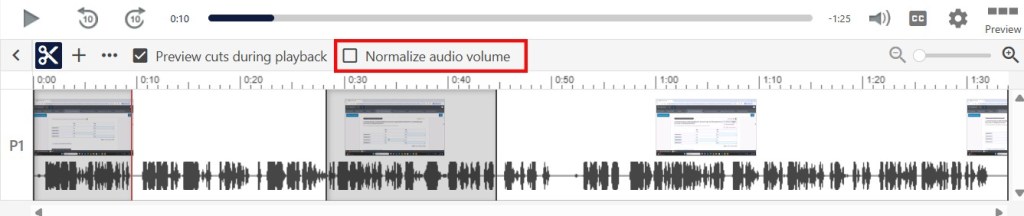
You can also normalize the volume levels across your audio. This increases the volume of the quieter sections of audio without clipping, making the entire audio track clearer.
Once you are happy you can click on the ‘Apply’ button at the top of the page.

For further information about editing in Panopto, please visit the TEL Panopto webpages: Staff Panopto Manual: Editing
