

It is now possible to generate Turnitin originality reports for standard Blackboard assignments. This allows staff and students to view originality matches directly within Blackboard while still using the standard Blackboard grading and feedback tools. (Turnitin Feedback Studio for grading is not currently supported). This may be useful if you would like to have one submission point for marking with Blackboard but need a Turnitin originality check, or track multiple attempts.
It is easy to enable this new functionality with your Blackboard assignments.
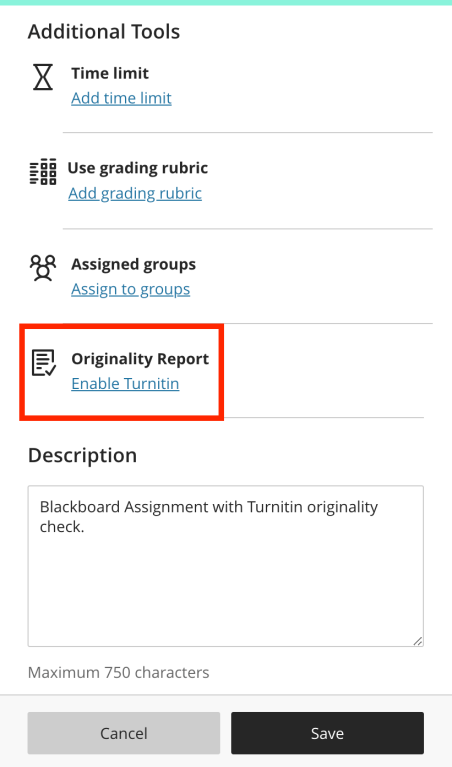
To do this, when setting up a new assignment, in the Additional Tools section, click the Enable Turnitin option:
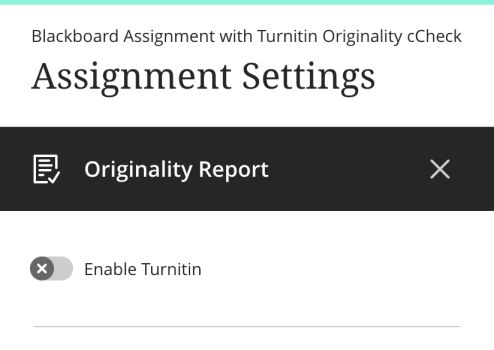
The integration will load, and you can then toggle the Enable Turnitin switch to the On position.
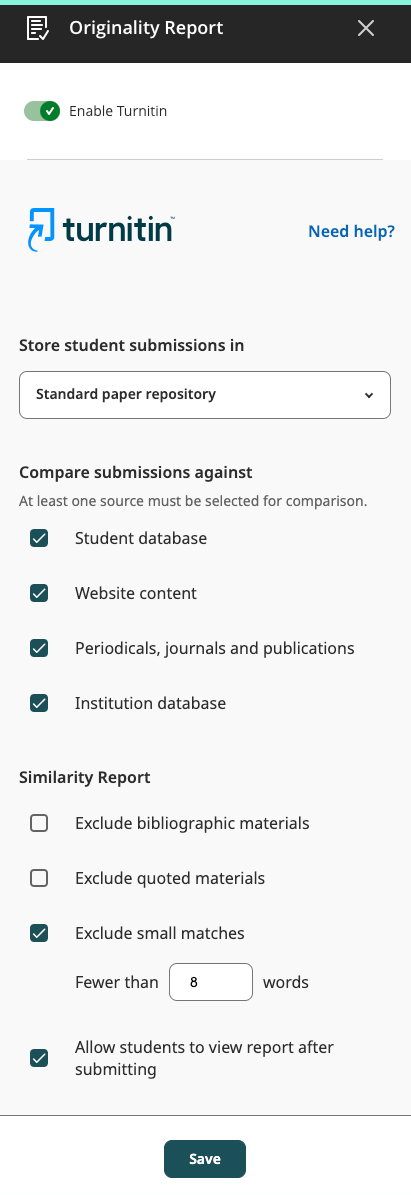
Select your Turnitin options as usual. Choose the Standard Paper Repository for summative work, or Do not store the submitted papers for formative. Select sources to check, and select the Similarity Report options as needed. Finally, click the Save button to finalise these settings. You can always return to these settings to update later if required.
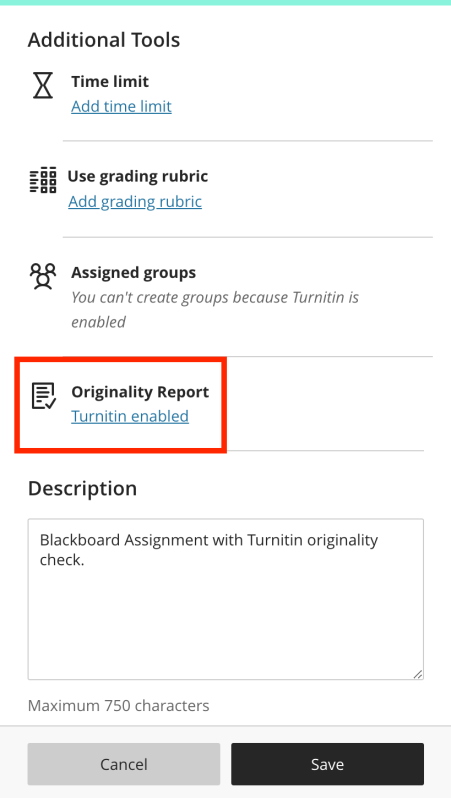
When you return to the Additional Tools section in the Assignment Settings, you should see that Turnitin has been enabled:
Once papers have been submitted and processing is complete, staff and students will be able to view the originality report by clicking on the originality percentage button:
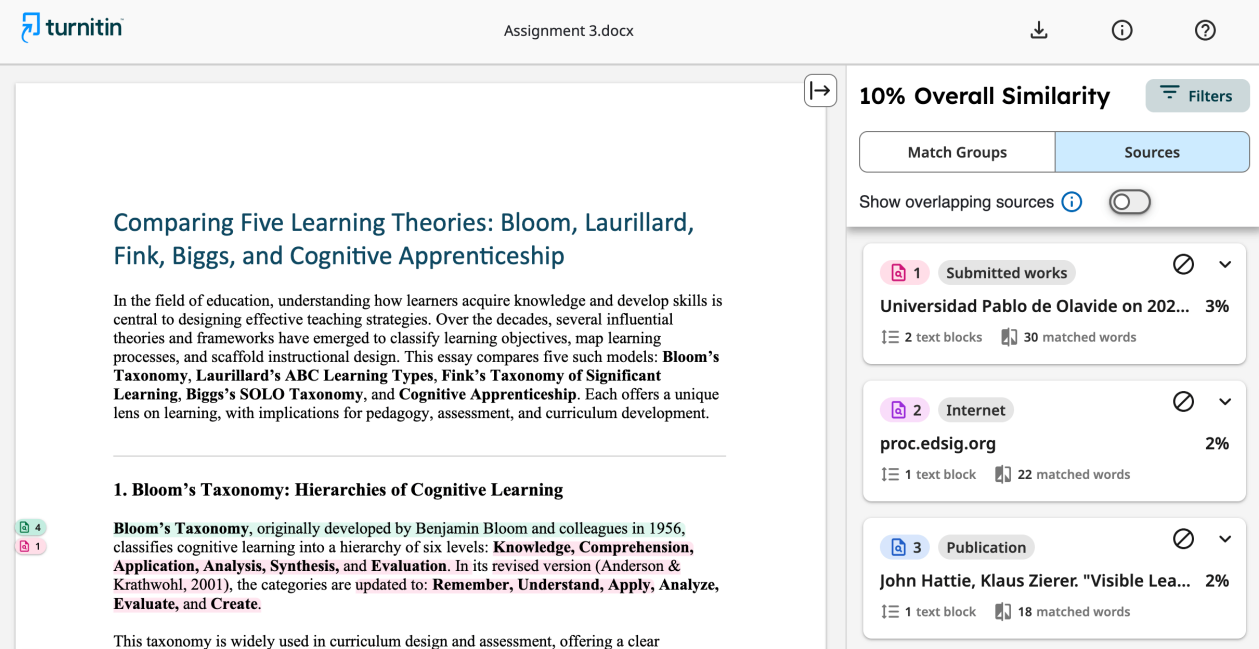
The Originality report will then load in a new tab using the updated Turnitin interface:
| Cookie | Duration | Description |
|---|---|---|
| cookielawinfo-checkbox-analytics | 6 months | This cookie is set by GDPR Cookie Consent plugin. The cookie is used to store the user consent for the cookies in the category "Analytics". |
| cookielawinfo-checkbox-functional | 6 months | The cookie is set by GDPR cookie consent to record the user consent for the cookies in the category "Functional". |
| cookielawinfo-checkbox-necessary | 6 months | This cookie is set by GDPR Cookie Consent plugin. The cookies is used to store the user consent for the cookies in the category "Necessary". |
| cookielawinfo-checkbox-others | 6 months | This cookie is set by GDPR Cookie Consent plugin. The cookie is used to store the user consent for the cookies in the category "Other. |
| cookielawinfo-checkbox-performance | 6 months | This cookie is set by GDPR Cookie Consent plugin. The cookie is used to store the user consent for the cookies in the category "Performance". |
| viewed_cookie_policy | 6 months | The cookie is set by the GDPR Cookie Consent plugin and is used to store whether or not user has consented to the use of cookies. It does not store any personal data. |
