
Alternative Formats – Blackboard Ally
Blackboard Ally allows you to download alternative formats directly from Blackboard. You do not need to install anything. To find out more, read our Ally Student Guide.


Where to get help
If you have any questions about using the Blackboard VLE please see our helpful answers and advice below to common student questions.
- You can access Blackboard from your MyDay page, using the Blackboard picture tile:

- If you have any issues with your university account access, Digital Services have the following help page for students:
Student Accounts, Passwords & Security
- Digital Services. also have FAQs for common account-based issues. If you need any further assistance you can contact them in the following ways: Help & Contacts
I’m a new University of Worcester Student
- If you are a new student, access to University systems is automatically granted after your registration is completed. Normally you will gain access to Blackboard up to 24 hours after your registration is marked as complete. Please see further details in the links below:
Welcome to the University: Before you arrive
Course Registration – Student Services – University of Worcester
How to access your Blackboard modules – Technology Enhanced Learning Unit
- If you have any registration issues please contact the student records team on 01905 855333 or studentrecords@worc.ac.uk. FirstPoint can also provide further support and advice for students: firstpoint – University of Worcester.
- Once registration is completed your modules will appear in Blackboard automatically but on occasion you may find that you are unable to see them.
- Firstly, check that your registration process is complete and that you have ticked the relevant modules in SOLE.
- If you have any registration issues please contact the student records team on 01905 855333 or studentrecords@worc.ac.uk. FirstPoint can also provide further support and advice for students: firstpoint – University of Worcester.
- Once fully registered it can take up to 24 hours for the modules to appear in Blackboard. For existing students, new module selections also take up to 24 hours to come through to Blackboard from SOLE.
- Please be aware that shortly before semester 2 commences, your S2 and S3 modules will appear in Blackboard – as long as your modules are listed within SOLE.
- If your modules are still not visible, you can check your Blackboard ‘Courses’ page, by using the search bar and filter settings.
- Finally, if you are still having problems contact tel@worc.ac.uk as we can check your Blackboard account for you.
- However, if you do not have access to your University of Worcester student account (which gives you access to all University systems) we recommend contacting Digital Services for further support. You can reach them in the following ways: Help & Contacts – IT Service
- First of all ensure that these modules are no longer appearing on your SOLE record.
- Then contact TEL tel@worc.ac.uk, who will be able to remove your modules from your account.
- It is important that your modules are no longer showing on SOLE before contacting TEL as any modules which still exist on SOLE will be automatically re-added to Blackboard.
- However, please note, that if you have any completed assignments within your older modules, we will not be able to remove these.
As your tutor sets up the content on your module, they can advise you as to where you can find any resources or information you need. Furthermore, it may be that they need to release the content to students.
- Firstly, the browsers we recommend when using Blackboard, are Chrome or MS Edge.
- Within Blackboard there are several integrated tools which require third-party cookies to be enabled for the webpage. These include Panopto, Turnitin, Collaborate and PebblePad.
- If you experience any issues with the Blackboard VLE, such as pages not loading correctly, even after a refresh – you may need to alter your third-party cookie settings in your browser.
- You can add the Blackboard VLE in your browser settings as a website ‘exception’ https://worcesterbb.blackboard.com
- The Blackboard browser checker will also help to confirm that your settings are correct.
- In addition, you can also check your internet connectivity or try clearing the cache on your browser (Ctrl+Shift+Del keys – you may wish to unselect clearing any saved passwords).
Please do not hesitate to contact TEL tel@worc.ac.uk, or Digital Services if you require any further support.
Blackboard have the following video which goes through all the steps for a Blackboard assignment submission: Submit an assignment
Please be aware that there is a file size limit for Blackboard submissions. If you have a video or audio submission, the Panopto Submission Tool is used instead, through the ‘+’ Insert content button, ‘Content Market’: Please see our Panopto Guidance for students
We recommend contacting your module leader if you have any questions about your assignment requirements.
If you need any technical assistance, you can also contact the TEL Unit tel@worc.ac.uk
Your tutor should be your first point of contact, however, you can also access support via Firstpoint’s dedicated assessment support page. Once you have contacted your module leader, if you need any further technical assistance, please do not hesitate to contact tel@worc.ac.uk. We also have some common assignment FAQs below for students.
Help with accessing grades can be found in the linked Blackboard guidance pages.
Panopto is the main video application used by the University.
We recommend using Chrome for Panopto assignments and to allow yourself plenty of time ahead of the submission date to prepare your assignment.
- Please see a link to our Student Panopto Guide for further information.
https://lttu.uk/support/Panopto/students/
- We also have a Panopto Student FAQs page which includes extra help and guidance: Panopto Student FAQs
How do I access Panopto to submit a video?
- You will need to find your Blackboard assignment submission point, then use the plus ‘+’ Insert content button, to find the ‘Content Market’ and the ‘Panopto Submission Tool’ in order to access Panopto. (N.B. You will not be able to use the app or log into the Panopto website directly to submit.)
Different types of Panopto assignments
- If you need to firstly create your video using ‘Panopto Capture’, please see further directions here.
- If you need to create a PowerPoint Presentation video our manual has these instructions. You can then Upload and submit the MP4 file version of your presentation.
- If you need to upload a video which you have recorded elsewhere, our student guide has these steps for how to make a submission.
If you encounter any problems, we recommend contacting your module leader in the first instance and we will also be happy to assist you with any technical issues at TEL: tel@worc.ac.uk
- Our Student Panopto Guide also has further troubleshooting guidance and recommendations about where to get help for video assignments.
We have a PebblePad Student Support page, with guidance and FAQs: https://uwtel.co.uk/pebblepad-student-faqs/
A Turnitin submission point will allow a single late submission, if you have not submitted before the due date. If you have uploaded any files prior to the deadline date then that will become your submission when the deadline date is passed. No further files will be accepted.
If you need to make a submission for a ‘Reassessment, Resit or Mitigating Circumstances’ your module leader will need to create a new submission point for you.
If you have been granted mitigating circumstances, your tutor will need to create a new submission point for you.
Your tutors have ownership of assignment submission points, so you will need to contact them if you are unable to locate a submission point. Your module leader will need to create a new submission point for reassessments. They will be able to confirm the location or create a new submission point for you.
When using Blackboard we recommend Google Chrome or MS Edge web browsers. Safari, Internet Explorer or Brave are NOT supported. You should try to resubmit your assessment, using Google Chrome or MS Edge. You can also check your browser’s compatibility using the Blackboard browser checker. You can use this to ensure your browser’s security and cookie permission settings allow the full functionality of the Blackboard webpage.
You can view Submissions and Feedback for a Blackboard Assignment in different places.
How do I download my original assignment from Blackboard?
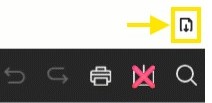
If you only need a copy of your original file you can select the smaller download document icon, above the tool bar options:
How do I view and download my Written Feedback?
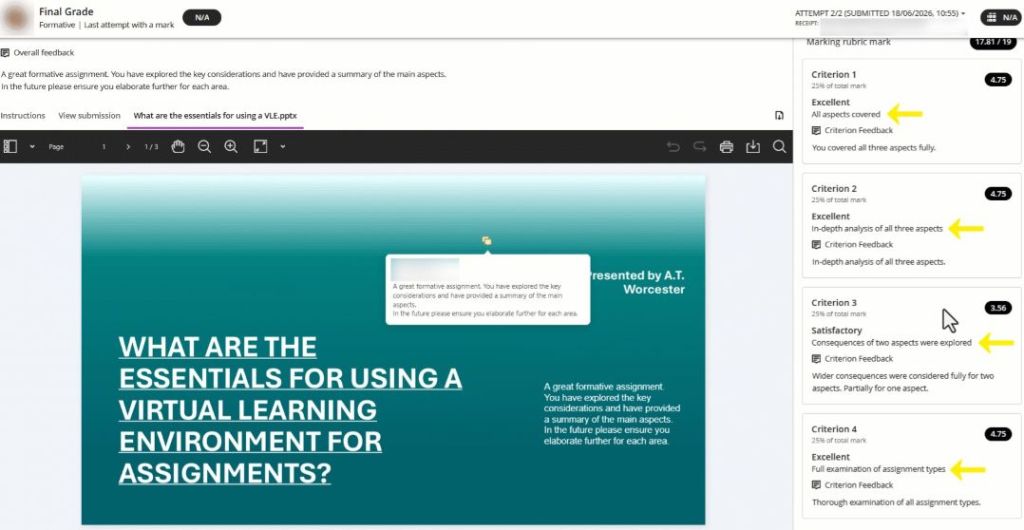
Please see the most common written feedback types in the labelled image below:

In the right-hand Feedback Panel, you may see:
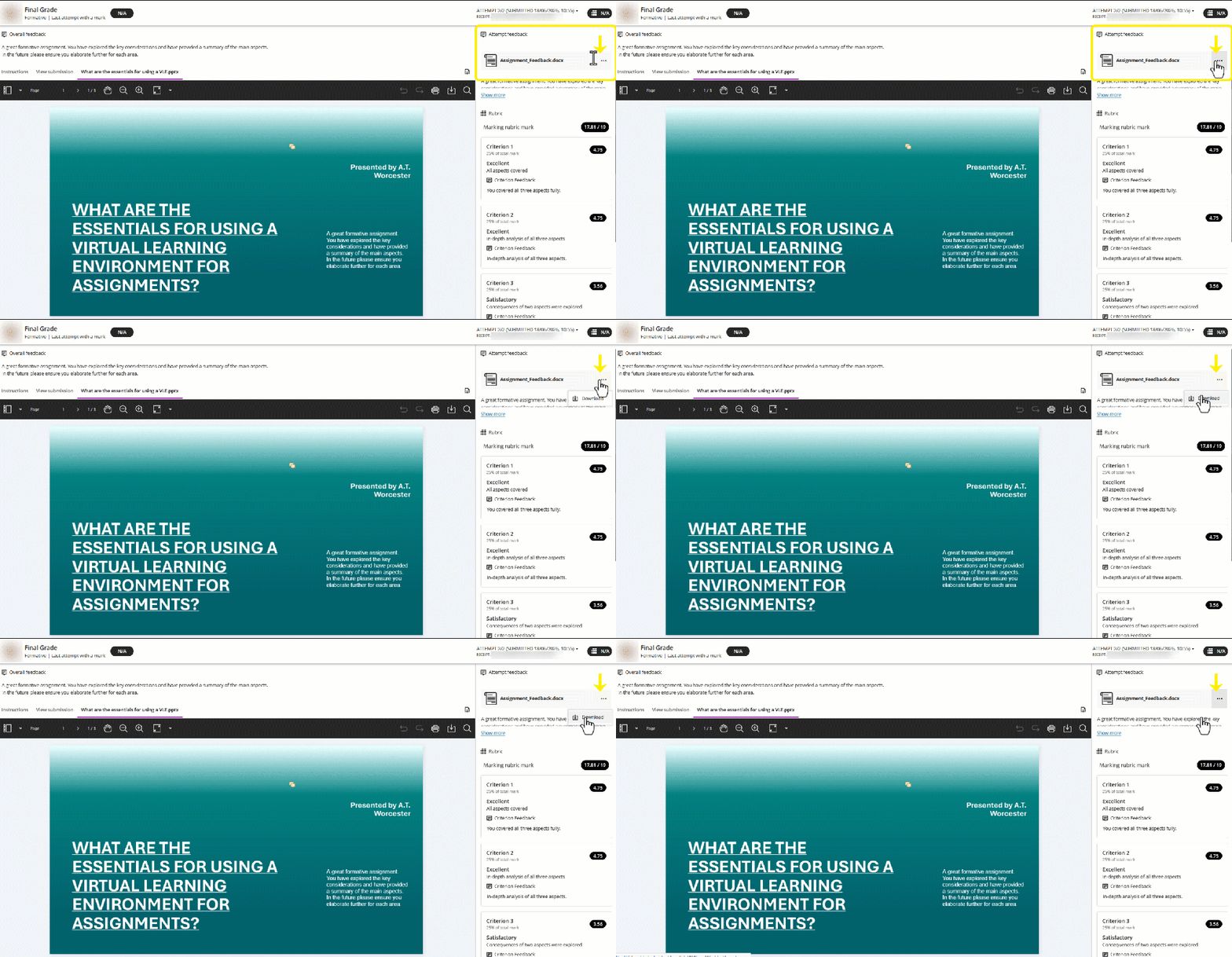
- An Attached File – Select the three dots to show the document download icon, and click to download a copy to your device:
- Overall Feedback – You can click ‘Show more’ to see comments in full.

- Rubric and comments – View this feedback in the panel, by scrolling down.
Within your Assignment / the on screen document view:
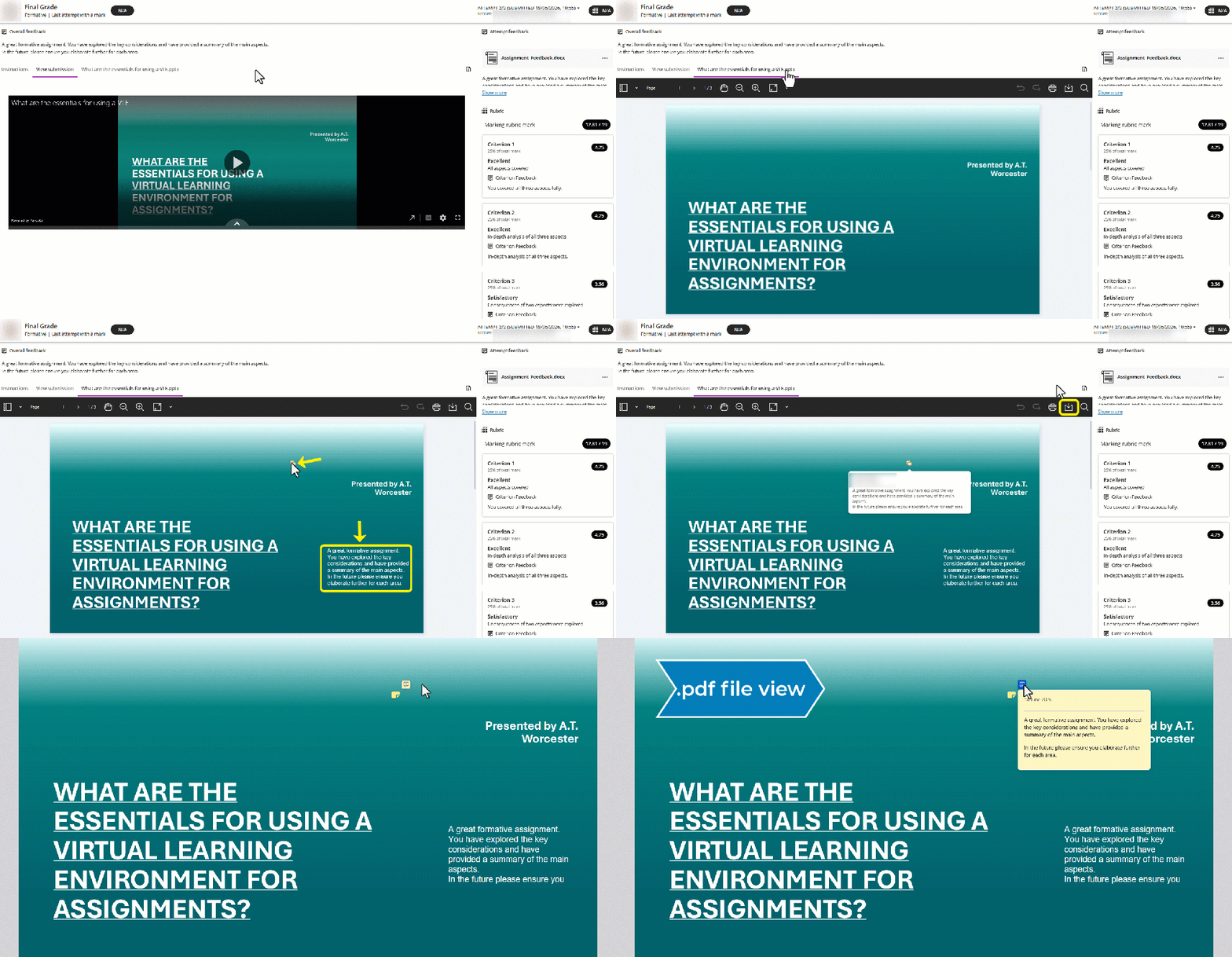
- Document Annotations and Comments
- Comments can show as a Speech Bubble / Callout
- Or as typed text
4a and 4b- Comments / annotations are included in a .pdf download of your work. Clicking on / hovering over the speech bubble reveals comments. You can select the large download arrow in the tool bar options to get a .pdf file copy of your work and feedback:
Audio or Video Feedback
Sometimes, tutors may include Feedback Recordings. (It is not possible to download recorded feedback from Blackboard.)
Downloading Blackboard Assignments with Turnitin enabled
Blackboard assignments can have Turnitin enabled. You can download feedback in the same way. Please see Turnitin’s guidance for how to view your Turnitin similarity report in Blackboard.
Why can’t I download certain feedback or files?
- 1. Overall Feedback
- 3. Rubric comments Feedback
For other written feedback, it is not possible to download a copy straight from Blackboard. You could instead copy and paste tutor comments into a new document on your computer. Or take a screenshot for your own records to store outside of the VLE.
- Embedded Video Assessments
Embedded video assignments are not stored in Blackboard, so cannot be downloaded from here as they are held in Panopto.
Further support
Please contact your tutors if you cannot see your work or feedback, but please also feel free to contact TEL for technical support: TEL@worc.ac.uk
You should be able to upload as many resubmissions as you wish up until the due date is reached. You should contact your module leader in the first instance if you find you are unable to resubmit before the due date, as they may need to change the assignment settings. You can also access our TEL Turnitin student support page for additional technical support or contact tel@worc.ac.uk, providing us with the module code and assignment title. We can assist you and your module leader from a technical point of view.
As long as you are submitting before the deadline, you can simply resubmit, and your new submission will replace the incorrect version.
If the deadline has passed, you will not be able to resubmit. In this instance you can speak to your tutor who will be able to advise. It will be at their discretion whether they wish to permit you a further late submission.
Providing that you are submitting an improved/amended assignment to the same Turnitin submission point, or within the same module, Turnitin will not match this as self plagiarism. However, you cannot submit the same file for a different assessment, that would be classed as ‘self plagiarism’ and Turnitin would return a high similarity report score.
There is no specific threshold for similarity scores. As some assignments use a template document, these may produce higher scores. If you are concerned about your similarity score please contact your tutor.
Access uploaded work through a Turnitin submission link in Blackboard. You can select your assignment title to review your work.
After the feedback release date, students automatically see any tutor feedback (Classic View) as well as a grade. You can also view rubric comments if one has been used (Classic view). You can view everything from within the ‘Feedback Studio’.
Downloading from Turnitin – Feedback Studio View
Once you have opened your assignment, ensure you have the feedback and similarity layers activated. (You can use the blue and red buttons on the right.)
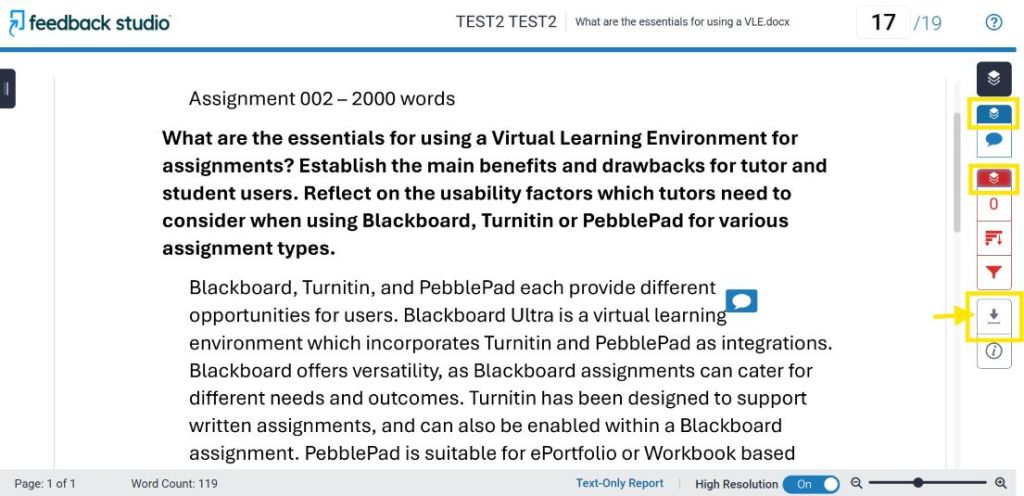
Then click the grey download arrow to show the different options to select:
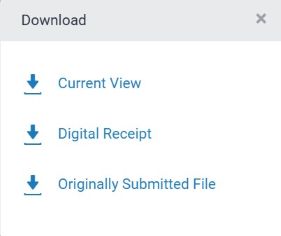
Current View
This will download as a .pdf file document
Digital Receipt
Shows the time and date of submission
Originally Submitted File
Your work as you uploaded it
We recommend choosing to download the Current View with layers showing, if you would like a copy of your assignment, similarity matches, grade, and feedback.
The downloaded ‘Current View’ .pdf file will contain:
- Submission details
- Your Assignment
- Originality Report (Similarity checks)
- GradeMark Report (Grade and Feedback comments)
Your feedback and grade can be found at the end of the .pdf document:

