Getting Started with Blackboard Learn Ultra

Blackboard Learn Ultra is designed to elevate the teaching and learning experience for university staff and faculty. Built with intuitive tools and robust features, Ultra empowers educators to create dynamic, engaging courses that foster active participation and meaningful interactions with students. Its streamlined interface and comprehensive support equips Tutors with the tools they need to deliver personalised, impactful instruction whilst fostering a collaborative learning environment. 

For optimal performance, we recommend using either Mozilla Firefox, Google Chrome or Microsoft Edge browsers, which you can download and install for free.  

The Blackboard Ultra Manual

Access the manual for help and information in using the University’s main VLE, for course content, tools and assessment.

Learn Original v Learn Ultra Terminology

For staff who are familiar with the original Blackboard Learn, there are a few changes with the terminology. 

The tabs below highlight some of these changes. Additional information can be found by following the links in the Ultra column. 

The Basics

Base Navigation

This area will be familiar to current users as it has been in use at Worcester for some time.

The menu consists of:

Institution Page – Useful University links

Profile – Click on your name to view and edit your profile information.

Activity Stream – The latest updates for all of your courses. Click on the shortcuts to open.

Courses – Access all past, present, and future courses.

Organisations – Only visible if you are enrolled within an Organisation

Calendar – View course events and due dates for all your courses. Use the settings icon to decide which calendars are displayed here.

Messages – View and send messages across all of your courses. Messages are organised by course.

Grades – See what needs grading across all your courses. Links directly to the Gradebook.

Your Personal Profile

Updating your personal profile can enable your students to feel more engaged with you and the course. You can add a photograph as well as your preferred pronouns and a sound file for the pronunciation of your name. 

You do not have to complete all of the fields – just the ones you are comfortable with.

highlighted text showing location of privacy settings

Navigating your Course

There are three main areas in an Ultra Course:

  1. Navigation Menu
  2. Details and Actions
  3. Course Content

1 Navigation Menu

From this menu you can access the different areas within the course. 

Content is the default landing page. 
Calendar – Use the course calendar to provide students with dates for course-related events. Course calendar events appear to all members of the course.  Course items with due dates appear automatically in the course calendar. 
Announcements – all announcements can be created and viewed here
Discussions – all discussion boards created anywhere within this course can be located here. 
Gradebook – this replaces the Grade Centre. This is the access point to view, mark and manage all assessments in the course.
Analytics – this provides information and reports for student activity and engagement. It is not visible to students.
Groups – create, view and manage groups from this tab

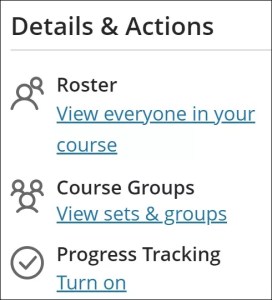
2 Details and Actions

  • Class register – List of staff and students enrolled on the course. 
  • Progress Tracking – Allows students to see which materials they have accessed and choose to mark them as completed.  Instructors can see what students have accessed. 
  • Course Image – Set the image for the course banner, see our guide on Course Image.
  • Course is open – Make your course open or private to students. A course cannot be made private once the term has begun.
  • Class Collaborate – Opens a Collaborate course room, a permanently open Collaborate session. Future sessions can be scheduled here.
  • Books and Tools – Shows a list of tools integrated with Blackboard (e.g. Talis, Turnitin, PebblePad). Access the Ally course accessibility report from here.
  • Question Banks – View and create pools of questions for a Test or Assignment

3 Course Content Area

  • Search function – search for content within the course.
  •  Resources and Learning materials can be added and edited.
  • Student preview – use this function to view your course as a student.  
  • Batch edit – items within the course can be made available and unavailable at a module, folder or individual item level.

Student Preview

Student Preview is a valuable tool to enable tutors to view the course materials from a student’s perspective and to check that all relevant items are visible. It is accessed via this icon:
When you enter Student Preview mode, a temporary course member is created. This allows you to experience the following as a student:

  • Submit assignments
  • Take tests
  • Download and upload files
  • Participate in conversations
  • Participate in discussions and journals
  • Send course messages
  • View grades as a student
  • Experience group membership

You can return to the tutor view at any time. For example, you may find some content to update. When you exit student preview you can choose if you want to save or delete the preview student and data.

The delete option removes the preview user and data from these areas:

  • roster
  • gradebook
  • gradebook filter
  • messages
  • messages recipient
  • discussions
  • journals
  • conversations

If you choose to save your preview user data, your preview user appears in the roster and is visible to all students enroled in the course. The username is your username appended with _previewuser.

Your preview user activity isn’t included in analytics and course reports. Other students can interact with your preview user.

Student Tracking and Student Progress

Turning on this function will enable you and your students to keep track of what they have done in the course. 

This option can be turned on or off at any point and if you turn it on after the module has started, it will retroactively mark items as complete. 

  1. Select Courses from the Ultra navigation menu.
  2. Select a Course.
  3. Under Details & Actions > Progress Tracking, select Turn on. 
  4. After the Progress Tracking panel opens, switch the toggle from off to on.
  5. Save your new settings. 

Your students will now see their progress in the course. All content displays an icon showing a student’s progress. When all content in a folder or module has been completed, the entire folder is automatically marked as complete.

For items that are submitted, the Progress icon turns to a green checkmark to indicate that the item is completed. If the item does not have a submission option, such as an Ultra Document, students  will have to mark the item as complete themselves.
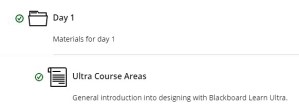
 

The Progress tab allows you to monitor each student’s progress in a course, showing both completed and incomplete tasks. To access this tab, select Progress within a student’s Student Overview. Further details on the Student Overview and how to navigate to it, click here to go to the Blackboard support page.

The content displayed in the Progress tab is subject to content availability settings. By default, the filter is set to show content Visible to students. To view all content, including those not visible to students, select All from the Content availability dropdown menu. Items not visible to students are marked with a lock icon.